Terms & Conditions, Privacy Policy & Refund Policy
Open Studio → Website → Details → Legal & Billing.
Heading: Legal & Billing. Subtitle: Policies for your public website.
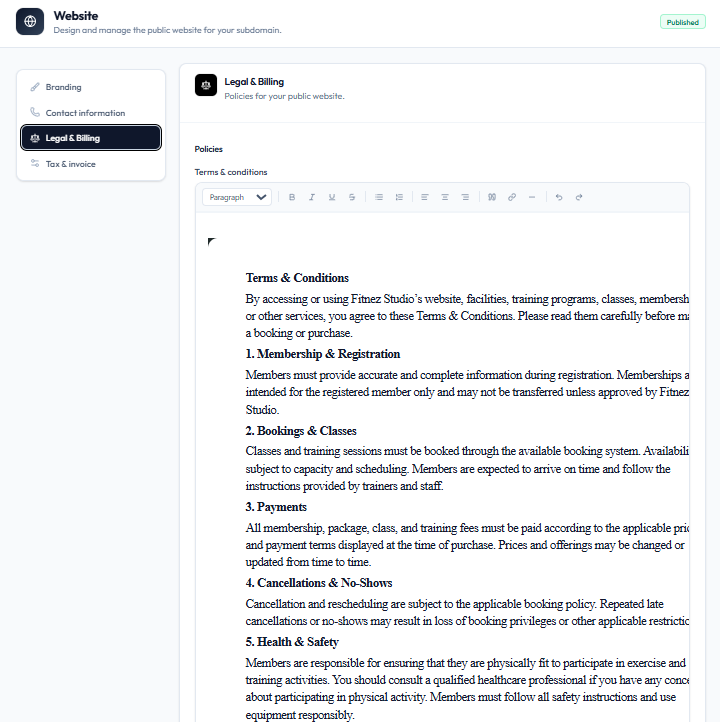
Policies on Screen
Under Policies, the capture shows Terms & conditions in a rich text editor.
Toolbar includes paragraph style, bold, italic, underline, strikethrough, lists, alignment, blockquote, links, images, horizontal line, undo, and redo.
Example content on the capture covers membership, bookings, payments, cancellations, and health & safety for Fitnez Studio.
Separate Privacy Policy and Refund Policy editors are not on this screenshot. Only Terms & conditions is shown under Policies. This help centre does not give legal advice — use wording that fits your own legal requirements.
Steps
Step 1 — Open Legal & Billing
Studio → Website → Details → Legal & Billing.
Step 2 — Edit Terms & conditions
Update the text in the editor. Format with the toolbar as needed.
Step 3 — Save
Save Details, then check that visitors can open the policy on the public site.