Reordering & Editing Website Sections
Open Studio → Website → Sections.
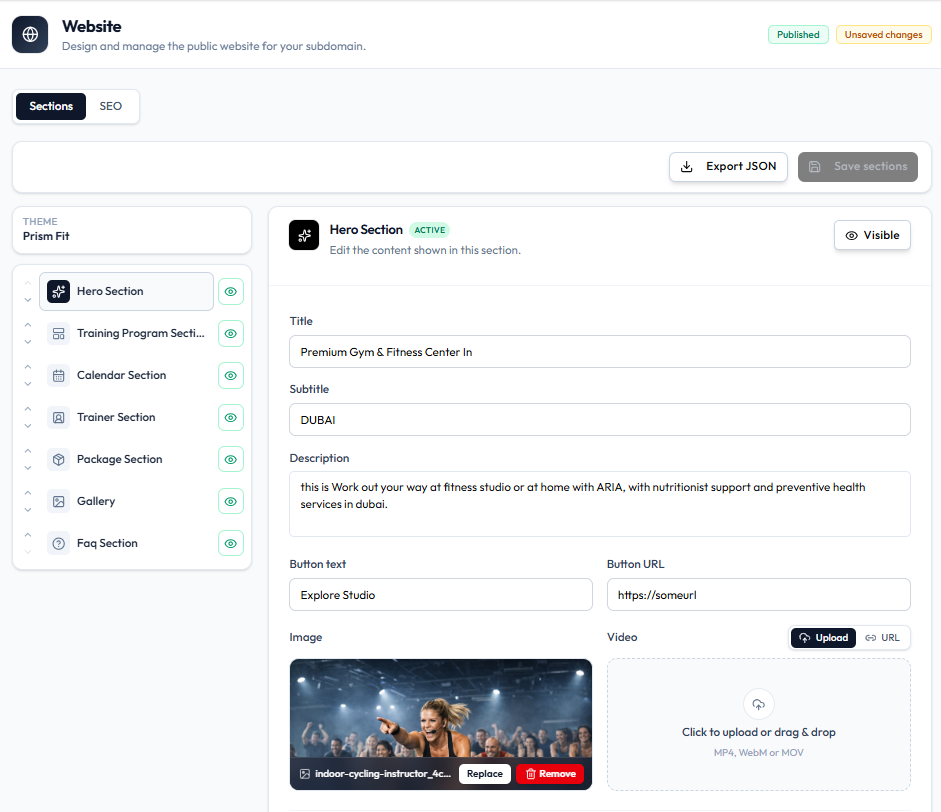
The left list order is the order of blocks on the public page. On the capture:
Hero Section → Training Program Section → Calendar Section → Trainer Section → Package Section → Gallery → FAQ Section
Reorder
Each section row has a drag handle (up/down arrows). Drag a section to a new position, then click Save sections.
Edit a Section
Select the section. The editor on the right shows that section’s fields.
For Hero Section, you can change title, subtitle, description, button, image, video, background colour, and highlights. See Choosing Website Sections.
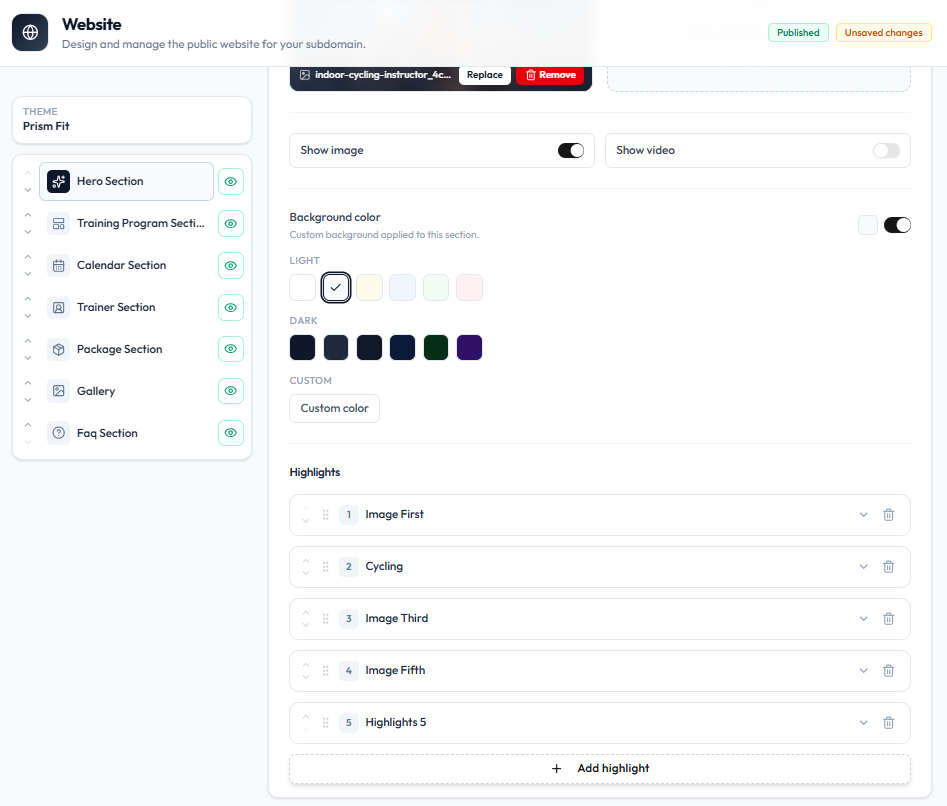
Highlights can be reordered with drag handles, expanded, deleted, or added with + Add highlight.
Steps — Reorder
Step 1 — Open Sections
Studio → Website → Sections.
Step 2 — Drag
Use the handle on a section row to move it.
Step 3 — Save
Click Save sections. Check Unsaved changes has cleared.
Steps — Edit Content
Step 1 — Select the Section
Click Hero Section (or another section).
Step 2 — Edit Fields
Change text, media, visibility, or highlights.
Step 3 — Save
Click Save sections. Then view the public site.