View All Packages
Use Training → Packages to review every offer you sell — name, type, price, sessions, validity, and status — before you create, edit, or duplicate one.
Open the Catalogue
- Open Training → Packages.
- Confirm you are in the correct Location (for example Dublin).
- The title is Packages. The description is: Manage your membership packages and pricing plans.
Grid View (Whole Package Cards)
Use the grid control (four squares) to see each package as a card.
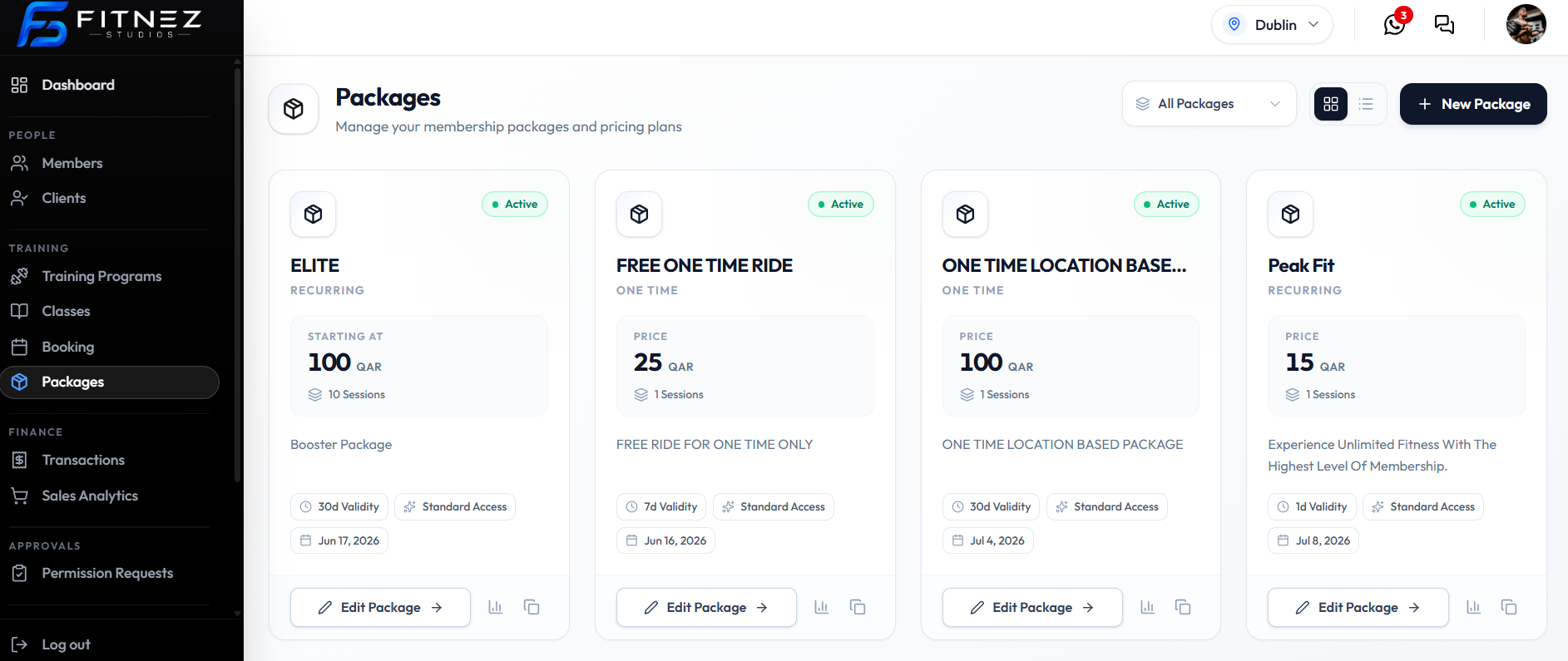
Each card can show:
| On the card | Examples |
|---|---|
| Active | Status pill |
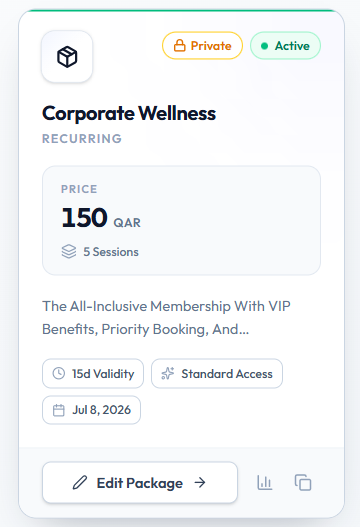
| Private | Lock badge when the package is private. See Private Package |
| Name | ELITE, Peak Fit, Corporate Wellness |
| RECURRING or ONE TIME | Purchase type |
| PRICE | Amount in QAR, such as 100 QAR |
| Sessions | 10 Sessions, 1 Session, 5 Sessions |
| Description | Short text |
| Tags | 30d Validity, Standard Access, and a date |
| Edit Package → | Opens Editing |
| Chart icon | Package Performance |
| Duplicate icon | Duplicate a Package |
List View
Use the list control (lines) to see packages in a table.
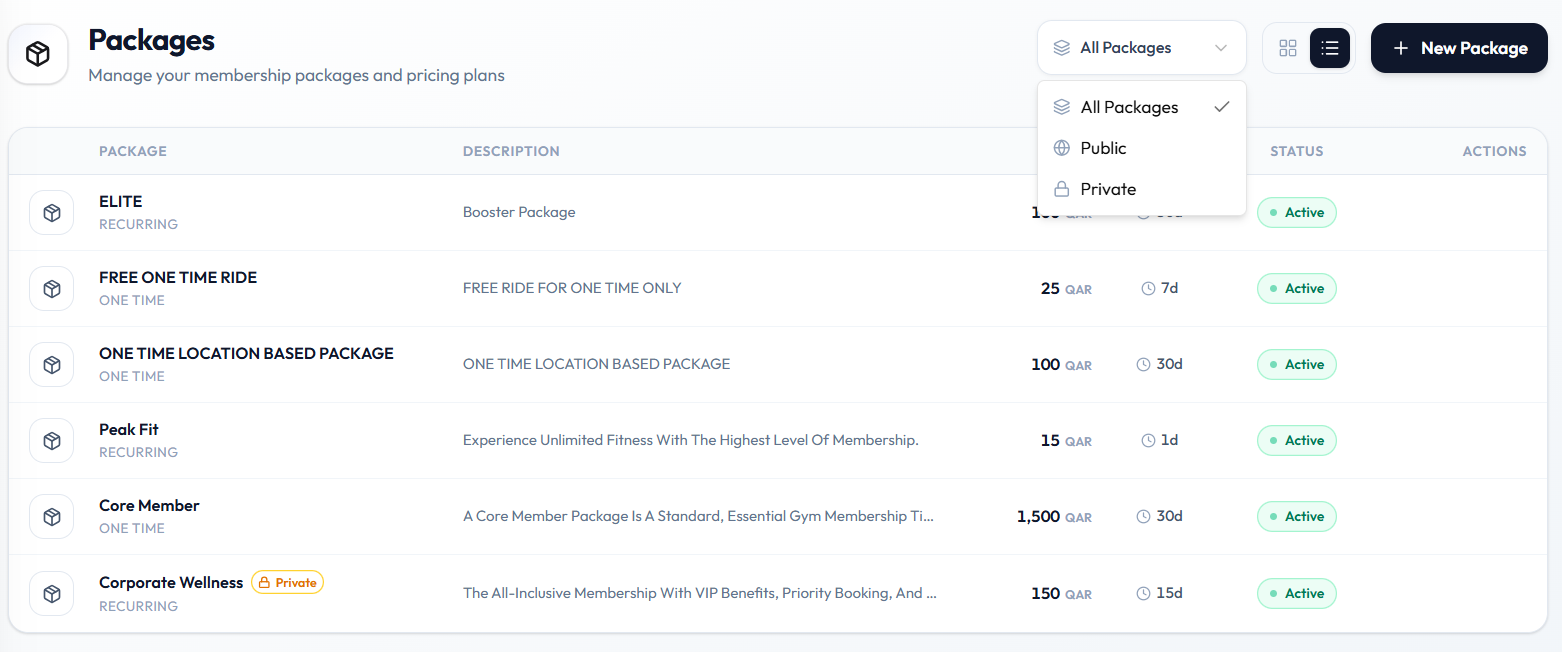
| Column | Examples |
|---|---|
| PACKAGE | Name plus RECURRING or ONE TIME. Private offers show a Private badge |
| DESCRIPTION | Short summary |
| Price | 100 QAR, 25 QAR, 1,500 QAR |
| Validity | Clock icon with 15d, 30d, 7d, 1d |
| STATUS | Active |
| ACTIONS | Row actions column |
Filter Packages
Open the filter next to the view toggles. Confirmed options:
| Filter | What it is for |
|---|---|
| All Packages | Full catalogue |
| Public | Packages that are not private |
| Private | Packages marked private |
Private Packages
A private package is hidden from the public listing and only shared directly with members. You set that with Private Package when you Create or Edit the offer.
Create a Package
Click + New Package to start Create Package (three steps).
Related Articles
Last updated on