Package Types & Rules
Choose how members can buy the package on Create Package Step 2 — Purchase Type, and how the offer is limited, shown, and measured on Training → Packages.
One-Time vs Recurring
Heading on create: HOW CAN USERS BUY THIS PACKAGE?
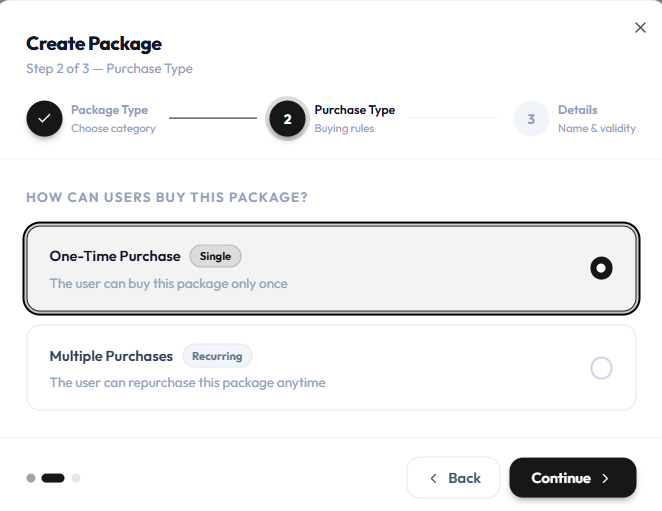
| Option | Badge | Helper text | Label on the catalogue |
|---|---|---|---|
| One-Time Purchase | Single | The user can buy this package only once | ONE TIME |
| Multiple Purchases | Recurring | The user can repurchase this package anytime | RECURRING |
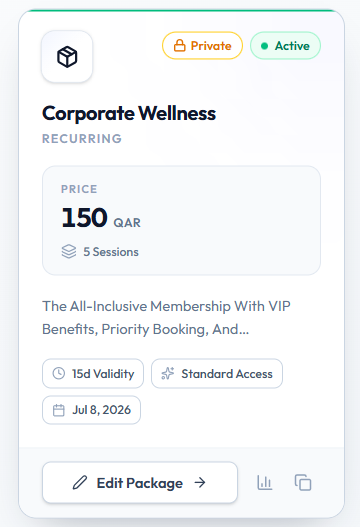
On the catalogue, RECURRING appears on cards such as ELITE, Peak Fit, and Corporate Wellness. ONE TIME appears on cards such as FREE ONE TIME RIDE and ONE TIME LOCATION BASED PACKAGE.
On Edit Package, Package Type can show One Time with help text: Single purchase with fixed validity and no auto-renewal.
| You want | Use |
|---|---|
| A class pack or single session the member buys once | One-Time Purchase / ONE TIME |
| An offer the member can buy again | Multiple Purchases / RECURRING |
The create step describes recurring as repurchase anytime. How automatic billing or renewal works after purchase is not shown on these screenshots.
Sessions
The Packages catalogue shows how many sessions an offer includes, and how long it stays valid. On edit, those values come from Pricing plans and Basic Details validity.
| Term | On the screen |
|---|---|
| Sessions | On grid cards — for example 10 Sessions, 1 Session, 5 Sessions |
| Validity | Tags such as 30d Validity, or list values such as 30d, 7d |
Do not treat “credits” as a separate balance until a form shows that word.
On Edit Package → Pricing you can set Session Type, Session Count, Number of Persons, and Unlimited Sessions (Enable to remove session count restrictions for this plan.).
Validity days are set on create as Validity (Days), and on edit under Duration (Days) / Valid From / Valid Until. See Create a Package and Edit a Package.
The older topic plan used session-based and class-based type names.
Those names are not on the catalogue or on Create Package Step 1. Confirmed purchase labels are ONE TIME and RECURRING. Step 1 categories are Normal Package, Time Based Package, Location Based Package, Training Program Package, and Events Based Package.
Restrictions
A package can be limited so it is not valid everywhere, for every class, or at every time. Choose that when you Create a Package, on Create Package Step 1 — Package Type.
The heading is SELECT A PACKAGE CATEGORY.
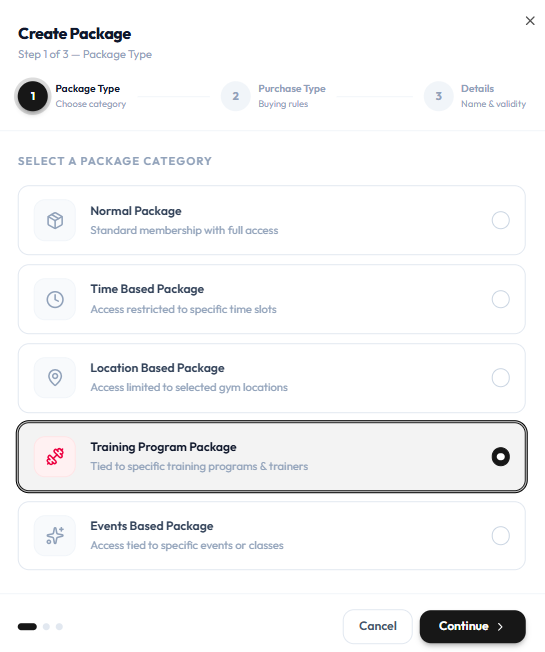
| Category | Helper text on the form |
|---|---|
| Normal Package | Standard membership with full access |
| Time Based Package | Access restricted to specific time slots |
| Location Based Package | Access limited to selected studio locations |
| Training Program Package | Tied to specific training programs & trainers |
| Events Based Package | Access tied to specific events or classes |
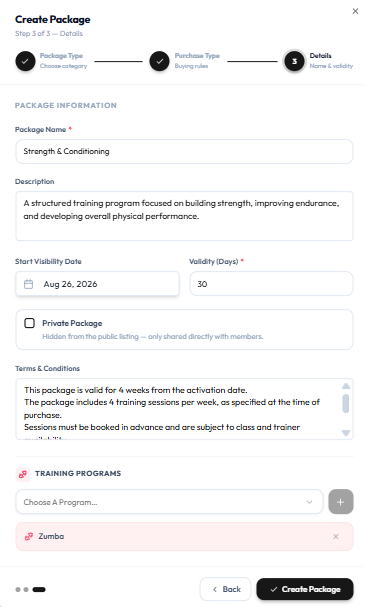
For a Training Program Package, Step 3 includes TRAINING PROGRAMS. Use Choose A Program… and + to attach programs (for example Zumba).
On Edit Package, Feature Type can be Normal. The note is: Normal packages have no booking restrictions — members can book any location, program or event within the validity period.
Grid cards also show Standard Access. This guide does not redefine that label beyond what appears on the card.
Extra pickers for time slots, locations, trainers, or events after you choose a restricted category are only partly shown (training programs on Step 3). What a member sees if they try to book outside the restriction is not confirmed.
Statuses
Status tells staff whether a package is for sale. On Training → Packages, cards and list rows show Active.
| Status | What you see |
|---|---|
| Active | Green pill on grid cards and in the list STATUS column |
On Edit Package, Status is a field under Status & display (for example Active).
The filter next to the view toggles includes All Packages, Public, and Private.
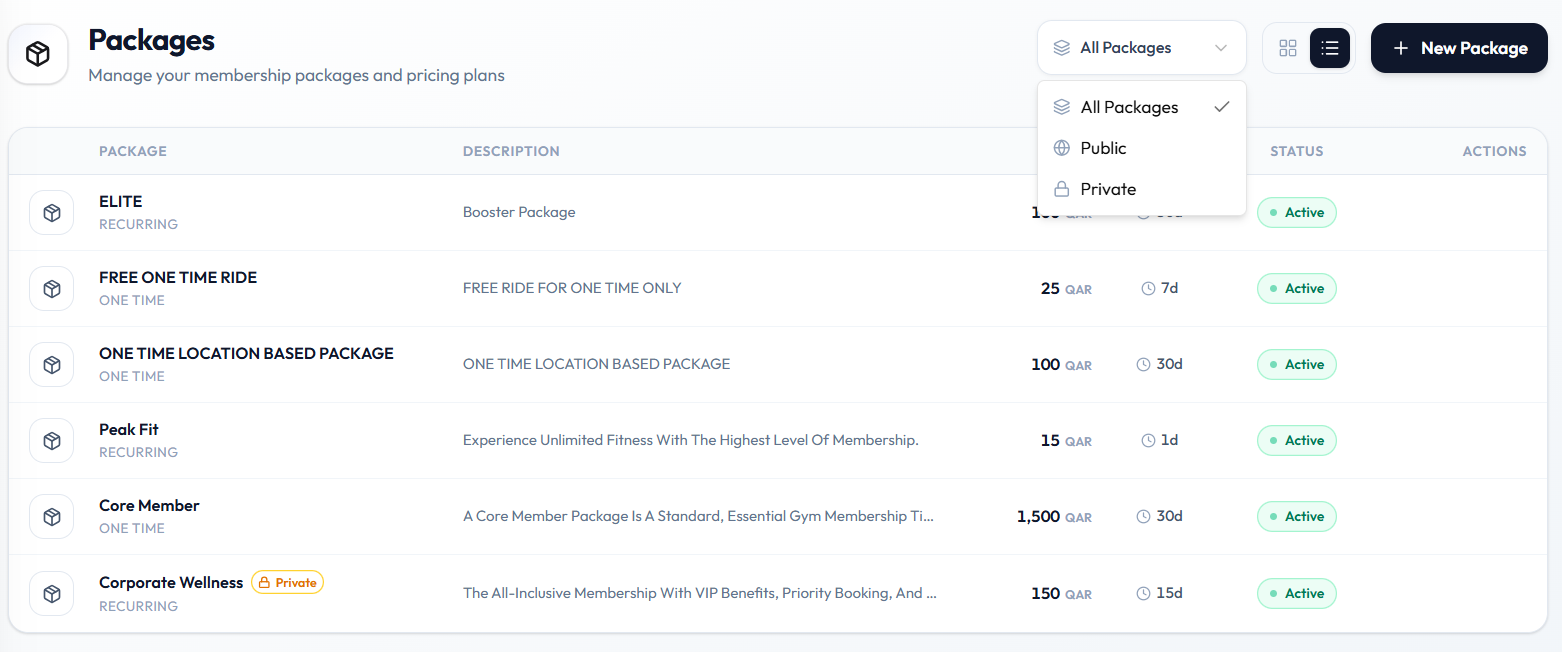
Private Package on create means: Hidden from the public listing — only shared directly with members. Private cards show a Private badge next to Active.
The older topic plan also uses Draft and Blocked. Those labels are not on the current Packages screenshots.
Until Draft or Blocked appear on screen, treat Active as the confirmed status badge, and use Status on Edit Package for the value Fitnez Studio shows there.
Performance
Use package performance to see how an offer is doing — which packages sell or perform best.
On Training → Packages, each card has a chart icon next to Edit Package and Duplicate. Open Training → Packages, find the card, and click the chart icon.
There is no screenshot of the performance view that opens from the chart icon. This guide does not list metrics, date range, charts, or a ranking of best-selling packages.
Until that screen is captured, the confirmed control is the chart icon on each Active card.
Finance → Sales Analytics includes Top Selling Packages (units sold and QR). See Sales Reports. That is not the same view as the chart icon on a package card.