Events
Use Events to organise special studio activities and, when you choose a challenge, goal-based campaigns with targets and rewards.
Staff create events on Studio → Manage Events → Event. The page title is Events. The description is: Create an event to organize special studio activities.
What Is an Event?
An event is a dated activity you set up for members — for example a Saturday workshop, a themed week, or a month-long challenge.
It is not a Class. A class is one session on the timetable. An event can run across a date range, such as 24 Aug 2026 → 31 Aug 2026.
Event Type — Normal Event vs Challenge Event
On Create Event, Event Type has two cards. The caption is: The form adapts to your choice.
| Normal Event | Challenge Event |
|---|---|
| Described as A standard scheduled event | Described as A goal-based challenge with targets and rewards |
| Shown as Standard on the Events list | Not shown on the current list screenshot |
| Participation in a scheduled activity is the focus | Targets and rewards are the focus |
Example — Normal Event
Summer Fitness Workshop at FITNEZ STUDIO in Dublin: a mobility and recovery session for members on a Saturday. On the current screenshot this is set up like HIIT Blast — a Normal Event with dates, a banner, and JOIN NOW.
Example — Challenge Event
30-Day Fitness Streak: complete at least 20 eligible sessions between 1 September and 30 September. That is a Challenge Event with Booking Challenge, Any Booking, and Target Bookings 20. See Creating a Challenge.
Why Studios Use Events and Challenges
- Promote a workshop, competition, or special week without turning it into a repeating Class Schedule
- Give members a reason to come back during a date window
- Attach recognition or a benefit when the activity is a Challenge
How members actually join from JOIN NOW, and how progress is counted, is not shown on these screens.
How Rewards and Badges Fit In
The sidebar under Manage Events also has Badges and Reward.
The intended workflow is:
Create Event/Challenge → Define Conditions → Add Reward → Configure Artwork → Set Status → Members Participate → Conditions Are Met → Reward/Badge Is Awarded
For a challenge, the stepper is Basics → Challenge → Rewards → Review. Create Rewards and Badges in their own screens first if the Rewards step is empty. What members see after they hit the target is not confirmed.
Where to Find Events
Open Studio → Manage Events → Event.
Confirm you are in the correct Location. The current screenshot uses Dublin. There is no separate location field on the event form.
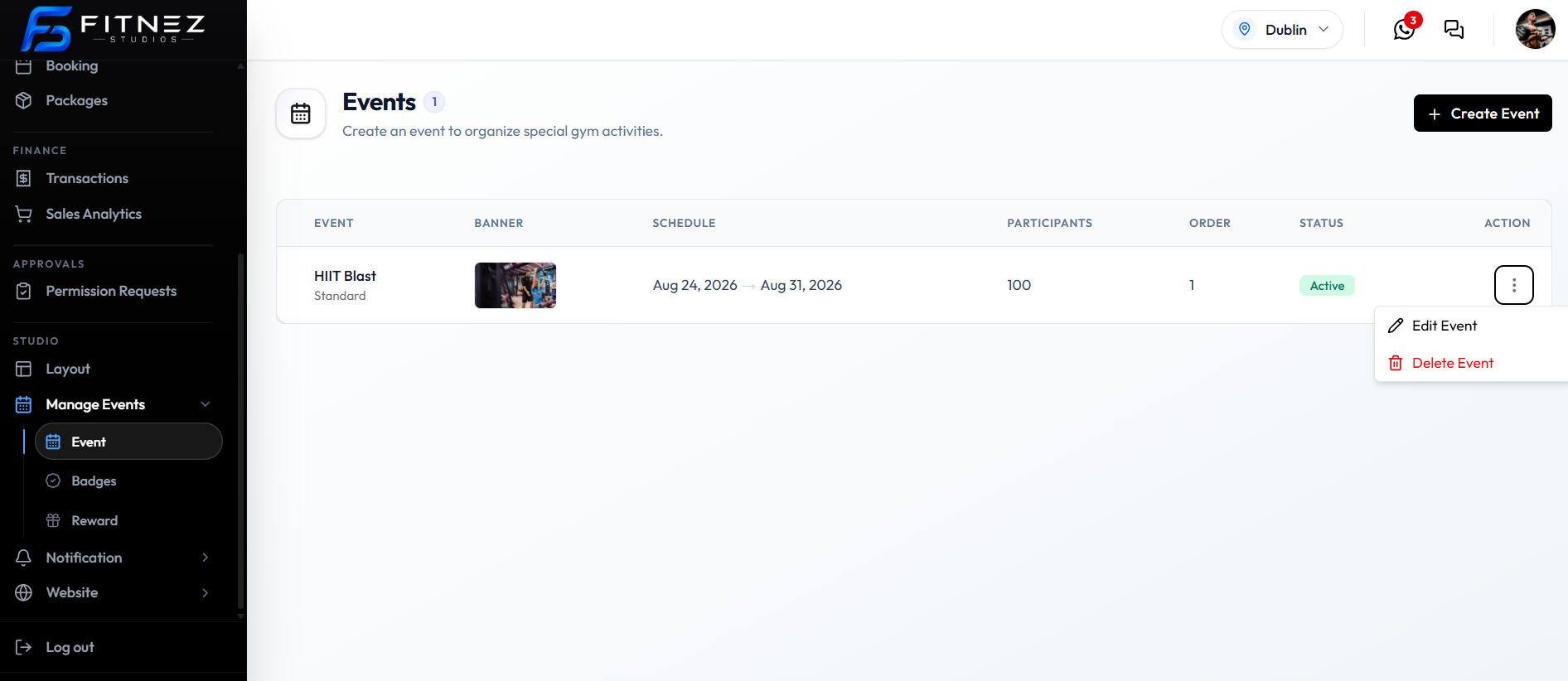
What You See
| Item | What it is |
|---|---|
| Count badge | How many events, such as 1 |
| + Create Event | Starts Creating an Event |
| EVENT | Name, with a type label underneath (Standard on this row) |
| BANNER | Thumbnail of the Event Image |
| SCHEDULE | Start and end dates, such as Aug 24, 2026 → Aug 31, 2026 |
| PARTICIPANTS | 100 on this row, matching Max Participants on the form |
| ORDER | Sort order, such as 1. Lower numbers appear first |
| STATUS | Active on this row. See Event Statuses |
| ⋯ | Edit Event and Delete Event |
What You Can Do
- Create a Standard Event
- Create a Challenge
- Add an Event Image
- Edit an Event
- Delete an Event
- Work with Rewards and Badges
How It Works
- Open Studio → Manage Events → Event.
- Click + Create Event.
- Choose Normal Event or Challenge Event.
- For a Normal Event, fill Basics, then Continue to Review. For a Challenge Event, continue through Challenge and Rewards as well.
- Save. On edit, the button is Update Event.
Frequently Asked Questions
Where is this in the menu?
Studio → Manage Events → Event. Related items are Badges and Reward.
Is an event the same as a class?
No. A Class is one timetable session. An event is a special activity with a start date and end date.
Can I restrict a package to an event?
Create Package Step 1 does not include an event category. An event restriction from the older topic plan is not confirmed. See Package Restrictions.