Role & Access
A role is the access assigned when an administrator Adds You As a Team Member. Example: Sophie Bennett sees ADMIN under her name in the header menu in Dublin.
Where Your Role Is Shown
| Place | What you see |
|---|---|
| Header photo menu | Role under your name, in capitals (for example ADMIN) |
| People → Members | Badge on the staff card: Admin, Staff, or Trainer |
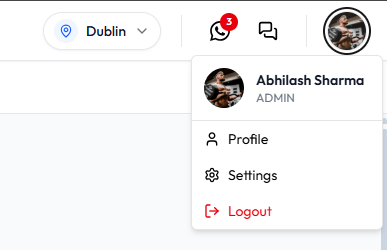
User profile does not include a Role field. You cannot change your role from your own profile.
User Types and Roles That Exist
When staff are added, User Type is chosen first, then Role:
| User Type | Role options confirmed |
|---|---|
| Admin | Role list for Admin is not in the invite screenshots |
| Staff | MANAGER or STAFF |
| Trainer | TRAINER |
There is no Owner badge on Members cards. See Roles for the invite and create forms.
How a Role Affects Access
Your role controls what you can open and complete. The ADMIN permission set is listed on Checking What You Are Allowed to Do. Daniel Murphy as STAFF does not use that same list.
If something is missing, see Why a Feature Is Not Visible.
You should not change your own role. An administrator updates another person’s access from Team Members, not from User profile.
If you need more access, ask an authorised administrator. Do not share someone else’s login to “borrow” their role. Shared logins make Recent Activity harder to trust.
Related Articles
Checking What You Are Allowed to Do
User profile does not show a permission list. What you can see yourself is your role on the header photo menu.
Role Versus Permission
| Concept | On the dashboard |
|---|---|
| Role | Under your name in the header menu (for example Sophie Bennett as ADMIN in Dublin). On People → Members, badges include Admin, Staff, and Trainer. |
| Permission | A named action, shown as a key such as booking.view. The ADMIN screenshot lists 91 keys under Permission keys. |
| Location | The site in the header (SELECT LOCATION). See Switching Between Locations. |
You cannot turn permission keys on or off from User profile. An administrator assigns your Role when they add you as a team member.
How to See Your Role
- Click your photo in the header.
- Read the line under your name.
Admin Permission Keys
This screenshot is the ADMIN role: role_key admin, role_name ADMIN, permissions count 91. Heading: Permission keys.
It is not a screen on User profile. You cannot edit the keys yourself.
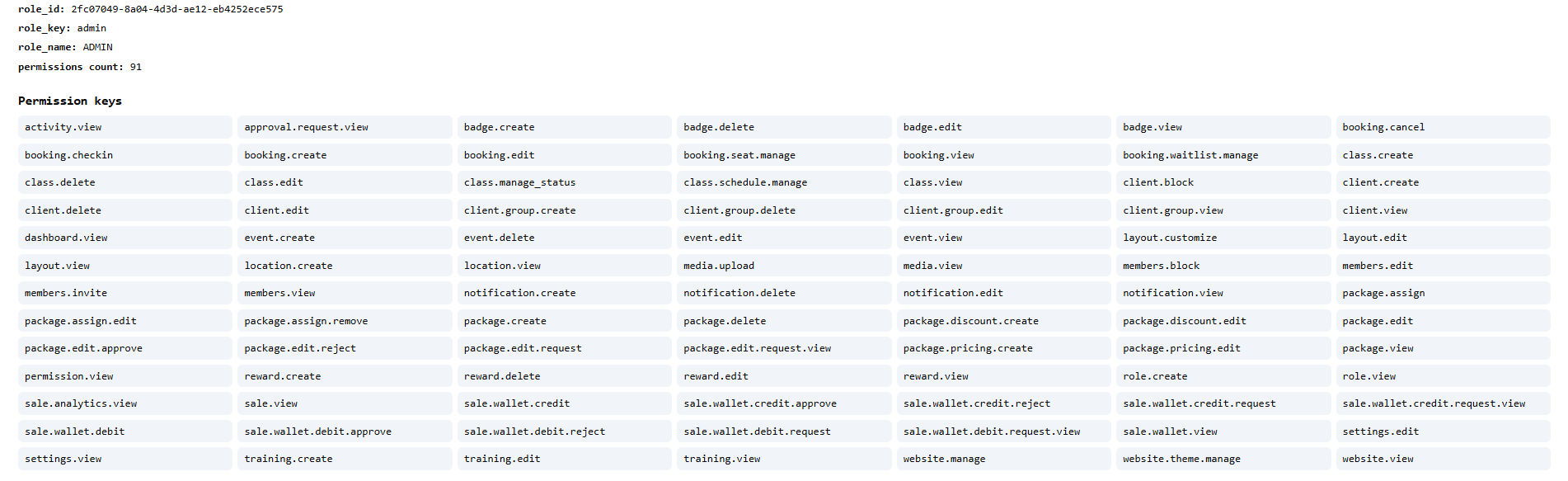
Keys on that screenshot are grouped by area. Examples:
| Area | Keys on the screenshot (examples) |
|---|---|
| Dashboard and activity | dashboard.view, activity.view |
| Bookings | booking.view, booking.create, booking.edit, booking.cancel, booking.checkin, booking.seat.manage, booking.waitlist.manage |
| Classes | class.view, class.create, class.edit, class.delete, class.manage_status, class.schedule.manage |
| Clients | client.view, client.create, client.edit, client.delete, client.block, client.group.view, client.group.create, client.group.edit, client.group.delete |
| Staff (Members) | members.view, members.invite, members.edit, members.block |
| Packages | package create, edit, delete, assign, discount, pricing, and package.edit request / approve / reject |
| Sales and wallet | sale.analytics.view, sale.wallet.view, wallet credit and debit including request / approve / reject |
| Approvals | approval.request.view |
| Events, badges, rewards | event, badge, and reward view / create / edit / delete |
| Notifications | notification.view, notification.create, notification.edit, notification.delete |
| Training programs | training.view, training.create, training.edit |
| Locations and media | location.view, location.create, media.view, media.upload |
| Layout | layout.view, layout.edit, layout.customize |
| Settings and website | settings.view, settings.edit, website.view, website.manage, website.theme.manage |
| Roles | role.view, role.create, role.edit, permission.view |
For example, Sophie Bennett as ADMIN in Dublin can use the keys on this list. Daniel Murphy as STAFF does not use this same list.
If you cannot complete a money change yourself (for example some wallet credits), use Approval Requests.
Do not try to grant yourself extra keys. Ask an authorised administrator to change your role on Team Members.
Why a Feature Is Not Visible
If something you expect is missing, check the header location, your role, and whether the action needs a manager. Do not use another person’s login.
Troubleshooting
| What you see | Possible reason | What to do |
|---|---|---|
| Menu item is missing | Your Role may not include that area, or Setup is still incomplete | Ask an authorised administrator. Finish open Getting Started tasks if you are setting up the studio. |
| Page cannot be opened | Access may be restricted to certain roles | Read the role on your header menu (ADMIN on the captured account). Ask an admin if you need that page. |
| Action button is disabled | You may not be allowed to complete the action, or required fields are empty (for example Invite Member stays unavailable until required fields are filled) | Ask a manager. If you are filling a form, complete required fields first. |
| You can see a page but cannot finish an action | The change may need Approval (for example some Wallet Credits) | Raise a request if the product offers it. |
| Another location’s data looks missing | The header location may be different | Open SELECT LOCATION. Example sites: Dublin, London. See Switching Between Locations. |
A hidden or greyed-out button is not always a permissions problem. Required fields, incomplete setup, and the wrong location can look the same.
Workflow — Missing Feature
Missing item → Check location → Check role → Contact an authorised admin
- Confirm the header location (for example Dublin).
- Open your photo and read the role (for example ADMIN for Sophie Bennett, or STAFF for Daniel Murphy).
- If you can see the page but cannot act, check whether Approval Requests applies.
- Ask an administrator to review your access on People → Members. They change roles there — you do not change your own on User profile.
Account Access Troubleshooting
I Cannot See a Menu Item
Check SELECT LOCATION, then the role on the header menu. User profile does not list permission keys. The ADMIN key list is on Checking What You Are Allowed to Do.
I Can See the Page but Cannot Perform an Action
You may only be able to view, or the action may need a manager. For wallet credits that staff cannot complete themselves, use Approval Requests.
I Am Seeing the Wrong Location
Open SELECT LOCATION. If the correct site is not listed, ask an administrator. See View & Switch Locations.
I Cannot Update My Profile
On User profile, First name, Last name, Phone number, Designation, Gender, and Date of birth can be edited, then Save changes. Email address is grey and is not edited on this page. Role is not a field here. See Updating Your Profile.
I Cannot Sign In
If the toast shows Invalid credentials, check Email and Password. Use Forgot Password? if you cannot remember the password. An administrator can confirm the account is Active.