Client Profile
A client record has two views:
- Client Detail — a side panel from the Clients list (View Profile)
- The full client page — header with wallet, then tabs for Bookings, Packages, Activities, and Transactions
Client Detail (List Panel)
Use the panel for a quick contact check without leaving the list.
- Open People → Clients.
- Find the person with Search.
- Open the row menu (⋯) and click View Profile.
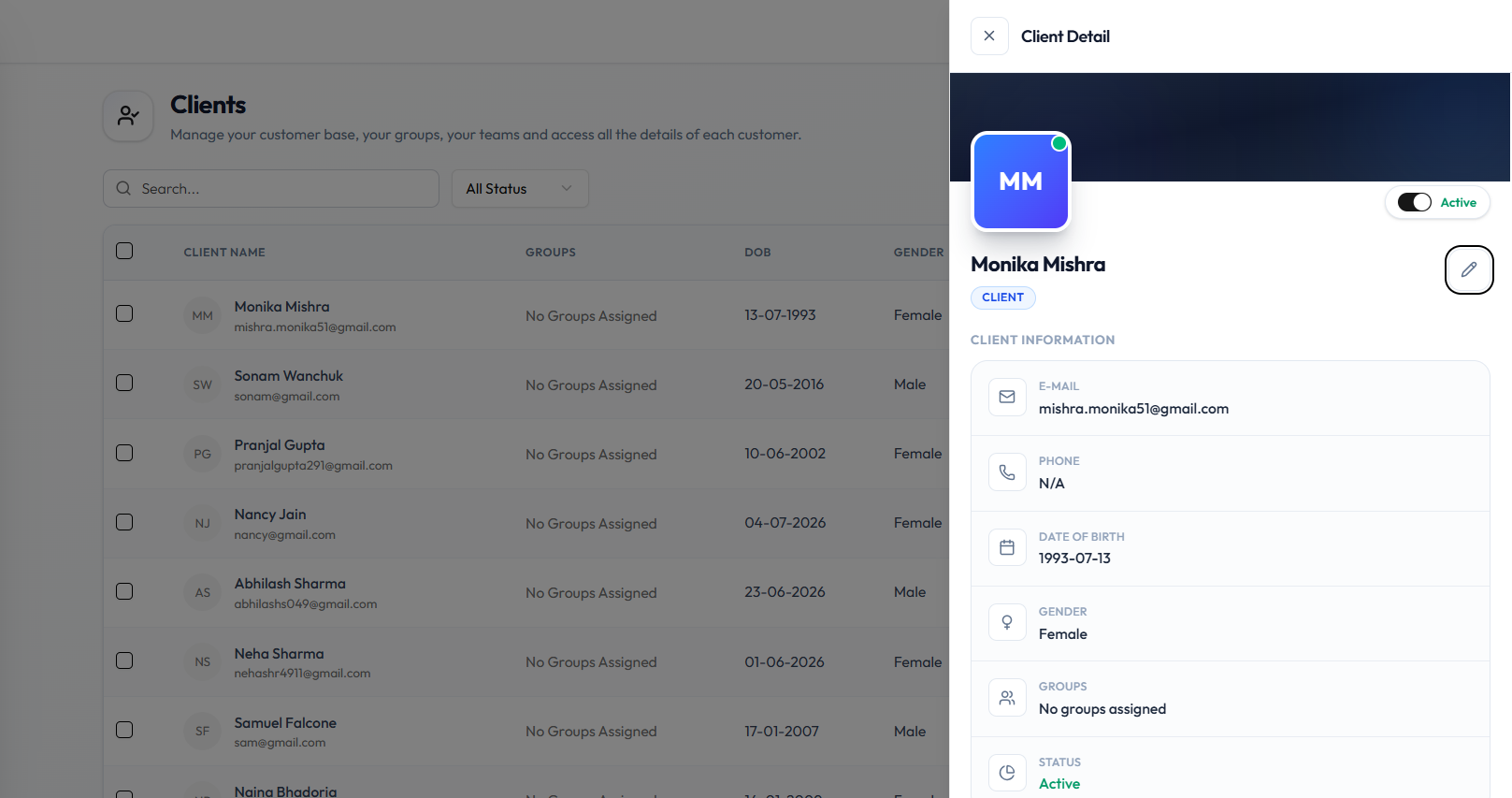
The panel title is Client Detail. Close it with X.
| Item | What it is |
|---|---|
| Initials | Avatar for the person |
| Active | Status toggle |
| Pencil | Opens Edit Client Details |
| Name | The client’s name |
| CLIENT | Tag that this record is a customer, not staff |
| Email address | |
| PHONE | Phone number, or N/A |
| DATE OF BIRTH | Date of birth |
| GENDER | Gender |
| GROUPS | Assigned groups, or No groups assigned |
| STATUS | Active or Inactive. See Block & Unblock a Client |
Full Client Page
Open the full page when you need wallet, bookings, packages, or transactions.
Use Back at the top to return to the Clients list.
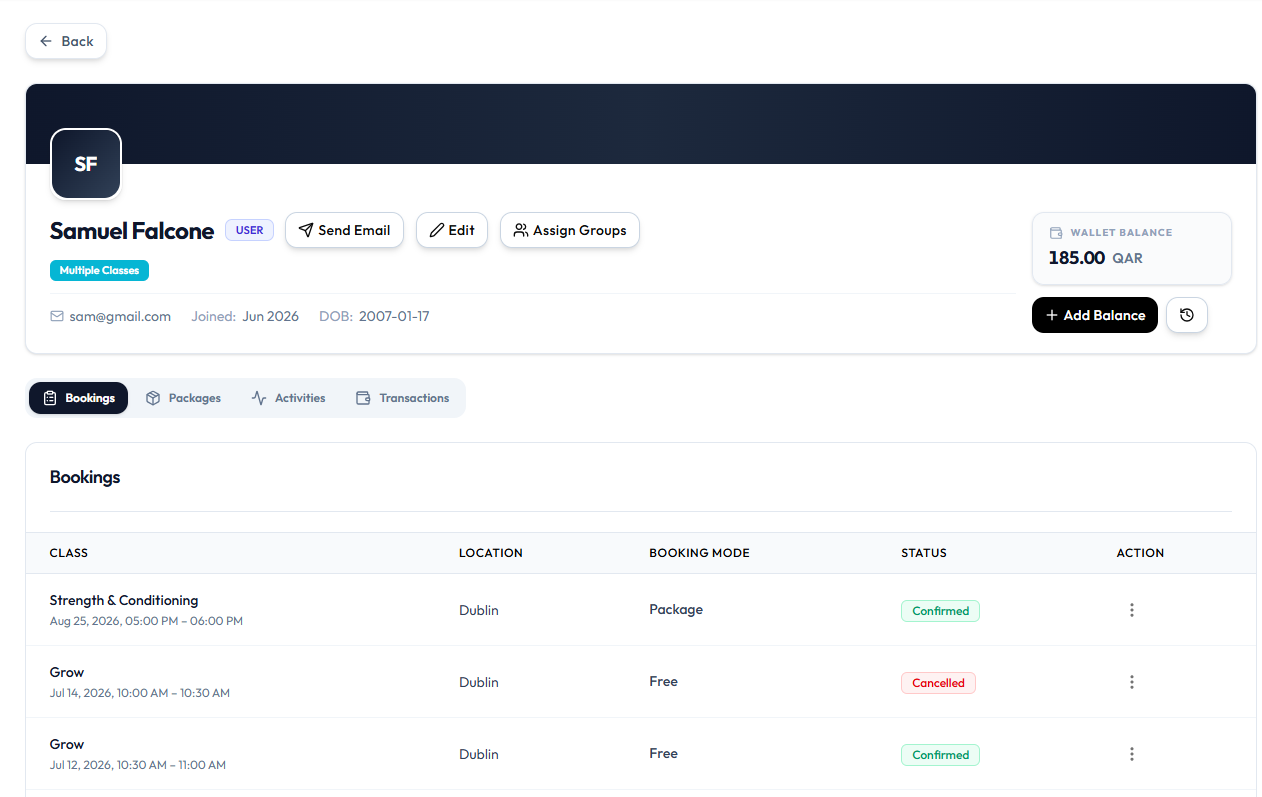
Header
| Item | What it is |
|---|---|
| Initials | Avatar (for example SF) |
| Name | For example Samuel Falcone |
| USER | Badge on this capture |
| Extra badge | For example Multiple Classes (a group) |
| Send Email | Sends email to the client |
| Edit | Opens editing. See Edit Client Details |
| Assign Groups | Assigns Client Groups |
For example sam@gmail.com | |
| Joined | Join month (for example Jun 2026) |
| DOB | Date of birth |
| WALLET BALANCE | Amount in QAR (for example 185.00 QAR) |
| + Add Balance | Opens Manage Wallet Balance |
| Clock control | Wallet history, if Fitnez Studio opens it from that icon |
Tabs
| Tab | What it is for |
|---|---|
| Bookings | This client’s bookings. See Booking History |
| Packages | Packages this client holds. See Client Packages |
| Activities | Activity for this client |
| Transactions | This client’s money records. See Wallet & Purchase History |
The capture shows Bookings selected.
Activities and the Packages / Transactions tab layouts are not captured yet. Use the labels on those tabs when you open them.
Related Articles
Last updated on