View & Search Team
Use the Members page to review everyone who has a staff account, and to search for a person.
Where to Look
Open People → Members. The list layout, search field, and + Add Member are shown on the Team Members Overview.
What You See
| Item | What it means |
|---|---|
| Members | Page title, with a count such as 3 Members |
| + Add Member | Opens Invite Member or Create Member |
| Search members… | Finds people in the list |
| Member card | Name, email, and a role badge |
| Status | Active (green) or Inactive (grey). See Team Member Actions |
| Avatar indicator | A green dot on the avatar |
| Card menu (⋯) | View Profile, Freeze Classes, Deactivate |
Role badges shown on this page are Admin, Staff, and Trainer.
How to Find a Team Member
- Open People → Members.
- Type in Search members… to find a person.
- Open the card menu (⋯) if you need View Profile, Freeze Classes, or Deactivate.
View a Team Member
Open View Profile from the card menu to see Member Detail.
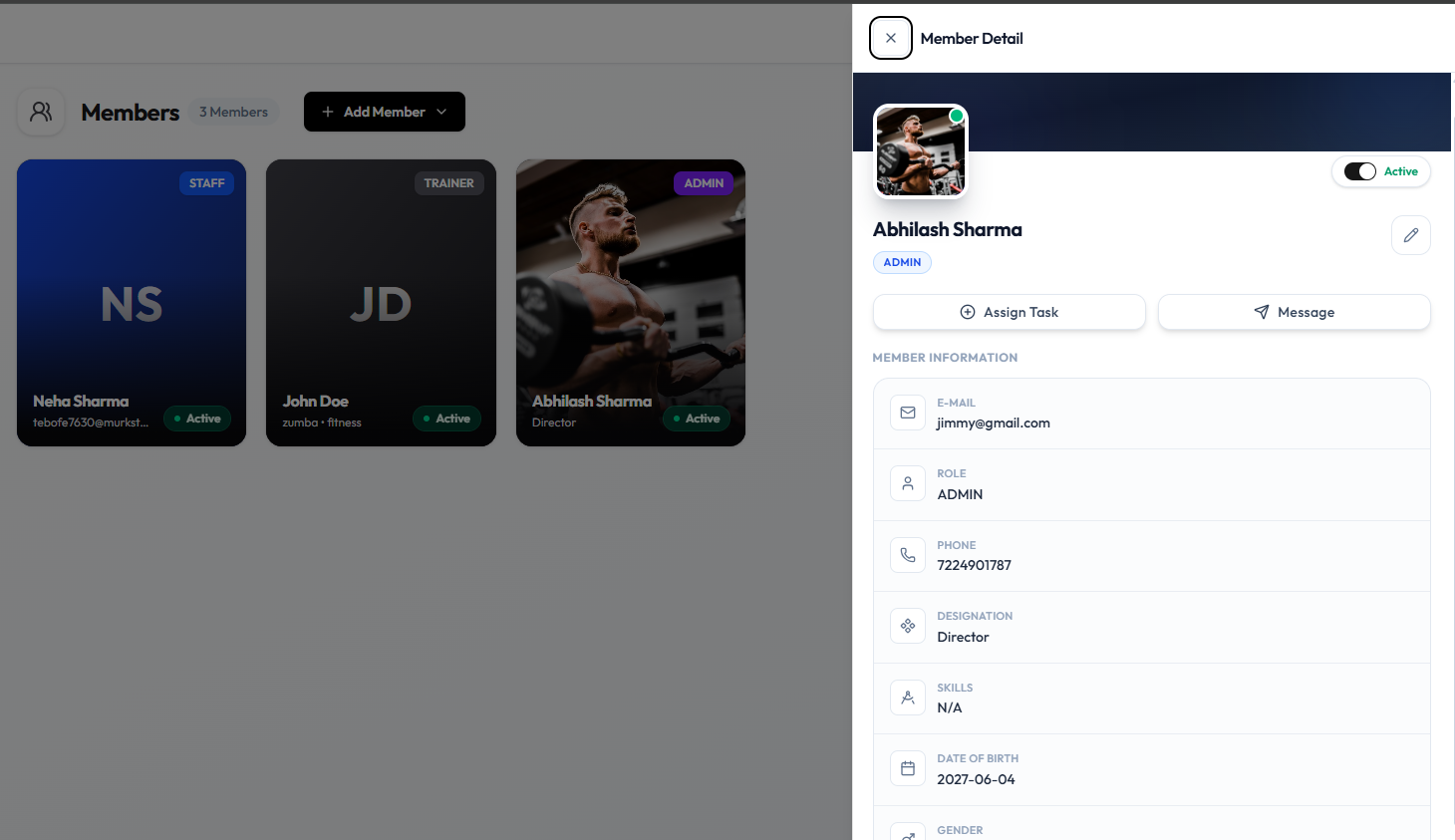
The panel shows:
| Item | What it is |
|---|---|
| Member Detail | Title of the panel |
| Active | Toggle for the person’s account status |
| Name and role badge | For example Admin or Staff |
| Edit (pencil) | Opens editing |
| Assign Task | Assigns a task |
| Message | Sends a message |
| Their email address | |
| Role | Their assigned role |
| Phone | Their phone number |
| Designation | Their job title, such as Director |
| Skills | Skills, or N/A if none |
| Date of Birth | Date of birth |
| Gender | Gender |
Close the panel with X.
Separate list filters for role or status are not shown on the Members page. Use search to find a person, then open Member Detail to see their role and whether they are Active.
Card Menu
Click the three dots on a member card to open:
- View Profile
- Freeze Classes
- Deactivate
See Team Member Actions for what is confirmed about these actions.
Related Articles
Last updated on