Client Records
Use these guides for an existing member after you have already Added them, Searched the list, opened their Profile, or managed Client Groups.
Edit a Client
Use this when a client’s information has changed — a new phone number, a corrected date of birth, or a name that was entered incorrectly.
Edit the record so the Clients list stays accurate for contact and day-to-day front-desk work. Do not use this to add staff — staff accounts are edited under Team Members.
Step 1 — Find the Client
Open People → Clients. Use Search… or All Status to find the person.
Step 2 — Open Client Detail
Open the row menu (⋯) and click View Profile.
Step 3 — Open Edit
On Client Detail, click the pencil next to the Active toggle.
On the full client page, click Edit in the header (next to Send Email and Assign Groups).
Step 4 — Change the Details
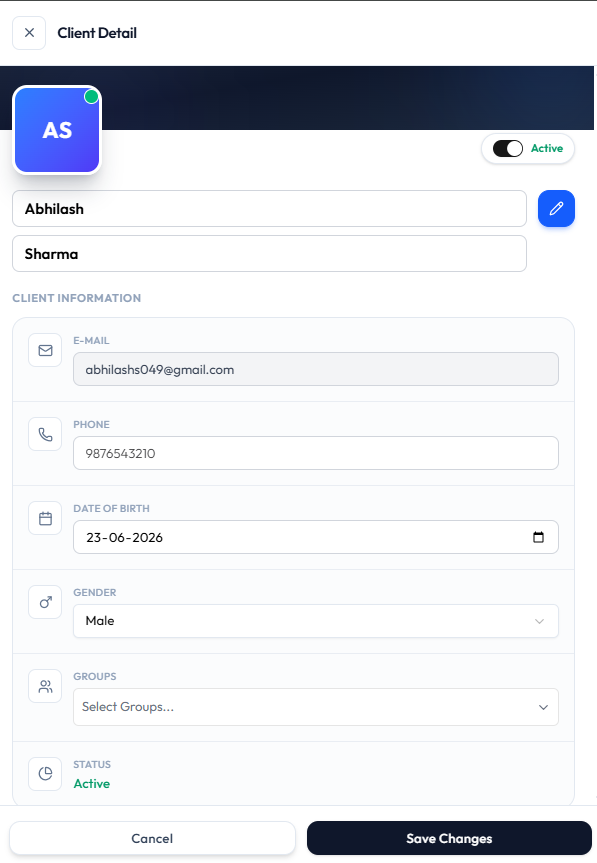
You can change:
| Field | What it is |
|---|---|
| First name and last name | The client’s name |
| Active | Status toggle |
| Email address | |
| PHONE | Phone number |
| DATE OF BIRTH | Date of birth |
| GENDER | Gender |
| GROUPS | Select Groups… — search groups, then tick groups (for example Cycling and Multiple Classes). A client can belong to more than one group. See Manage Group Members |
| STATUS | Shown as Active in this screenshot |
Step 5 — Save Changes
- Save Changes saves the record
- Cancel or the X closes without saving
The client row and Client Detail should show the new information — for example a corrected phone number for Sophie Martin.
Editing a client does not turn them into staff. To stop a client without removing the record, use Deactivate. You cannot delete a client — see Delete a Client.
Deactivate a Client
Use this when a member should no longer be able to book, but you still need their record.
On the Clients page the action is labelled Deactivate, not Block. After deactivate, the row shows status Inactive. On Client Detail status is the Active toggle.
This is not the same as Deactivating a Team Member. Team member Deactivate removes staff access to the dashboard. Member Deactivate is about the person who trains.
The UI that is confirmed today:
- The row menu includes Deactivate (in red) for an Active client
- After deactivate, the list shows Inactive
- Client Detail has an Active toggle
- New clients are created as Active
This guide does not describe extra effects such as cancelled bookings or frozen packages. Those results are not shown in the screenshots.
Deactivate keeps the client record. Delete is described in the topic plan as a permanent removal — but there is no Delete action on the current Clients screens. If you still need who the person was, deactivate first.
| What you see | What it is for |
|---|---|
| Active | Status pill on the list, and the toggle on Client Detail |
| Inactive | Status pill on the list after deactivate |
| Deactivate | Row-menu action for an active client |
| All Status | Filter with All Status, Active, and Inactive. See Search & Filter Clients |
Step 1 — Find the Client
Open People → Clients. Search for the person, such as Olivia Bennett.
Step 2 — Open the Row Menu
Click the ACTION menu (⋯) on that row.
Step 3 — Click Deactivate
Choose Deactivate.
There is no confirmation dialog.
You can also open View Profile and use the Active toggle.
The client stays on the list. The STATUS column shows Inactive (red pill) instead of Active.
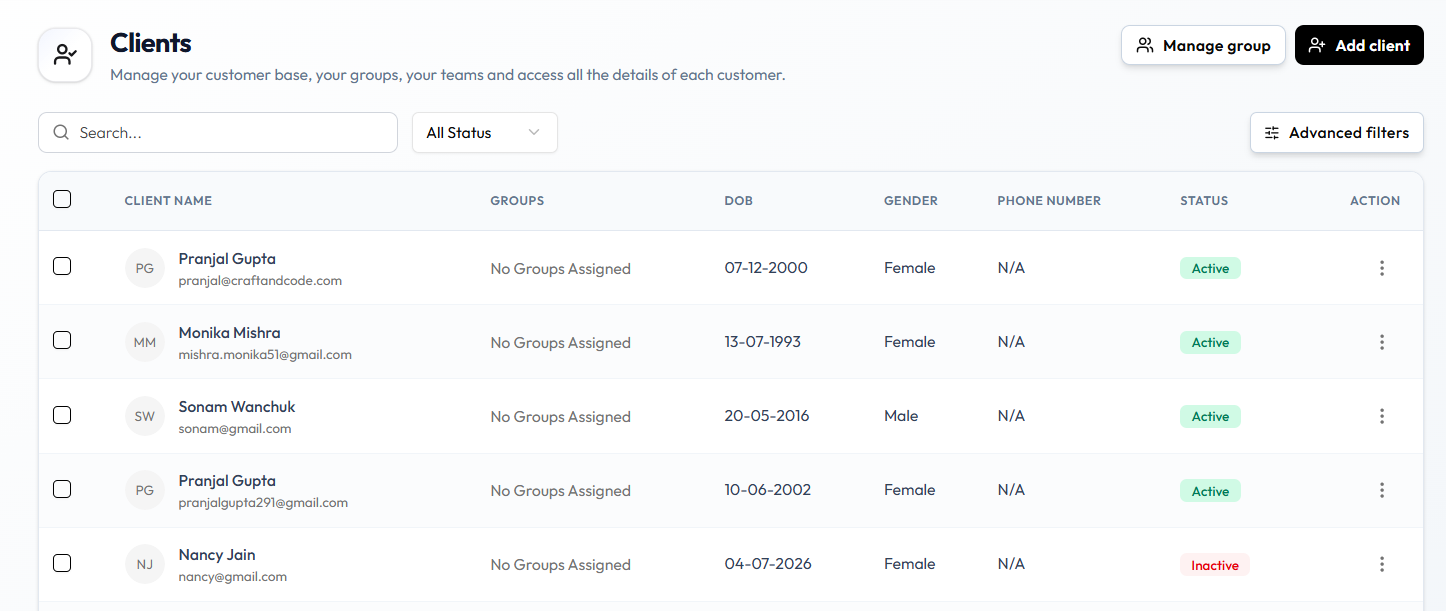
Whether the member can still book, and what happens to packages, wallet, or groups, is not shown in this screenshot.
To make a client active again: open People → Clients (use All Status → Inactive if needed), open View Profile, then turn the Active toggle on.
The row menu in the current screenshot only shows Deactivate for an active client. An activate action on that menu will be documented when it is visible.
Delete a Client
You cannot delete a client in Fitnez Studio. There is no Delete action on the Clients row menu, on Client Detail, or on the edit form.
If you only need to stop the client, use Deactivate.
The Clients row menu shows View Profile and Deactivate only. Do not look for a Delete client control.
| You want | Use |
|---|---|
| Stop the member, keep the record | Deactivate — the list then shows Inactive |
| Take them out of a label only | Remove Them from a Group |
| Remove a label everyone used | Delete a Group — this does not delete clients |
Client Packages
Use the Packages tab on the Full Client Page to see packages attached to this member.
The catalogue of what you sell is Training → Packages. Staff how-tos for assign, adjust sessions, and remove are on Packages on a Member.
- Open People → Clients.
- Open the full client page.
- Select Packages.
The header also shows group badges (for example Multiple Classes) and Wallet. Those are not the package list.
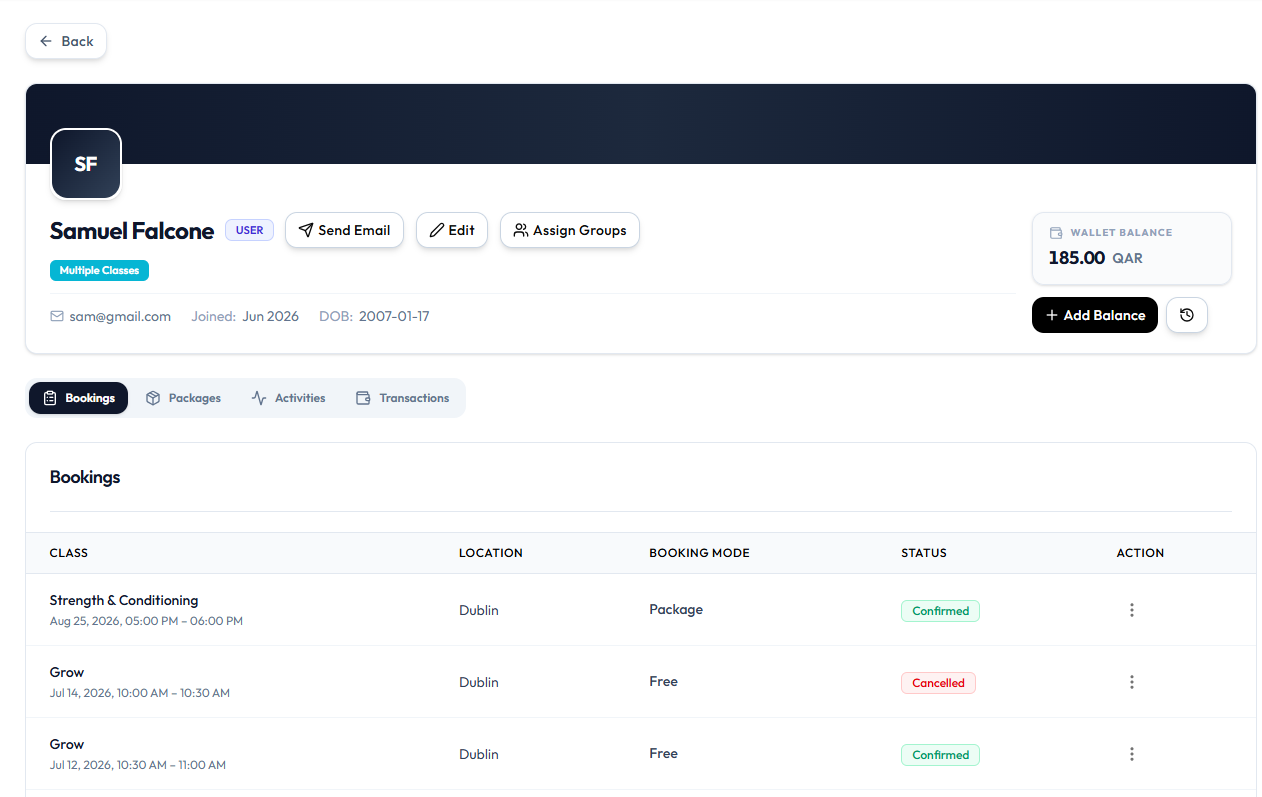
The Packages tab is on the client page. The list of held packages (sessions remaining, expiry) is not in the current screenshots. Use the labels Fitnez Studio shows on that tab.
Booking History
Use the Bookings tab on the Full Client Page to see what this person booked — class, location, how they paid, and status.
Studio-wide bookings stay under Training → Booking. See Bookings.
Step 1 — Open the Client
Open People → Clients, find the person, then open the full client page (from View Profile or the row Fitnez Studio uses for the ID screen).
Step 2 — Open the Bookings Tab
Select Bookings.
| Column | Examples on the capture |
|---|---|
| CLASS | Name plus date and time (for example Strength & Conditioning, Aug 25, 2026, 05:00 PM – 06:00 PM) |
| LOCATION | For example Dublin |
| BOOKING MODE | Package or Free |
| STATUS | Confirmed (green) or Cancelled (red) |
| ACTION | ⋯ menu |
Open ⋯ on a booking row:
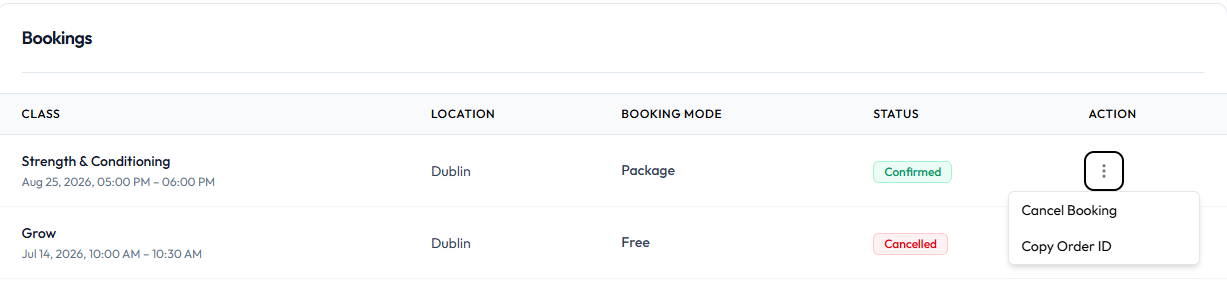
| Action | What it does |
|---|---|
| Cancel Booking | Cancels that reservation. See Cancel a Booking |
| Copy Order ID | Copies the order / booking reference |
You can also cancel from Today’s Schedule or All Bookings. See Cancel a Booking.
Wallet and Purchases
On the Full Client Page, wallet money is in the header. Purchases and other money rows are under the Transactions tab.
Studio-wide sales stay under Finance → Transactions. See Sales & Payments. Wallet money is not the same as Package Sessions. See Member Wallet.
The header card includes WALLET BALANCE (for example 185.00 QAR), + Add Balance, and a clock control.
| Control | What it is for |
|---|---|
| WALLET BALANCE | Current amount in QAR |
| + Add Balance | Opens Manage Wallet Balance (Credit or Debit) |
| Clock control | History of wallet changes, if that icon opens a list |
Select Transactions on the same page for this client’s money records.
Match rows to Finance → Transactions using USER, AMOUNT, and ⋯ → Copy txn ref. See The Sales Ledger.
The Transactions tab layout is not captured yet. The header wallet amount and + Add Balance are confirmed.