Signing In & Out
A signed-in account is your staff login for the Fitnez Studio dashboard. It is not a client booking login.
The page is split: branding on the left (Your Fitness Journey Starts Here) and the form on the right.
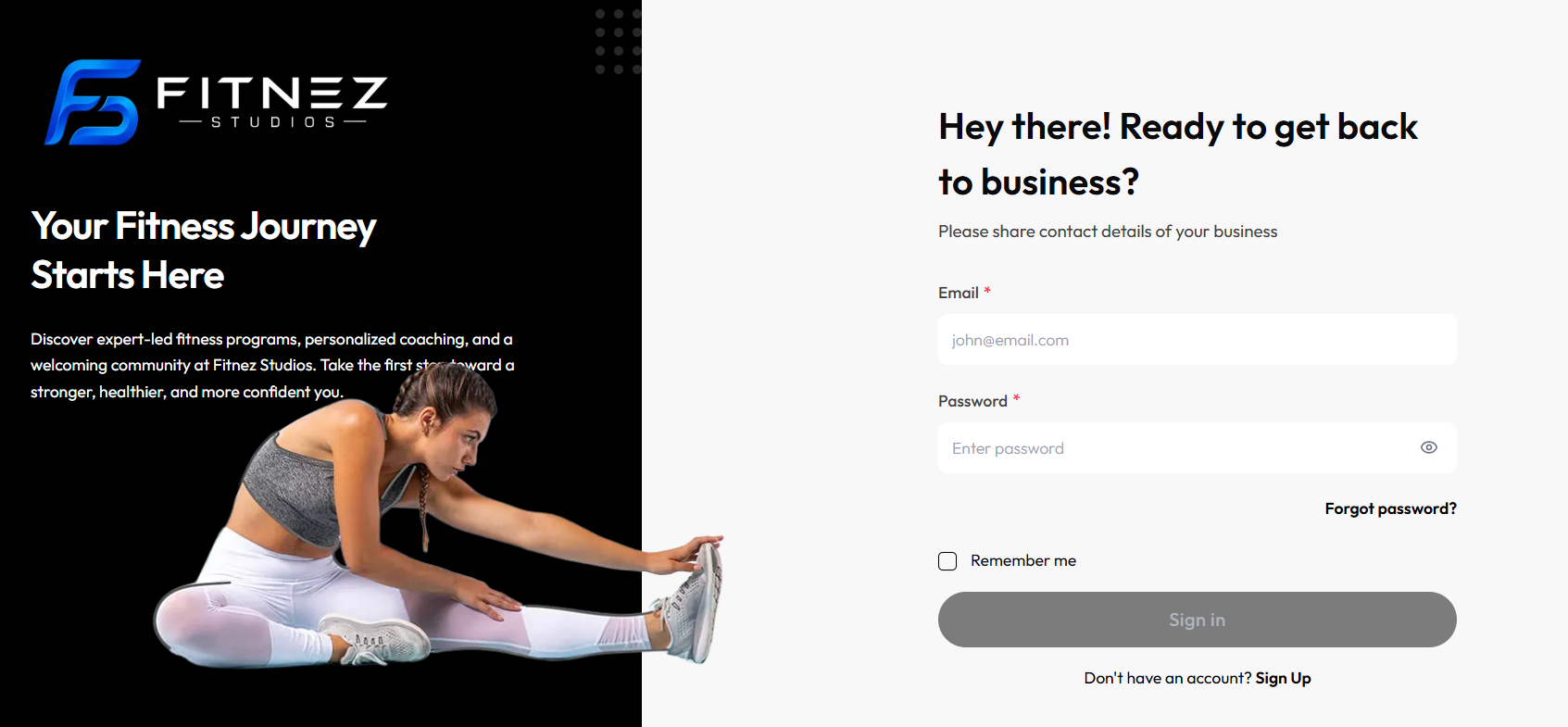
Workflow — Sign In
Step 1 — Open the Login Page
Form heading: Hey there! Ready to get back to business?
Helper text: Please share contact details of your business.
Step 2 — Enter Email * and Password *
Both fields are required (red asterisk).
- Email placeholder:
john@email.com - Password placeholder:
Enter password— use the eye icon to show or hide the value
On the same row under the password field:
- Remember me (checkbox, left)
- Forgot password? (link, right) — see Forgot Password
Step 3 — Click Sign In
After a successful sign-in, Fitnez Studio opens the Dashboard. Check the header location (for example Dublin, Ireland).
If the email or password is not accepted, a toast in the top-right shows Invalid credentials. The form stays on screen. Try again, or use Forgot password?
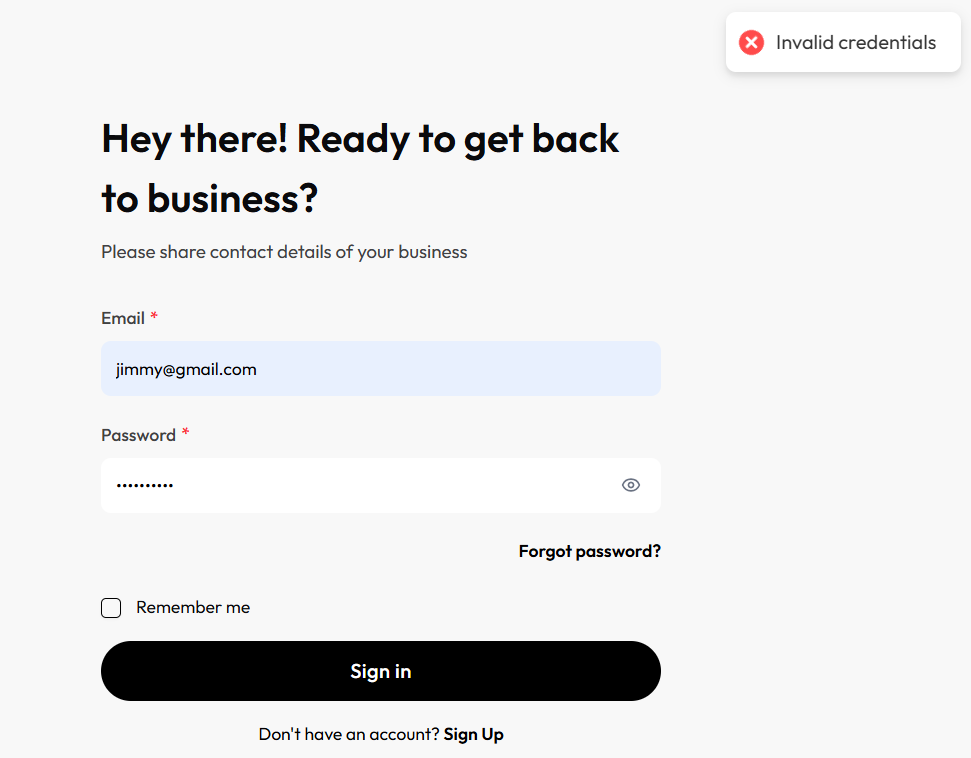
After Logout, or if you open a dashboard page while signed out, you see this login page again.
At the bottom: Don’t have an account? Sign Up. The Sign Up screens are not in this module.
Sign-in uses Email, not a username field. This form has no Google, Microsoft, or authenticator button.
Related Articles
Signing Out
Sign out when you finish work, especially on a shared computer.
Where to Find It
The dashboard uses Logout in the header menu and Log out in the other two places.
| Place | Label on screen |
|---|---|
| Header photo menu | Logout (red) |
| Bottom of the left sidebar | Log out |
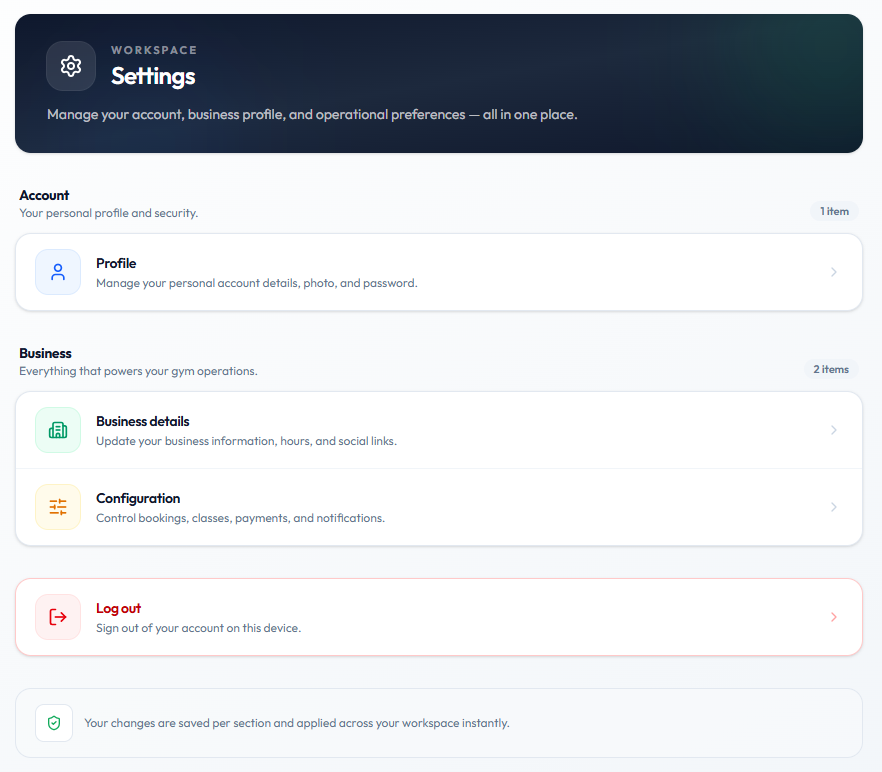
| WORKSPACE Settings | Log out — Sign out of your account on this device. |
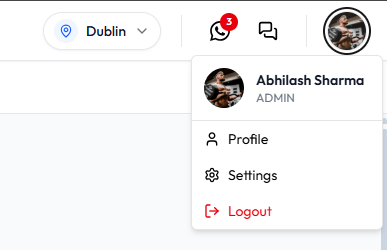
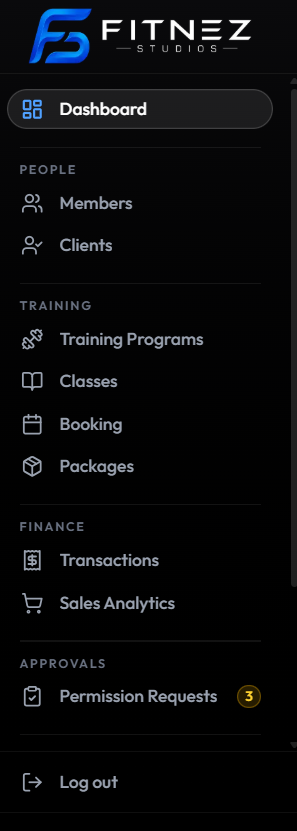
Open Settings from the header menu to reach this page, which also includes Log out:
Workflow — Sign Out
Step 1 — Open a Sign-Out Control
Click your photo and choose Logout, click Log out at the bottom of the sidebar, or open Settings and choose Log out.
Step 2 — Confirm You Are on the Login Page
These screenshots do not show a confirmation dialog. After you sign out you see the Login Page again (Hey there! Ready to get back to business?).
If you open a dashboard URL while signed out, you are returned to that same login page.
Always sign out when using a shared computer.