Account & Profile
This section is about you — the staff user who is signed in.
Your account → Your profile → Your role → Your location → Your security
After you Sign In, Fitnez Studio opens the Dashboard.
Click your photo in the header. The menu shows your name and role — for example Daniel Murphy as ADMIN in Dublin — then Profile, Settings, and Logout.
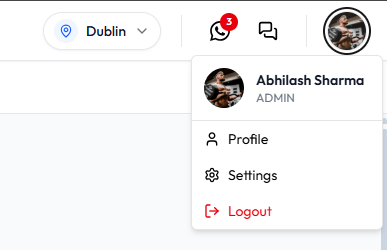
- Profile opens User profile (Manage your personal account settings.)
- Settings opens WORKSPACE Settings (Manage your account, business profile, and operational preferences — all in one place.)
- Logout signs you out of this device
Personal Information Versus Business Information
| On User profile | On WORKSPACE Settings and elsewhere |
|---|---|
| Photo, first name, last name, email, phone, designation, gender, date of birth, password | Business details — Update your business information, hours, and social links. |
| Your role on the header menu (ADMIN) | Configuration — Control bookings, classes, payments, and notifications. |
| Public website and logos — Website & Branding |
Do not change studio branding or business hours from User profile. Use Settings → Business for that.
In This Section
Signing InSigning OutViewing Your ProfileUpdating Your ProfileProfile PhotoChecking What You Can DoYour RoleWhy a Feature Is Not VisibleSwitch LocationLocation ContextPassword & SecurityChange PasswordForgot PasswordKeeping Your Account Secure
Never share your password, even with a teammate. Shared logins make Recent Activity less useful — the feed names the signed-in user (for example Daniel Murphy).
Related Articles
Last updated on