Create a Training Program
Create a program when you need a new type of training — for example Strength & Conditioning, Cycling, or Yoga. Classes use that type afterwards.
Before You Start
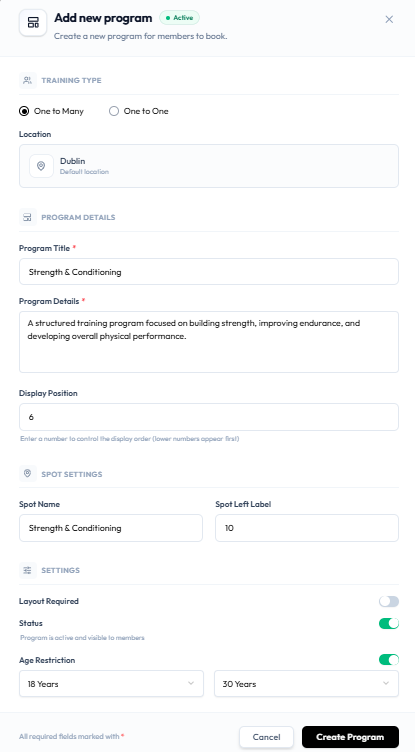
- Confirm you are in the correct Location (the form shows the current site as Default location, for example Dublin).
- Know the Program Title staff and members should recognise.
- Decide whether the program is One to Many or One to One.
Steps
Step 1 — Open Training Programs
In the left-hand menu, open Training → Training Programs.
Step 2 — Start a New Program
Click + Add Program.
The window title is Add new program, with subtitle Create a new program for members to book. An Active badge appears in the header when status is on.
Step 3 — Choose Training Type
Under TRAINING TYPE, select One to Many or One to One.
On the programs list, cards show Group or 1-on-1 to match that choice.
The location card shows the current site (for example Dublin) with Default location.
Step 4 — Enter Program Details
Under PROGRAM DETAILS:
| Field | Notes |
|---|---|
| Program Title * | Required. Example: Strength & Conditioning |
| Program Details * | Required. Longer description of the program |
| Display Position | Number for display order. Help text: Enter a number to control the display order (lower numbers appear first) |
Step 5 — Spot Settings
Under SPOT SETTINGS:
| Field | Notes |
|---|---|
| Spot Name | Label for spots (for example the same as the program title, or Spot) |
| Spot Left Label | Number field (for example 10) |
Step 6 — Settings
Under SETTINGS:
| Control | What it does on the capture |
|---|---|
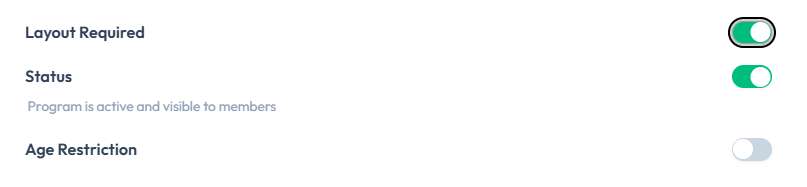
| Layout Required | On or off. When on, the card shows a Layout tag. See Studio Layouts |
| Status | On means Program is active and visible to members |
| Age Restriction | When on, choose the age range (for example 18 Years to 30 Years). Active cards can show a range badge such as Ages 18-50 |
Step 7 — Create the Program
Required fields are marked with *. Use Cancel to close without saving, or Create Program to save.
After Saving
The new program appears on View Training Programs. You can add a cover with Change image on the card, or open Edit Program.
Then create Classes of that type. If Layout Required is on, continue with Studio Layouts.