The Sales Ledger
The sales ledger is the Transactions list under Finance → Transactions.
Use it when you need to find a payment — for example a Package sale paid by Cash in Dublin.
What Is This?
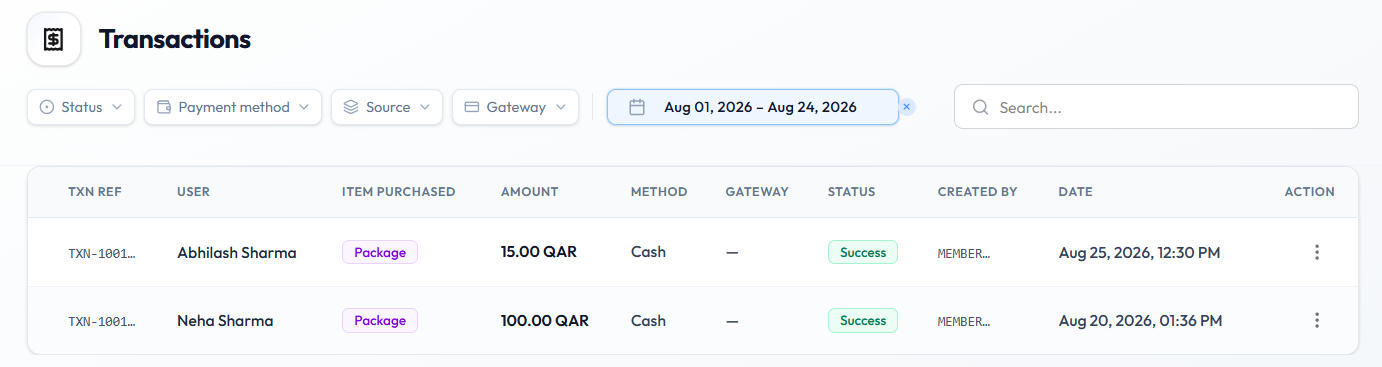
Each row is a transaction: reference, user, item purchased, amount, method, gateway, status, who created it, and date.
Finance → Sales Analytics is a separate report. This page is the transaction list.
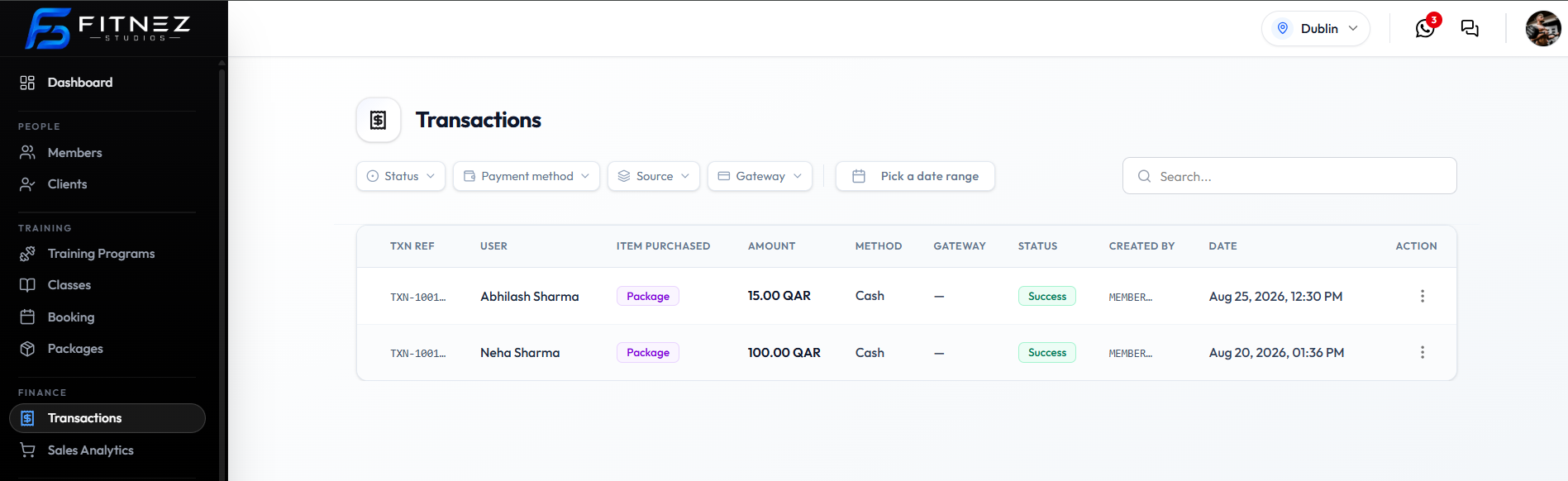
Filters
| Filter | Options on the capture |
|---|---|
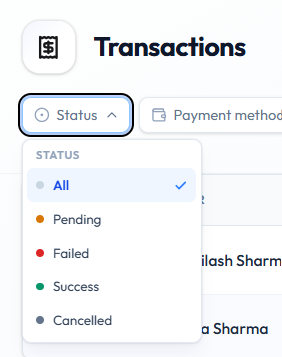
| Status | All, Pending, Failed, Success, Cancelled |
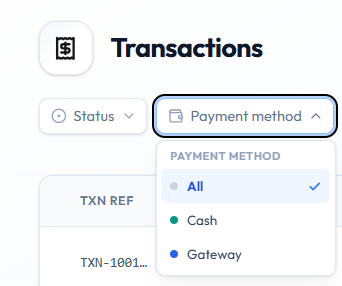
| Payment method | All, Cash, Gateway |
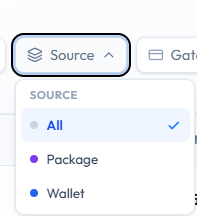
| Source | All, Package, Wallet |
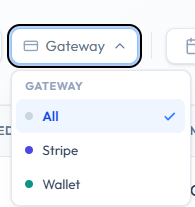
| Gateway | All, Stripe, Wallet |
| Date | Pick a date range (for example Aug 01, 2026 – Aug 24, 2026) |
| Search… | Free-text search |
Columns
| Column | What it shows |
|---|---|
| TXN REF | Transaction reference (truncated on the list) |
| USER | Client name |
| ITEM PURCHASED | For example Package |
| AMOUNT | Amount in QAR |
| METHOD | For example Cash |
| GATEWAY | Provider, or — when none applies |
| STATUS | For example Success |
| CREATED BY | Who created the record |
| DATE | Date and time |
| ACTION | ⋯ → Copy txn ref, Download invoice, Send invoice |
Workflow — Find a Sale
Step 1 — Open Transactions
Open Finance → Transactions. Confirm the Location in the header.
Step 2 — Apply Filters
Narrow with Status, Payment method, Source, Gateway, and Pick a date range, or type in Search….
Example: Status → Success, Source → Package, date range for this month.
Step 3 — Review the Row
Check USER, AMOUNT, METHOD, STATUS, and DATE.
Step 4 — Use the Row Menu
Open ⋯ for Copy txn ref, Download invoice, or Send invoice. See Downloading an Invoice.

A separate transaction detail panel is not in these captures. Use the list columns and the ⋯ actions for what is confirmed on screen.
If You Cannot Find a Sale
- Confirm location and date range
- Clear filters or set Status → All
- Search the client name
- Check Wallet History if it was a wallet change (Source → Wallet)