Images by Area
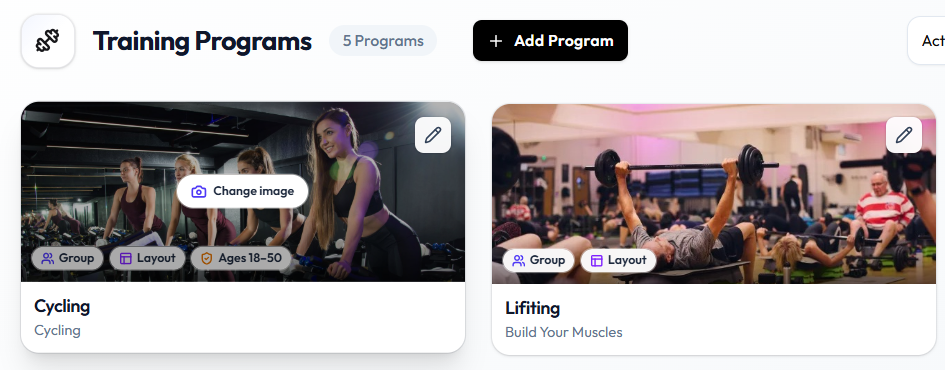
Program artwork appears on the Training Programs cards — for example Cycling — so staff can spot each type quickly.
From the Programs List
On a program card, use Change image when it appears over the cover.
From Update Program Image
Training Programs → Change image (or open program) → Update Program Image → Upload → Reposition → Add image
Step 1 — Open Training Programs
Training → Training Programs. Confirm the Location if your studio uses more than one site, such as Dublin.
Step 2 — Open the Image Flow
Either:
- Click Change image on the program card, or
- Open the program with the pencil control, then open the image control if it appears on that form
Step 3 — Open Update Program Image
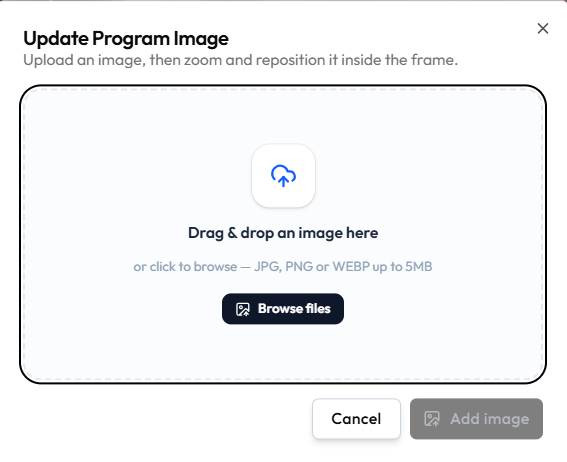
The modal title is Update Program Image. The instruction is: Upload an image, then zoom and reposition it inside the frame.
Step 4 — Choose a File
Either:
- Drag & drop an image here, or
- Click Browse files
Supported on this modal: JPG, PNG or WEBP up to 5MB.
Step 5 — Reposition and Save
After upload, zoom and reposition inside the frame if controls appear (same pattern as Event Banners).
Click Add image, or Cancel to close without saving.
Where the Image Appears
The cover shows on each card on View Training Programs. Member-facing use of the same image is not confirmed in this Help Center.
Related Articles
- View Training Programs
- Create a Training Program
- Edit a Training Program
- Upload from Your Computer
- Image Size & Quality Tips
Add an Event Image
Event banners help members recognise September Fitness Challenge or HIIT Blast on the Events list and in LIVE PREVIEW.
This page summarises the media workflow. Full event steps live in Adding an Event Image.
Workflow
Events → Edit Event → Event Banner → Upload → Zoom and reposition → Save image → Update Event
Step 1 — Open the Event
Studio → Manage Events → Event, then Edit Event for your event.
Step 2 — Open Update Event Banner
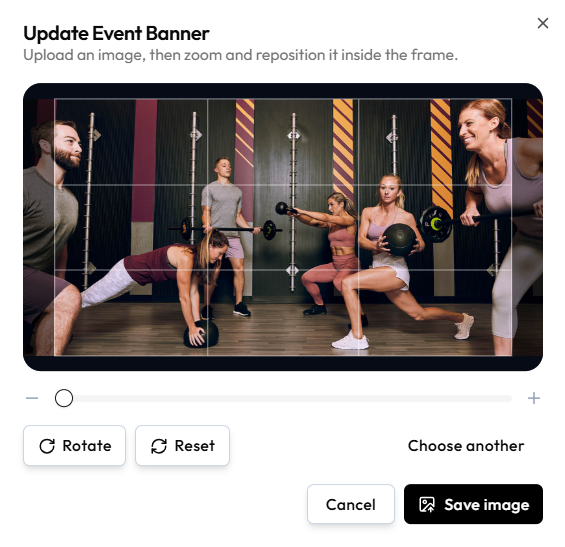
Use Event Banner on Basics. The modal title is Update Event Banner.
Upload an image, then zoom and reposition it inside the frame.
Step 3 — Adjust the Image
| Control | Purpose |
|---|---|
| Zoom - / + | Zoom inside the frame |
| 3×3 grid | Shows the kept area |
| Rotate | Rotate the photo |
| Reset | Undo crop and zoom |
| Choose another | Pick a different file |
File types and size limits are not shown on this modal.
Step 4 — Save the Banner
Click Save image, or Cancel / X to discard.
Step 5 — Update the Event
Continue to Review and click Update Event so the BANNER column updates.
Where the Image Appears
- BANNER on the Events list
- Event Banner and LIVE PREVIEW on edit
- Member app placement not confirmed
Challenges use the same event flow. See Events Overview.
Add Badge Artwork
Badge artwork should stay recognisable at small size — for example Consistency Champion attached to a Challenge Reward.
Workflow
Badges → Create Badge (or Edit Badge) → Icon → Upload → Create Badge / Save Changes
Step 1 — Open Badges
Studio → Manage Events → Badges.
Step 2 — Create or Edit
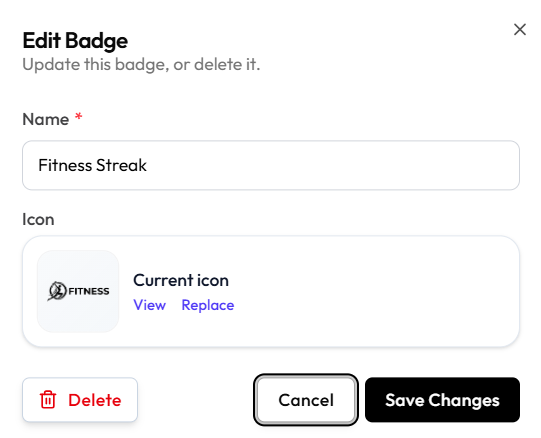
Click + Create Badge, or open an existing badge such as Fitness Streak.
Step 3 — Upload the Icon
Icon is required (asterisk).
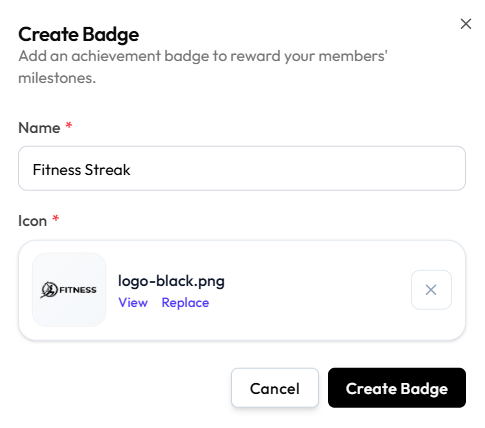
After upload you see the file name (for example logo-black.png), View, Replace, and X to clear.
On edit:
Step 4 — Save
Create Badge or Save Changes. Cancel / X closes without saving.
Design Tips
- Prefer simple shapes and high contrast — badges display small.
- Avoid fine text inside the icon.
- See Image Size & Quality Tips.
File format and size limits are not shown on the badge form. PNG is shown in the example filename only.
Add a Class Image
The topic plan includes class artwork for sessions such as Strength Training. Create New Class and Edit Class screenshots in this help centre do not show an image field.
What the Class Form Includes
Confirmed sections on Create a Class:
- PROGRAM DETAILS — Training Program, Floor Layout, Theme Name
- ASSIGNMENT — Trainer, Class Title
- SCHEDULE — Class Date, Start Time, End Time
- BOOKING SETTINGS — Price Type, Max Waiting List
- PREFERENCES — Gender, Status
There is no Class image, Photo, or Banner control on that form.
Workflow (Not Available on Captured UI)
Classes → Create/Edit Class → Image → Upload
That path cannot be documented until Fitnez Studio shows an upload control on the class form.
What to Use Instead
Members identify classes by Class Title, Training Program, trainer, date, and time on Class Management. Program-level artwork may exist via Add a Training Program Image — whether it appears on class cards is not confirmed.
If your studio build adds class images later, capture Create New Class or Edit Class with the new field and this page can be updated.
Add a Package Image
Package artwork could help members choose 10-Class Strength Package on the member-facing catalogue. The captured Create Package flow does not show an image upload yet.
What Is Confirmed on Create Package
Step 1 of 3 — Package Type:
- Normal Package
- Time Based Package
- Location Based Package
- Training Program Package
Steps 2 (Purchase Type) and 3 (Details — Name & validity) are not captured. An image field might appear on a later step — not confirmed.
Workflow (Not Confirmed)
Packages → Create/Edit Package → Image → Upload → Save
Do not document that path until a screenshot shows the field.
Package Catalogue Today
The Packages Grid shows name, type, price, sessions, and validity — no package thumbnail on cards in the current screenshot.
When members Purchase a Package, artwork on the sale screen is not confirmed.
Screenshot to add: Create Package Details step or edit package form with an image upload, if it exists in your studio build.
Add a Member Profile Photo
Staff open Emma Wilson from People → Clients to see contact details and groups. Whether they can upload a profile photo depends on controls not visible on the current screenshot.
What Client Detail Shows
Client Detail includes:
- Initials avatar (generated from the name)
- Name, email, phone, date of birth, gender, groups, Active status
- Edit (pencil) for Edit Client Details
There is no Profile photo, Avatar upload, or Image field on the profile panel capture.
The edit form screenshot shows personal and group fields — no photo upload there either.
Workflow (Not Confirmed)
Clients → View Profile → Profile Image → Upload → Save
Document that only when a screenshot shows the control.
Who Would See a Photo (If Added Later)
Visibility rules are not confirmed. Do not assume members see their photo on a public website or that all staff roles can upload until the UI and permissions are captured.
Website Logos & Section Images
Public website images live under Studio → Website. Email branding uses a separate upload on Email Header & Footer.
Theme Gallery
Studio → Website → Theme shows Published status, Search themes…, and filters (All Themes, Featured Only, Not Featured). Theme previews (Prism Fit, Solas Fit, Nova Studios) are theme designs, not your own uploads.
See Choosing a Theme.
Logo, Footer Logo, Favicon
Studio → Website → Details → Branding:
| Field | Help text |
|---|---|
| Logo | Upload a header logo image |
| Footer logo | Upload a footer logo image |
| Favicon | Upload a favicon image (square recommended) |
Each has Upload image and Remove. Click Save changes.
See Logo, Footer Logo & Favicon.
Hero Section Image and Video
Studio → Website → Sections → Hero Section:
- Image preview with Replace and Remove
- Video upload (MP4, WebM, or MOV) or URL
- Show image / Show video toggles
Click Save sections. See Choosing Website Sections.
Email Images (Separate from Website)
For logos and banners in member emails, use:
Studio → Notification → Email Notification → Edit Header & Footer
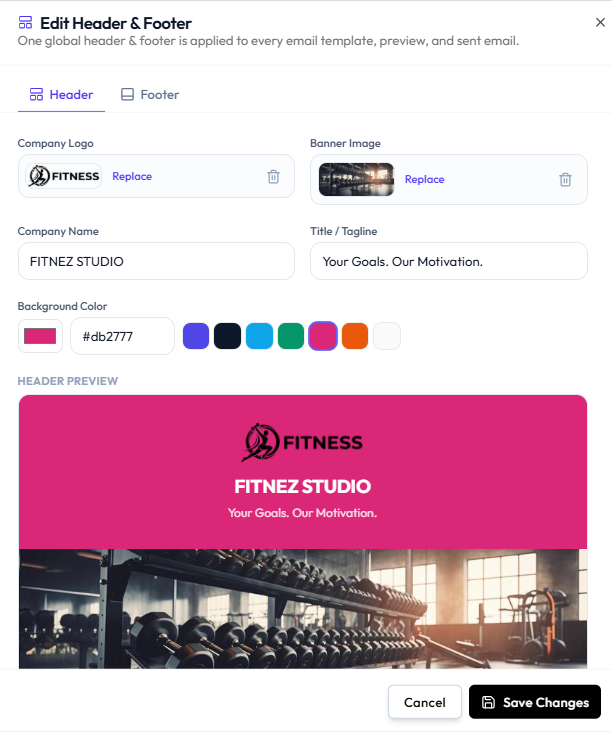
| Field | Actions |
|---|---|
| Company Logo | Upload, Replace, remove (trash) |
| Banner Image | Upload, Replace, remove (trash) |
One global header applies to every template. See How Images Are Stored & Reused.
Step 1 — Open Email Templates
Studio → Notification → Email Notification.
Step 2 — Edit Header & Footer
Open Edit Header & Footer → Header tab.
Step 3 — Upload Logo or Banner
Use the upload area or Replace.
Step 4 — Check HEADER PREVIEW and Save
Click Save Changes.