Dashboard Overview
The dashboard is the home screen after you sign in. It shows what is happening at your studio today, and a Getting Started tab if setup work is still outstanding.
Where to Find It
Open Dashboard at the top of the left-hand menu. After you sign in, this is the first screen.
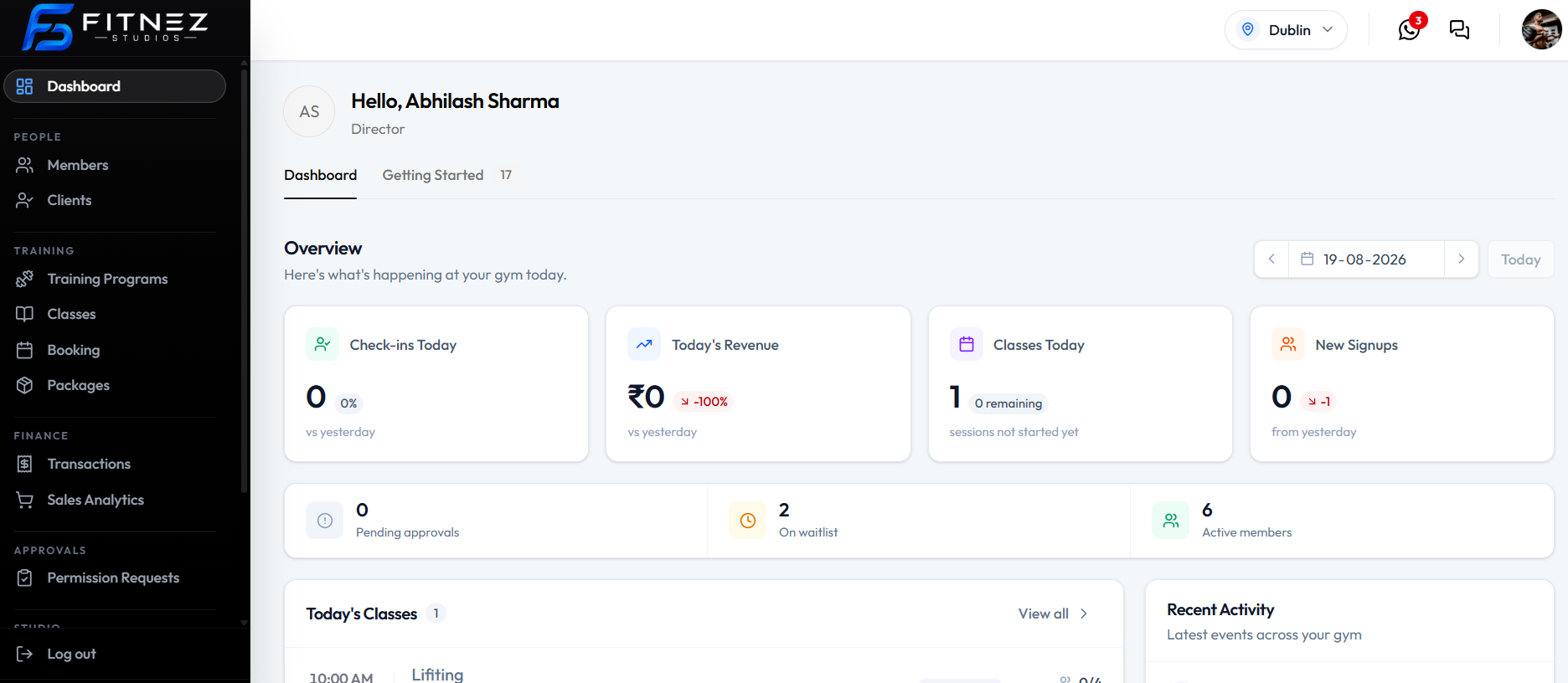
Header
At the top of the dashboard you see:
- A greeting with your name and designation
- The location selector
- Notifications (a badge can show unread items). This is the staff inbox, not Member Emails.
- Chat
- Your profile picture
Dashboard and Getting Started
Two tabs sit under the greeting:
| Tab | What it is for |
|---|---|
| Dashboard | Today’s overview |
| Getting Started | First-run setup. A number on the tab is how many setup items are still open |
See Setup Checklist for the setup stages.
Overview
The Overview heading is: Here’s what’s happening at your studio today.
Use the date control to pick a day, or click Today.
Today’s Numbers
| Card | What it shows |
|---|---|
| Check-ins Today | How many people checked in, compared with yesterday |
| Today’s Revenue | Revenue for the day, compared with yesterday. Studio-wide sales are under Finance → Transactions |
| Classes Today | How many classes are on the timetable, and how many have not started |
| New Signups | New sign-ups, compared with yesterday |
Needs Attention
| Card | What it shows |
|---|---|
| Pending approvals | Requests waiting for a decision. See Approval Requests and Pending Approvals on the Dashboard |
| On waitlist | People on a waiting list |
| Active members | How many members are active |
Today’s Classes / Classes
On a day with no sessions: No classes scheduled. Nothing on the timetable today. Use View all > to open Class Management.
On a day with sessions (for example 23-08-2026), the block can be titled Classes with a count. Click a class such as Lifting to open that class’s detail page. View all > still opens the classes list.
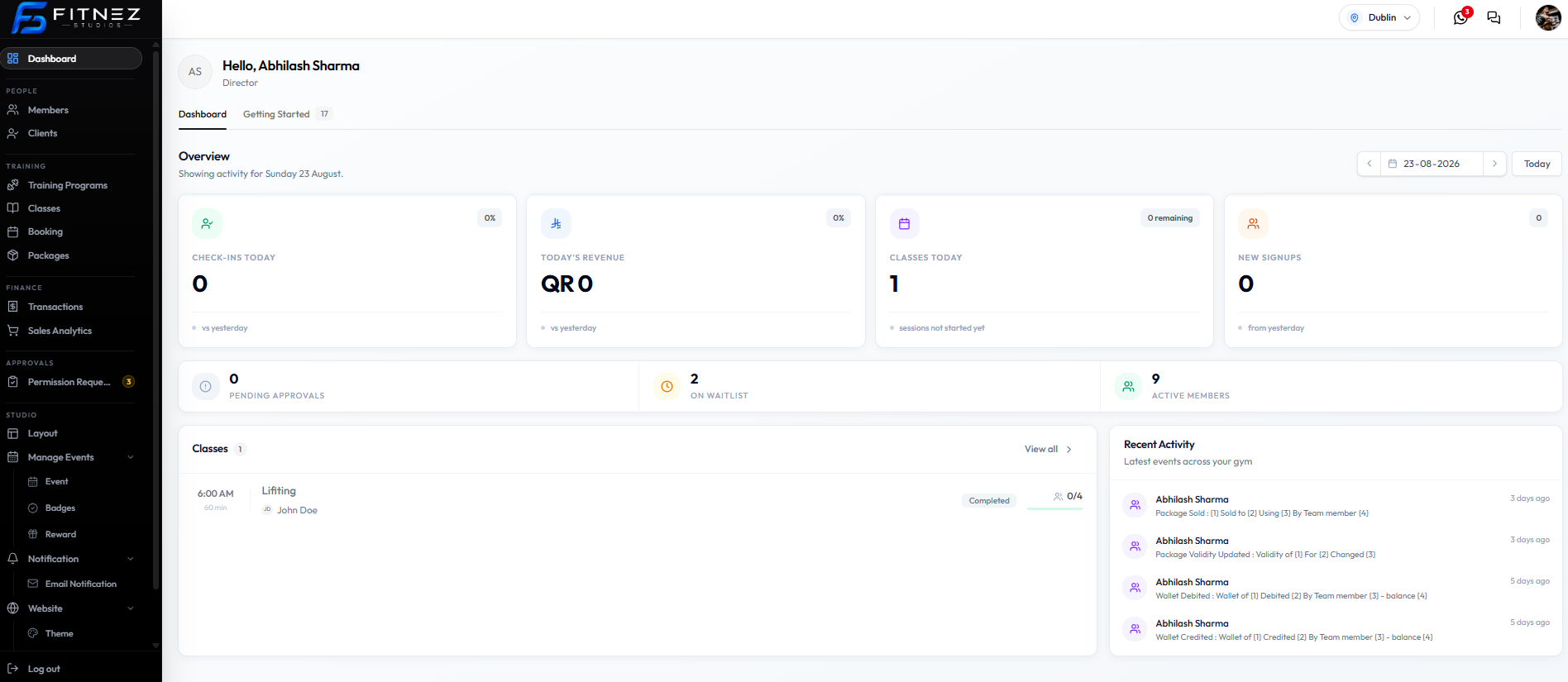
See Open a Class from the Dashboard.
Recent Activity
Recent Activity is labelled Latest events across your studio. It sits on this Dashboard page — there is no separate Activity Feed screen.
Captured rows: Package Sold, Package Validity Updated, Wallet Debited, Wallet Credited, with a staff name and a relative time.
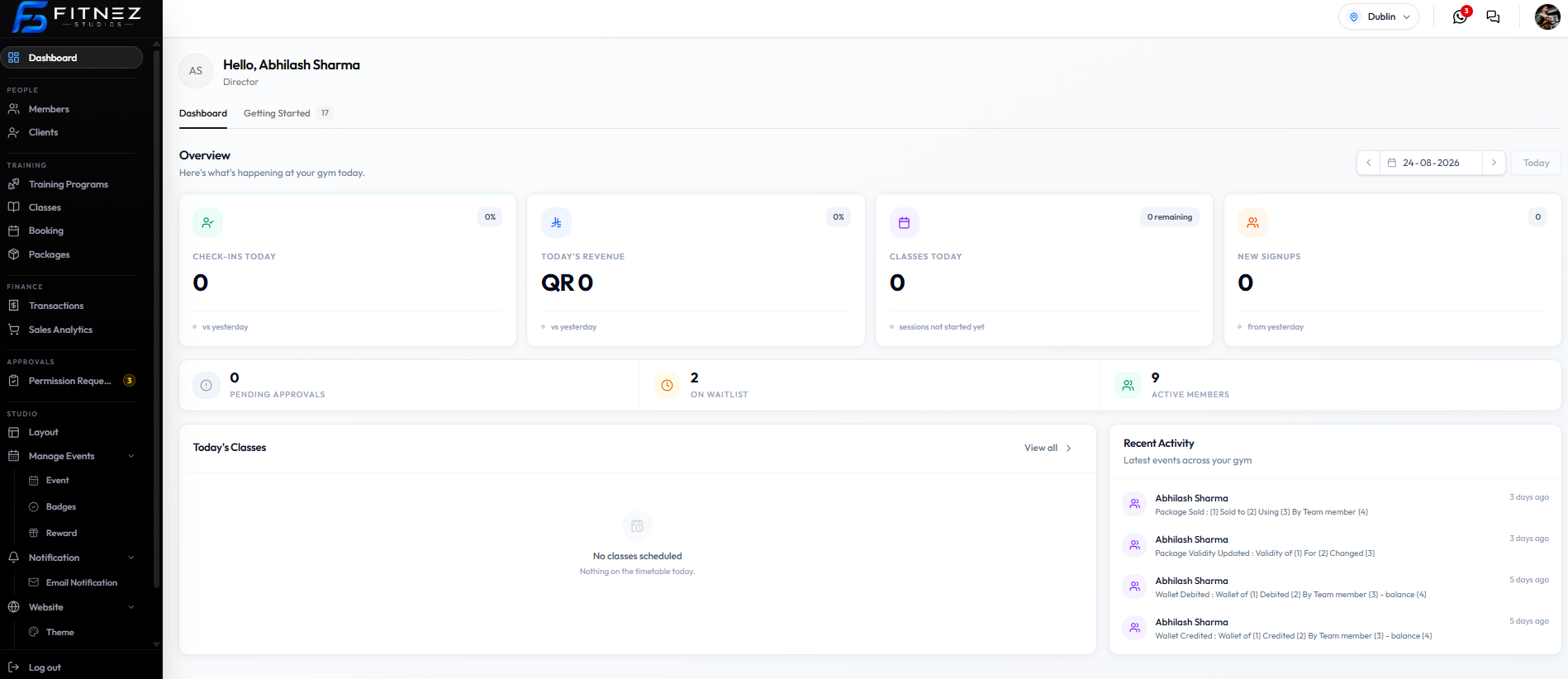
See Activity Feed.
How to Use It on Day One
- Open Dashboard after you sign in.
- Check today’s classes, waitlist, and pending approvals.
- If the Getting Started tab shows a number, finish those setup items next.
The dashboard screenshot shows the Getting Started tab. The checklist screen itself is documented separately when that screenshot is available.