Cancel or Delete a Class
You can delete a class only when its status is Draft. Upcoming and past classes do not show Delete class.
There is no Cancel action on the class row menu in the current screenshots.
What happens to people who booked — refunds, package credits, waitlist, and emails — is not shown. Do not delete a draft that already has bookings until you have confirmed the result in Fitnez Studio.
Draft Classes Menu
Open Training → Classes, then Draft Classes. Open ⋯ on the draft row.
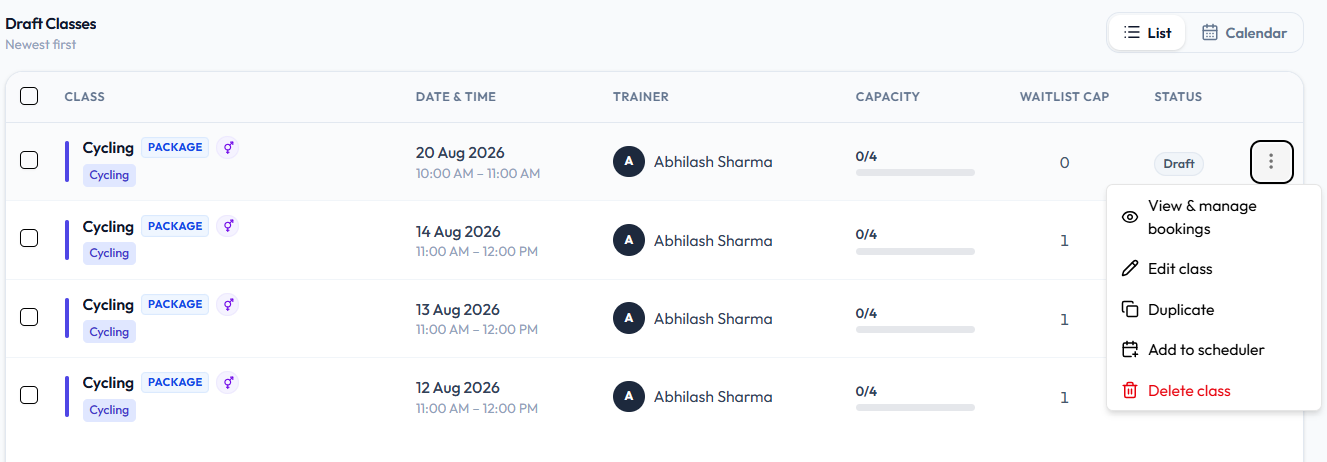
The draft menu includes:
- View & manage bookings
- Edit class
- Duplicate
- Add to scheduler
- Delete class (in red)
Delete class is only on draft classes. An Upcoming class menu has View & manage bookings, Edit class, and Duplicate only.
Delete a Draft Class
Step 1 — Find the Draft
Open Training → Classes and choose Draft Classes. The list can show Newest first, plus List / Calendar view.
Step 2 — Choose Delete Class
Open ⋯ and click Delete class.
Step 3 — Confirm
Complete any confirmation Fitnez Studio shows.
Classes You Cannot Delete
| Status | Delete class |
|---|---|
| Draft | Yes — on the row menu |
| Upcoming | No |
| Past | No |
To stop a published session from running, change what Fitnez Studio allows on Edit a Class. A Cancel action is not on the current menus.