Choosing a Theme
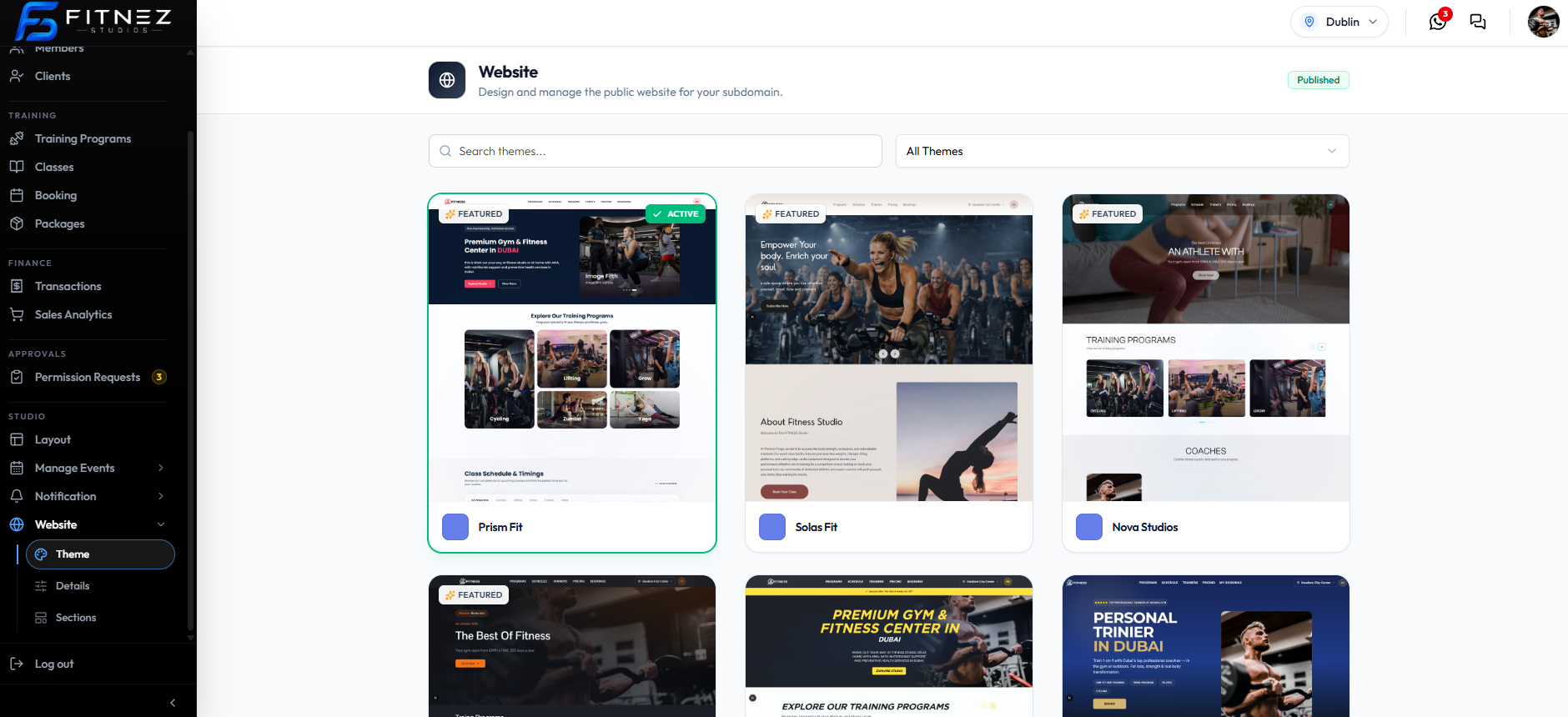
A theme is the visual design of your public website. Open Studio → Website → Theme.
The page title is Website. The subtitle is Design and manage the public website for your subdomain. Status on the capture is Published.
Search and Filter
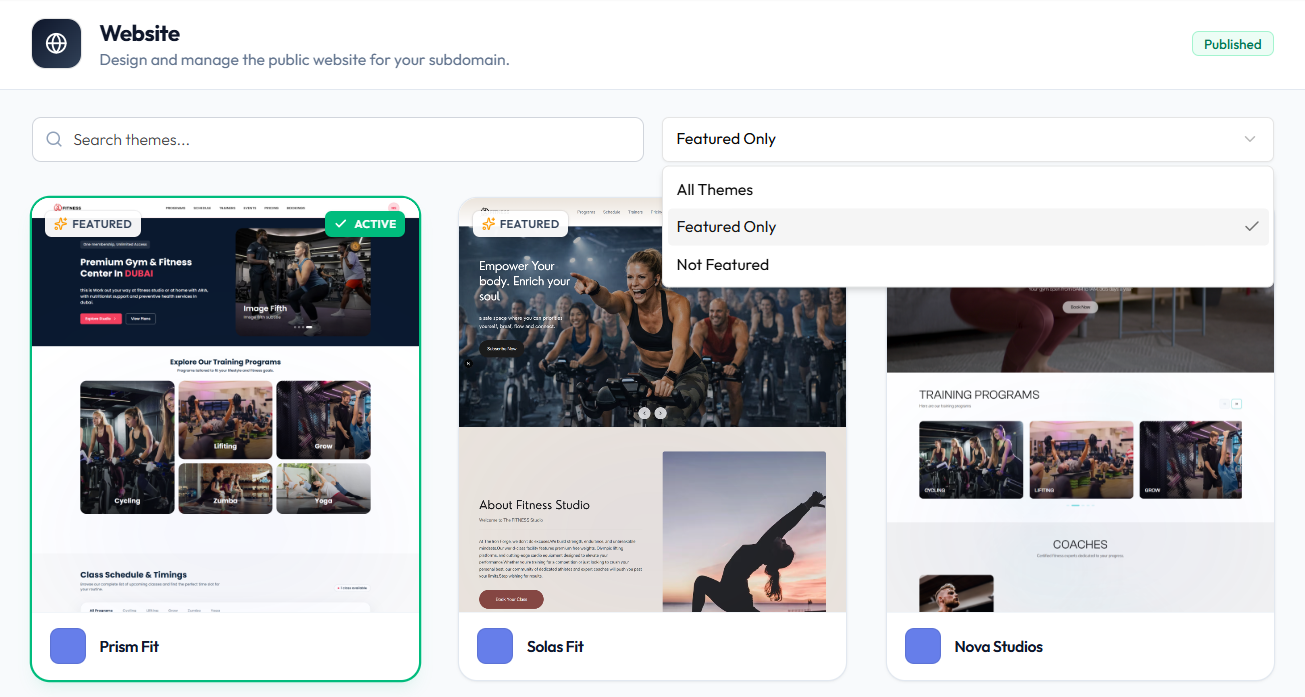
- Search: Search themes…
- Filter dropdown:
| Filter | Use |
|---|---|
| All Themes | Full gallery |
| Featured Only | Themes marked FEATURED |
| Not Featured | Themes without the featured badge |
What You See on Each Card
Each card shows a preview, a colour swatch, and the theme name. Badges can include:
- FEATURED — highlighted in the gallery
- ACTIVE — the theme currently in use (green border on the card)
On the capture:
- Prism Fit is ACTIVE and FEATURED
- Solas Fit is FEATURED
- Nova Studios and other cards appear in the grid
After you choose a theme, Sections shows THEME: with that name (for example THEME: Prism Fit).
The captures show the gallery and the ACTIVE badge. The exact click or confirmation to switch from Prism Fit to another theme is not labelled separately — use the control Fitnez Studio shows on the card.
Steps
Step 1 — Open Theme
Studio → Website → Theme.
Step 2 — Find a Theme
Search or filter (All Themes / Featured Only / Not Featured).
Step 3 — Activate
Select the theme you want so it becomes ACTIVE. Then open Details and Sections to finish branding and content.