Manage Email Templates
Open Studio → Notification → Email Notification. The list heading is All Templates.
The full page screenshot is on the Notifications Overview. This page is how Sophie Bennett finds one template quickly.
Search and Filters
| Control | What it does |
|---|---|
| Search name or subject… | Finds a template by name or subject |
| All events | Limits the list to one Event |
| All status | All status, Active, or Inactive. See Activating or Deactivating a Template |
How to Spot What You Need
| You want | Look for |
|---|---|
| Live wording | Active on the row toggle |
| Unused wording | Inactive, or filter All status → Inactive |
| One kind of mail | All events → that event |
Each row also has View, Edit, and Delete.
Related Articles
Creating an Email Template
Create a template when an Event should send mail — for example Package Purchased.
The modal title is Create Template. The subtitle is: Compose the email and use {{variables}} that get filled in automatically when the email is sent.
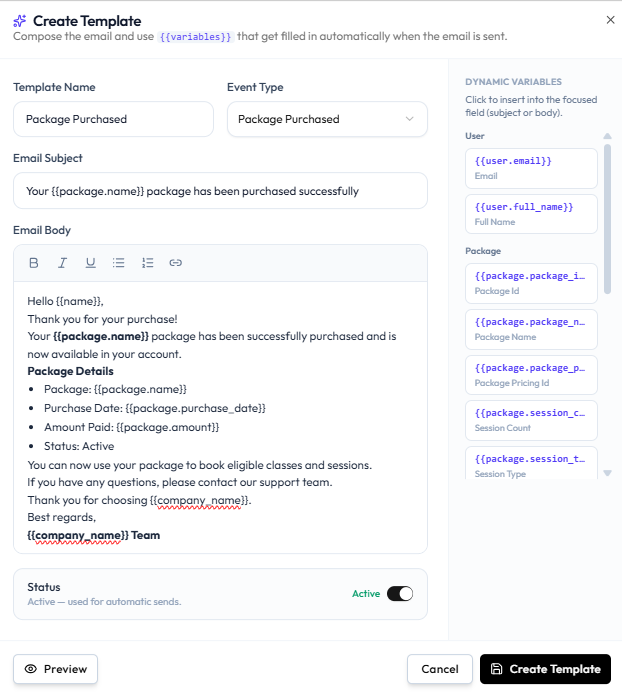
One Event Type per Template
Each template has one Event Type. The list already has one template for Package Purchased, one for Wallet Top-up Success, and one for Booking Created.
Whether Fitnez Studio blocks a second template for the same event is not shown. If you need new wording, Edit the existing template for that event.
Workflow — Create a Booking Confirmation Email
Email Templates → + Create Template → Event Type Booking Created → Subject → Body → Placeholders → Preview → Create Template
The same steps work for any event, such as Package Purchased.
Step 1 — Open Email Templates
Studio → Notification → Email Notification, then + Create Template.
Step 2 — Name the Template
Template Name — for example Package Purchased.
Step 3 — Select Event Type
Choose the trigger, such as Package Purchased. See Which Events Can Trigger an Email.
Step 4 — Write Email Subject and Email Body
The body editor supports Bold, Italic, Underline, bulleted list, numbered list, and hyperlink.
Insert tokens from DYNAMIC VARIABLES. See Using Placeholders and Writing the Subject & Body.
Step 5 — Set Status
The toggle Active has the caption: Active — used for automatic sends.
Turn it off if you are not ready to send.
Step 6 — Preview and Save
Click Preview, then Create Template. Cancel or X closes without saving.
Editing a Template
Edit when the wording should change but the event stays the same — for example a clearer Package Purchased email.
The modal title is Edit Template. The subtitle is the same as create: use {{variables}} that get filled in automatically when the email is sent.
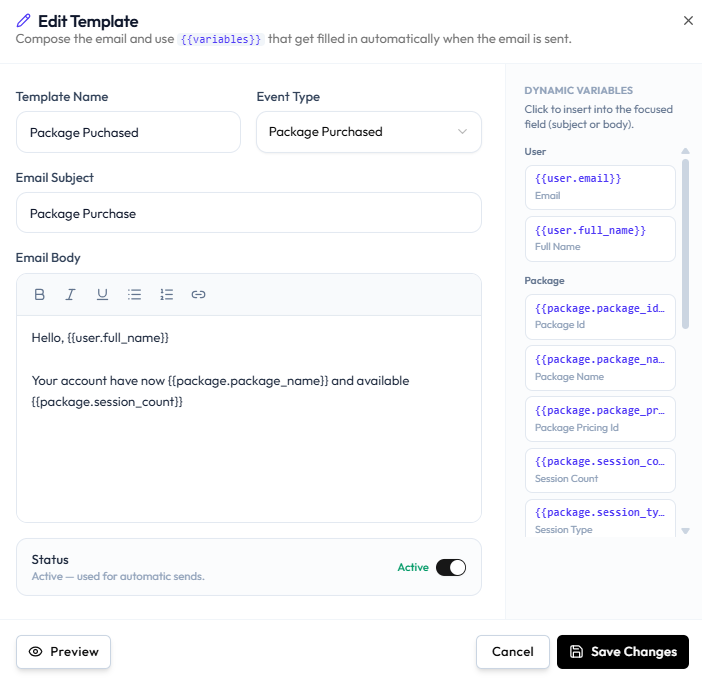
Update the booking confirmation or package wording without creating a second template.
Workflow — Update a Template
All Templates → Edit (pencil) → Subject / body → Preview → Save Changes
Step 1 — Find the Template
Open Studio → Notification → Email Notification. Click the pencil on the row.
Step 2 — Change the Fields
You can update:
- Template Name
- Event Type
- Email Subject
- Email Body (Bold, Italic, Underline, lists, hyperlink)
- Status (Active — used for automatic sends.)
Click DYNAMIC VARIABLES to insert tokens into the focused field.
Step 3 — Preview
Click Preview. See Previewing an Email.
Step 4 — Save
Click Save Changes. Cancel or X discards the edit.
Do not assume emails already in a member’s inbox will change. New sends use the saved wording.
Activating or Deactivating a Template
Active
The caption on Create and Edit is: Active — used for automatic sends.
Inactive
The template stays on All Templates but is not used for automatic sends.
Filter the list with All status:
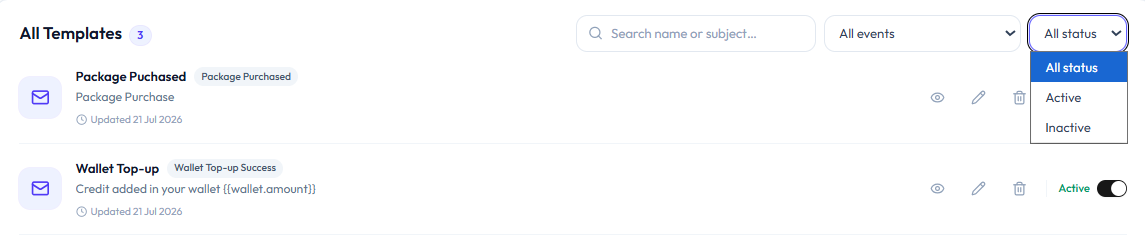
| Filter | What it shows |
|---|---|
| All status | Every template |
| Active | Templates that are on |
| Inactive | Templates that are off |
On each row, Active appears in green next to a toggle. Turn the toggle off to deactivate; turn it on to activate again.
Template Status Is the Send Switch
There is no separate notification-settings page in these screenshots. Active on the template is what controls automatic sends.
| Template | Result |
|---|---|
| Active | Used for automatic sends for that Event Type |
| Inactive | Not used for automatic sends; wording is kept |
Workflow — Temporarily Disable a Template
Email Templates → Toggle Active off (or Edit Template → Status off → Save Changes)
Step 1 — Find the Template
Open Studio → Notification → Email Notification. Use All status if you need to find inactive rows later.
Step 2 — Deactivate
Turn the row toggle off, or open Edit Template and set Status off, then Save Changes.
Step 3 — Activate Again
Turn the toggle on, or set Status to Active and save.
Useful while you rewrite wording and do not want the old text to go out.
Deleting a Template
Delete when the template should not stay on All Templates. Prefer Deactivating if you might need the wording again.
The event can still exist in All events. After delete, that event has no template on the list until you Create one.
Workflow — Delete a Template
All Templates → Delete (trash) → Delete template → Delete
Step 1 — Find the Template
Open Studio → Notification → Email Notification.
Step 2 — Click Delete
Click the trash icon on the row.
Step 3 — Confirm
The modal title is Delete template. The text is: Are you sure you want to delete [template name]? This action cannot be undone.
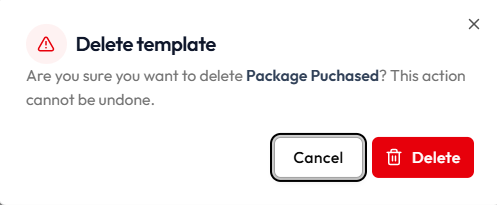
- Cancel or X keeps the template
- Delete (red) removes it
The confirmation uses the Template Name as saved. Check the name before you confirm.
Emails already received are not removed from inboxes.