Managing Bookings
Use these guides after a booking already exists — open the class roster, move spots, change or remove a place, understand package credits at booking time, and know which business rules sit in Settings.
Primary day-to-day flows stay separate: Book a Member, View Bookings, Cancel a Booking, Check-In & Attendance, and Waiting List.
Class Roster
The class roster is the list of people on one session — who is booked, who is waiting, and attendance controls for that class.
Open Training → Booking → Today’s Schedule, then select the class.
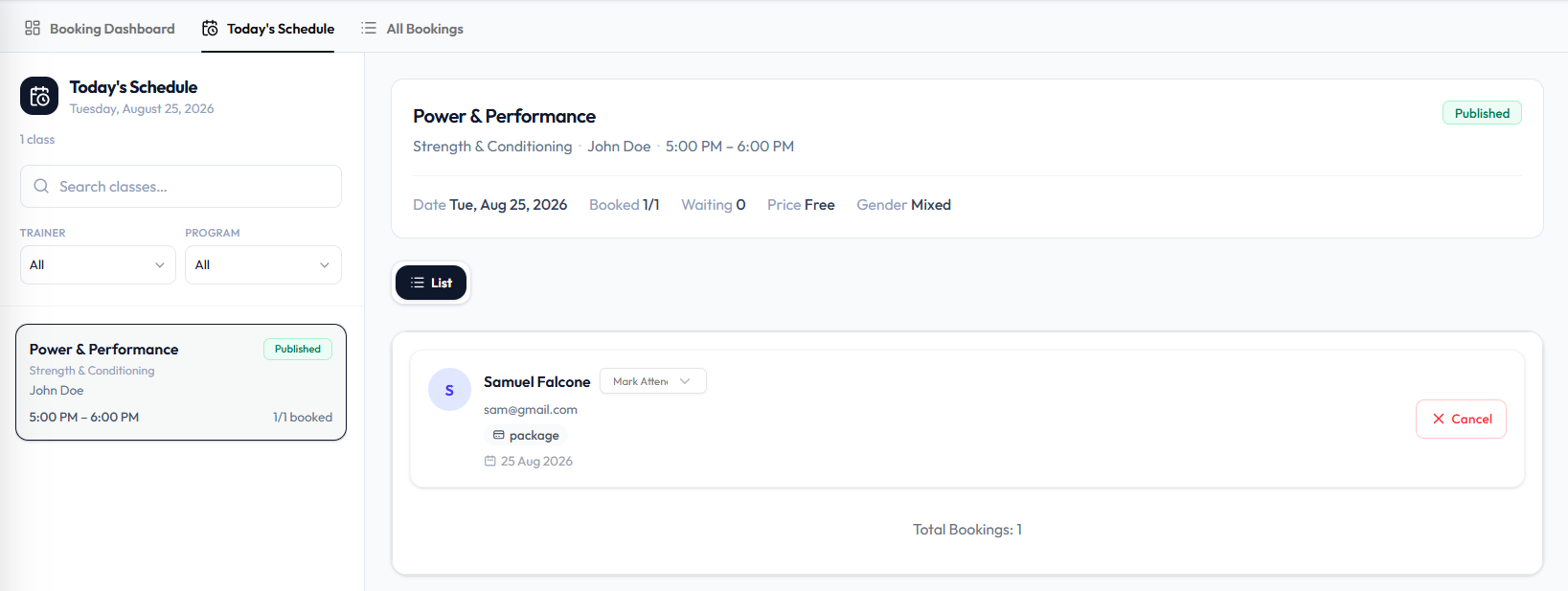
The panel can show:
- Class name, program, trainer, time
- Published (or other status on the card)
- Booked (for example 1/1), Waiting, Price, Gender
- Attendee cards with name, email, Mark Attendance, payment (package), date, and Cancel
- Total Bookings
This is also where you Book a Client into the class.
You can also open Training → Classes, then ⋯ → View & manage bookings. The class header can show booked and waiting counts, trainer, date, time, booking type, and gender. For a past class, see Class Statuses.
On a draft class, the same View & manage bookings action is on the draft row menu. See Cancel or Delete a Class.
From All Bookings: Training → Booking → All Bookings → ⋯ → View details. There is no screenshot of that panel yet.
Seat labels (for example Seat C4) appear on some class detail captures. Today’s Schedule attendee cards in the current capture do not show seat numbers.
Choose & Change Spots
Use spots when the class has a Studio Layout and Spot Reservation is on. A spot is one bookable position — a bike, mat, or station.
If spot reservation is off, members book the class, not a numbered position. Staff may still see a layout, but choosing a spot at booking time is not expected.
There is no screenshot of the class floor plan on a roster. This guide does not describe how staff pick a spot, or what members see.
Step 1 — Open the Class Roster
Open the class from Training → Classes or Training → Booking.
Step 2 — Select the Member
Find the person who should move, such as Emma Carter.
Step 3 — Choose the New Spot
Move them to a free position on the layout. Save if Fitnez Studio asks you to.
Swap Spots
Swap spots when two booked members should exchange positions — for example Olivia Bennett on bike 3 and James Wilson on bike 8.
This is not the same as Changing Waiting-List Order.
Step 1 — Open the Class Layout or Roster
Open the class that uses a Layout.
Step 2 — Select Both Members
Choose the two people whose spots should swap.
Step 3 — Swap
Use Swap if that action is on the screen, then save.
There is no screenshot of a swap action. This guide does not describe the control or whether both members are notified.
Spot reservation must be relevant for the class. See Choose & Change Spots.
Change a Booking
Change a booking when the reservation should stay, but the details should not — for example moving Sophie Martin to another Spot on the same Cycling class.
Step 1 — Find the Booking
Open Training → Booking, or open the Class Roster.
Step 2 — Open Change
Select the booking and use the change action Fitnez Studio shows.
Step 3 — Save
Save the new details.
On All Bookings, the row menu shows View details and Cancel booking only. There is no Change action on that screenshot, and no screenshot of View details. This guide does not list what you can change (spot, class, time) or what happens to Package Credits.
To take the member off the class entirely, use Cancel a Booking or Remove a Member.
Remove a Member
Remove a member when they should come off the roster and their place should be free for someone else.
This may look similar to Cancel a Booking. Until both actions are visible, treat them as separate tasks: cancel the reservation, or remove the person and free the Spot.
Step 1 — Open the Class Roster
Open the class from Training → Classes or Training → Booking.
Step 2 — Select the Member
Find the person, such as Noah Williams.
Step 3 — Remove
Use Remove if that action is on the roster.
There is no screenshot of remove. This guide does not say whether the booking becomes cancelled, whether credits return, or whether a waitlisted member is promoted.
After removing, the class CAPACITY booked count should fall if a booked place was freed. WAITLIST CAP is the waitlist limit, not the number of people waiting.
Package Credits
A package is what a client buys. A session on that package is what they use when you book them into a class. See Packages.
On Training → Classes, some classes show a PACKAGE badge. On All Bookings, PAYMENT can show Package. On Today’s Schedule, an attendee row can show package.
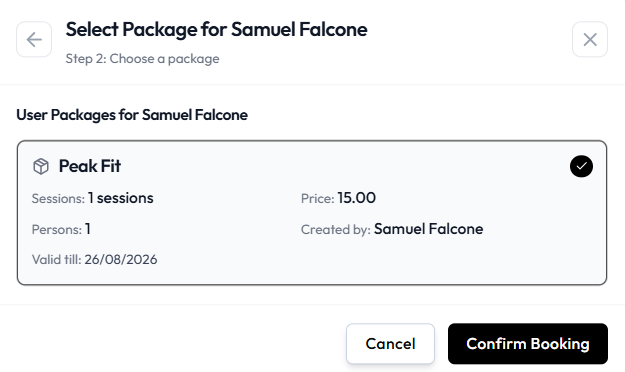
Book a Member Step 2 is Choose a package.
If the client already holds a package, select it (for example Peak Fit with sessions and valid till), then Confirm Booking.
If they have none:
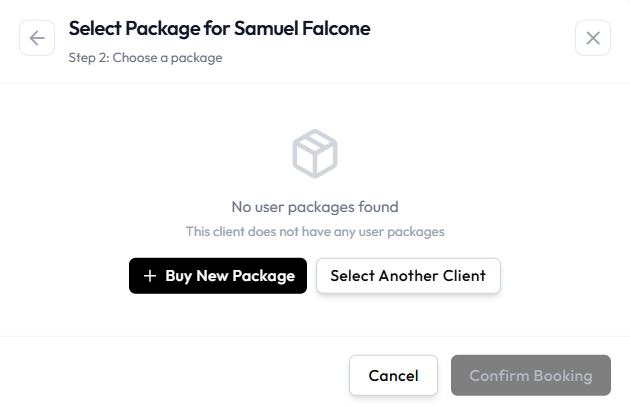
Use + Buy New Package, choose pricing and Cash or Wallet, then add the package (for example Add via Wallet when balance is sufficient).
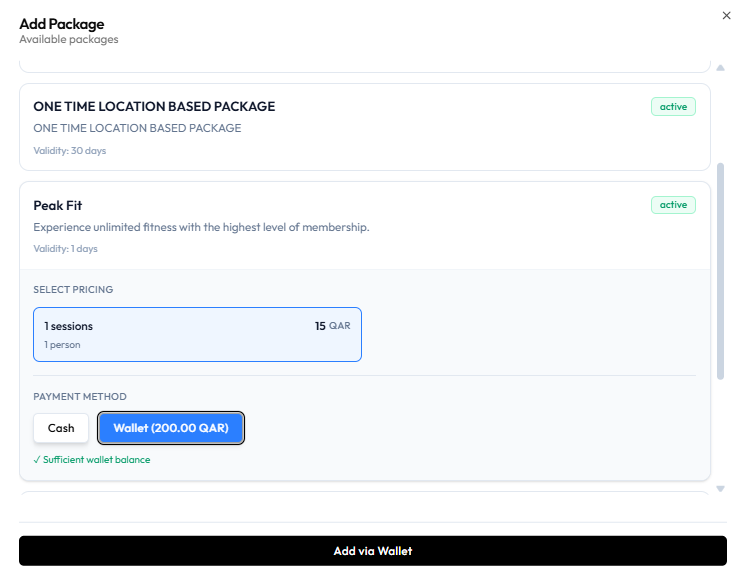
Confirm Booking stays unavailable until a package is selected.
These screens show package selection and purchase at booking time. The exact moment a session count decreases after Confirm Booking is not labelled separately on the captures.
What happens to remaining sessions when you Cancel is not confirmed. Do not assume the session is returned or kept.
Booking Rules
Booking rules are business-wide settings that affect every class. Staff still book from Training → Booking, but the windows and confirmation behaviour come from Settings.
None of these settings screens are in the current assets. Confirm each rule in Fitnez Studio before you train front desk on it.
This page does not invent hours, days, or automatic behaviour. It only names the rules the topic plan says Settings can control.
| Rule | What it controls |
|---|---|
| Advance booking window | How many days in advance members can book after you Publish a class |
| Cancellation window | How many hours before a class a member may cancel. See Cancel a Booking |
| Automatic confirmation | Whether bookings confirm automatically or stay Pending until staff confirm |
| Waiting list clearing | When the waiting list is cleared before a class starts. See Waiting List |
Other Settings topic-plan items staff should know about: allow or block waiting lists, late cancellations, Spot Reservation, QR check-in, and no-show marking. See Booking Settings.