Team Members
Team members are the staff who sign in to Fitnez Studio — front desk, trainers, and administrators. Each person has a role that controls what they can see and do.
This is different from Clients, which is the list of people who train at your studio.
What Are Team Members?
A team member is a staff account. You add them so they can use the dashboard for their job, such as taking bookings or running classes.
For example, you might have:
- Olivia Bennett as a trainer
- James Wilson as staff
- Emma Carter as an admin
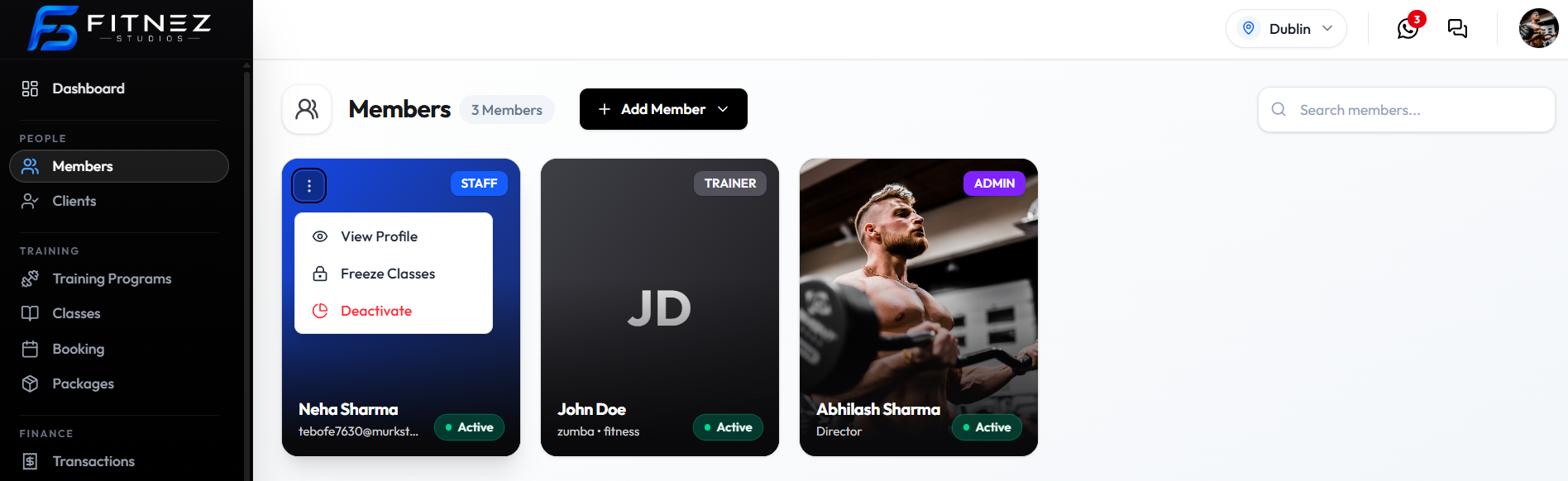
Each person appears on the Members page with their name, email, and role.
Where to Find Team Members
Open People → Members in the left-hand menu.
The page title is Members. It shows how many team members you have, a search field, and + Add Member.
What You Can Do
From Members you can:
- Search your team
- See each person’s name, email, and role
- Open Member Detail to see phone, designation, and whether they are Active
- Add a team member by invite or by creating the account
- Open View Profile, Freeze Classes, or Deactivate from the card menu
Managers can also review Approval Requests raised by the team. See Approval Requests.
How Roles Control Access
A role is the type of access assigned to a team member. On the Members page, roles appear as badges such as Admin, Staff, and Trainer.
When you add someone, you first choose a User Type, then a Role. The form says: Select a user type to load its available roles.
Different roles can see different parts of the dashboard. If a button is missing for someone on your team, their role may not include that action. We do not yet have a screenshot of every permission, so this guide does not list what each role can do.
Important Information
- Members (under People) is your staff list, not your client list.
- You can add people in two ways: Invite Member or Create Member. See Add a Team Member.
- The card menu includes View Profile, Freeze Classes, and Deactivate. After deactivate, the card shows Inactive. See Team Member Actions.
Related Features
- Locations — each person works in a studio or branch
- Approval Requests — limited roles can raise requests for a manager to decide
- Account & Profile — your own sign-in, User profile, and password (not another person’s Member Detail)
Frequently Asked Questions
Is Members the same as Clients?
No. Members is the staff list (roles such as Admin, Staff, and Trainer). Clients is the customer list.
Where do I add a trainer or front-desk person?
People → Members, then + Add Member.