Check-In & Attendance
Check in a client when they have arrived for the session. Check-in means they attended, not only that they booked.
Booking Dashboard shows a Checked In card. The main dashboard can also show Check-ins Today.
Steps
Step 1 — Open Today’s Schedule
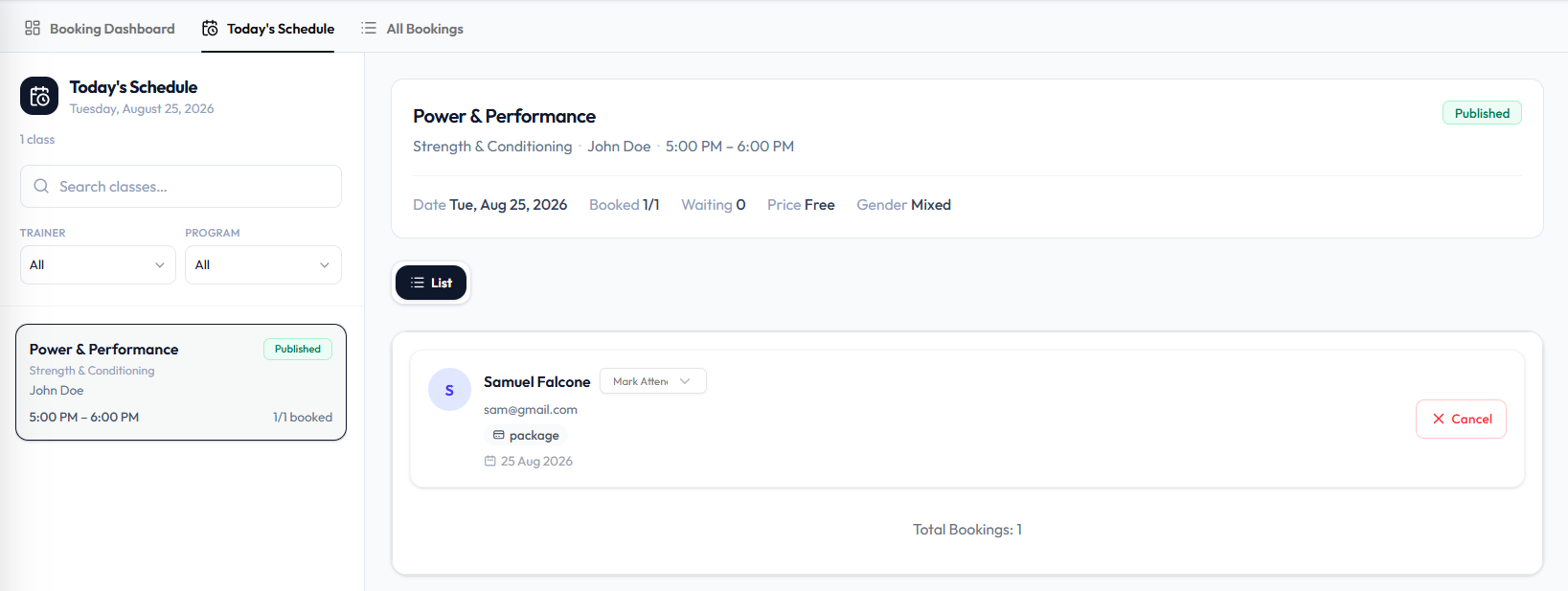
Open Training → Booking → Today’s Schedule, then select the class.
Step 2 — Find the Client
On the attendee list, find the person (name and email).
Step 3 — Mark Attendance
Open Mark Attendance on that card and choose the attendance result Fitnez Studio shows.
The capture shows the Mark Attendance control. Exact menu options after you open it (for example checked in vs no-show) are not fully labelled on this screenshot. QR check-in may also exist in Settings — not shown here.
After Check-In
Checked In on Booking Dashboard and Check-ins Today on the home dashboard should reflect attendance for the day.
To check in several people at once, see Check In Multiple Members.
Related Articles
Check In Multiple Members
Check in multiple members when a group arrives together — for example the whole Cycling class at 10:00 AM.
The topic plan includes checking in several members for a class, and checking in a whole group.
Step 1 — Open the Class Roster
Open the session from Training → Classes or Training → Booking.
Step 2 — Select the Members
Select everyone who is present, or use a check-in-all action if Fitnez Studio shows one.
Step 3 — Check In
Confirm check-in for the selection.
There is no screenshot of bulk check-in. This guide does not describe select-all, group check-in, or QR scan for a group.
People who booked but did not arrive are No-Shows.
No-Shows & Late Arrivals
A no-show is a member who booked but did not attend. Use this after the class to see who did not turn up.
A late arrival is someone who arrives after the start time. Settings in the topic plan include a grace period for late arrivals. That setting is not on the current screenshots.
- The Class Roster after the session
- Check-ins Today on the Dashboard for how many people did check in today
There is no screenshot of a no-show list or an automatic no-show mark. The topic plan includes automatically marking members who do not turn up as no-shows. Do not assume that happens until Settings and the roster confirm it.
- Check In everyone who attended.
- Review who is still booked but not checked in.
- Follow your studio’s rule for no-shows. What happens to Package Credits is not confirmed.