Sales Reports
Sales Overview is the four cards at the top of Finance → Sales Analytics.
The range on the captured screen is Jul 01, 2026 – Aug 24, 2026. Reset sits next to the date picker.
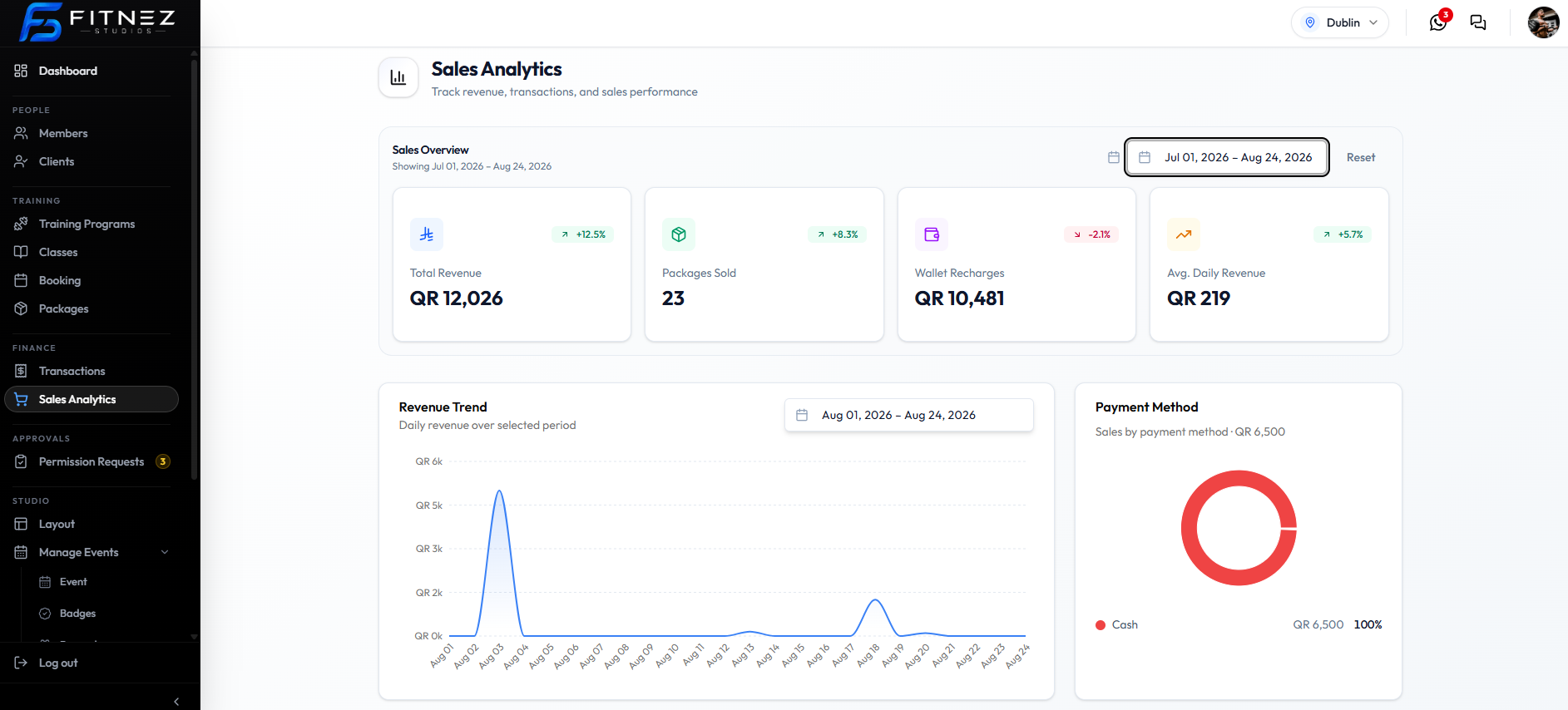
Metrics on Screen
| Metric | Value on this screenshot | Change shown |
|---|---|---|
| Total Revenue | QR 12,026 | +12.5% (green) |
| Packages Sold | 23 | +8.3% (green) |
| Wallet Recharges | QR 10,481 | -2.1% (red) |
| Avg. Daily Revenue | QR 219 | +5.7% (green) |
Packages Sold is a count. The other three are money in QR.
Total Revenue is package sales and wallet recharges together. Wallet Recharges and Packages Sold are the split: money topped up, versus how many packages were sold.
Whether refunds or failed payments change these cards is not on the screenshot.
What Each Card Is for (Plain Language)
| Metric | How to read it |
|---|---|
| Total Revenue | Package sales and wallet recharges together, in QR |
| Packages Sold | How many packages were sold in that range |
| Wallet Recharges | Wallet top-up money in QR — separate from package count |
| Avg. Daily Revenue | Average daily revenue figure for the range |
The % on each card is a comparison with a previous period. The cards do not name that previous period. See Compare This Month With Last Month for the Revenue Summary card, which does name Previous and Difference.
Workflow — View Business Revenue
- Open Finance → Sales Analytics.
- Set the Overview date range (or Reset).
- Read Total Revenue and Avg. Daily Revenue.
- Use Revenue Trend for day-by-day shape.
Related Articles
Revenue Trend Over Time
Revenue Trend is the line chart on Sales Analytics. The subtitle is Daily revenue over selected period.
On this screenshot the chart range is Aug 01, 2026 – Aug 24, 2026 — not the same as Overview Jul 01, 2026 – Aug 24, 2026. Use the labels on each block.
How to Read the Chart
| Part | On this screenshot |
|---|---|
| X-axis | Days in August 2026 |
| Y-axis | Revenue from QR 0k to QR 6k |
| Grouping | Daily (from the subtitle) |
A tall point is a high-revenue day. On this capture there is a large spike around 3 August (above QR 5k) and a smaller rise around 18 August. Other days sit near the bottom of the scale.
That tells you when money came in during the chart period, not who paid. For one sale, use Transactions.
Weekly or monthly grouping of this line chart is not shown. The chart is labelled daily.
Revenue This Month
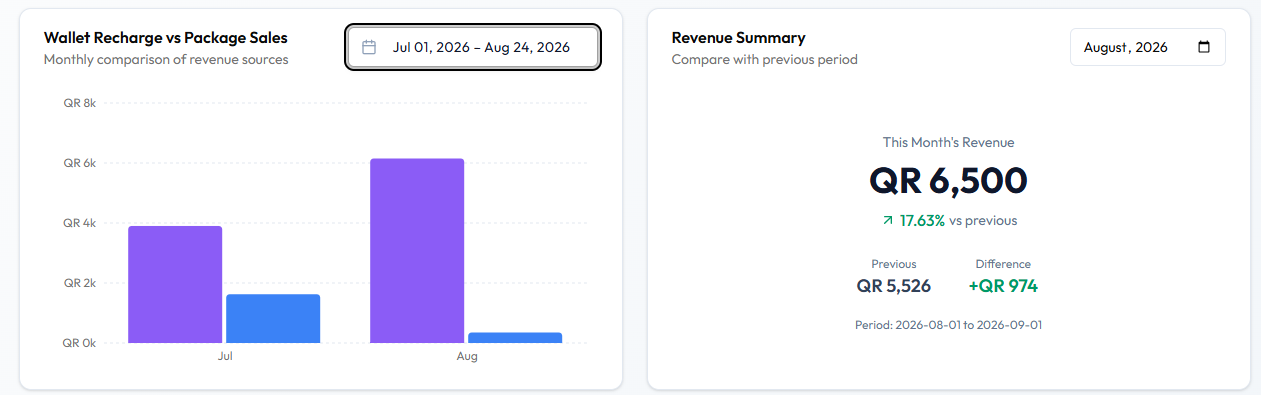
Revenue Summary sits under Sales Analytics. The subtitle is Compare with previous period.
The month control on this screenshot is August, 2026.
What Is Shown
| Label | Value on this screenshot |
|---|---|
| This Month’s Revenue | QR 6,500 |
| Comparison | 17.63% vs previous (green, up) |
| Previous | QR 5,526 |
| Difference | +QR 974 (green) |
| Footer | Period: 2026-08-01 to 2026-09-01 |
This Month’s Revenue is the month selected on that card (August, 2026). It is not the same figure as Overview Total Revenue (QR 12,026 for Jul 01, 2026 – Aug 24, 2026).
The footer period runs 2026-08-01 to 2026-09-01. The screen does not say whether 2026-09-01 is included. Read it as the period printed on the card.
Whether this is calendar August, month-to-date, or another window besides the footer dates is not explained on the card. Refunds and failed payments are not mentioned.
Payment Method on the same page shows QR 6,500 all Cash — the same amount as This Month’s Revenue on this capture. Do not assume those two widgets always match.
Top Buyers of the Month
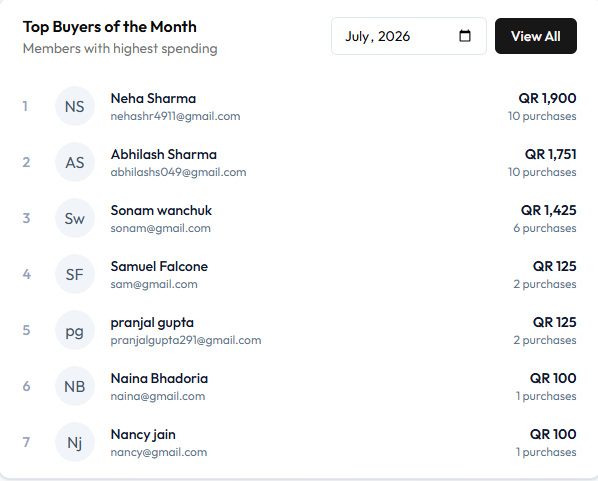
Top Buyers of the Month lists members with the highest spending. The subtitle is Members with highest spending.
The month on this screenshot is July, 2026. View All is on the card. It does not open another page.
Clicking a row does not open the member. To see the client record, search People → Clients.
How Ranking Works on This Screen
Members are ordered by QR amount, highest first. Each row shows:
- Rank (1, 2, …)
- Initials and name
- Total spending in QR
- purchases count under the amount
On this screenshot, rank 1 is Neha Sharma — QR 1,900 and 10 purchases. Rank 7 is Nancy Jain — QR 100 and 1 purchase.
When two people have the same amount (for example QR 125 at ranks 4 and 5), they still get different rank numbers in order.
Whether spending includes refunds or failed payments is not on this card. Rank uses the QR total shown, plus the purchases count.
Use this list to see who spent most in that month. For one person’s current record, open Clients. Loyalty campaigns are not on this card.
Top-Selling Packages
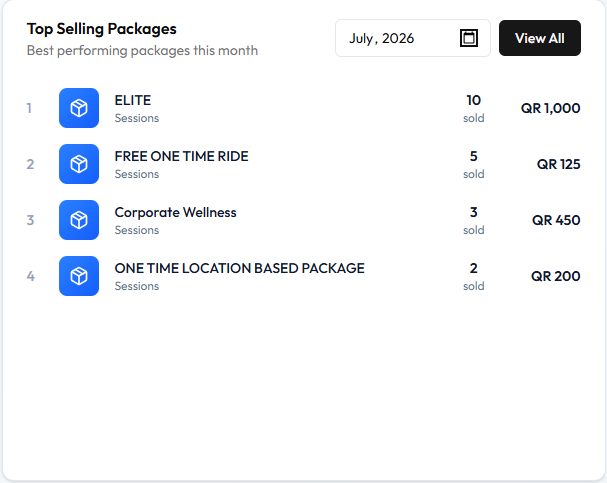
Top Selling Packages shows packages that sold most in the selected month. The subtitle is Best performing packages this month.
The month on this screenshot is July, 2026. View All is on the card. It does not open another page. Clicking a package row does not open the catalogue.
Ranking on This Screen
Rows are ordered by units sold, not by revenue.
On this screenshot FREE ONE TIME RIDE has 5 sold / QR 125 (rank 2). Corporate Wellness has 3 sold / QR 450 (rank 3) — more money, fewer units, so it ranks lower.
| Rank | Package | Type on screen | Sold | Revenue |
|---|---|---|---|---|
| 1 | ELITE | Sessions | 10 sold | QR 1,000 |
| 2 | FREE ONE TIME RIDE | Sessions | 5 sold | QR 125 |
| 3 | Corporate Wellness | Sessions | 3 sold | QR 450 |
| 4 | ONE TIME LOCATION BASED PACKAGE | Sessions | 2 sold | QR 200 |
Those names match offers on Packages. Type Sessions is the label under each name on this card.
Refunds and cancelled sales are not mentioned. The chart icon on a package card is a different entry point — see Package Performance.
Workflow — Find Top-Selling Packages
- Finance → Sales Analytics.
- Scroll to Top Selling Packages.
- Select the month.
- Read sold for volume and QR for money.
Compare This Month With Last Month
Use Revenue Summary when you want this month next to the previous period.
On August, 2026:
- This Month’s Revenue: QR 6,500
- Previous: QR 5,526
- Difference: +QR 974
- 17.63% vs previous
Green and an up arrow mean this month is higher than Previous. A decrease would show in red on Sales Overview (for example Wallet Recharges -2.1%).
If you open Analytics in the middle of a month, this month may be incomplete while Previous may be a full month. The card does not warn about that. Compare with care.
The Overview cards also show % changes for Total Revenue, Packages Sold, Wallet Recharges, and Avg. Daily Revenue. Those % labels do not name the previous period. Revenue Summary does name Previous and Difference.
Sales by Payment Method
Payment Method is the donut chart on Sales Analytics. The subtitle on this screenshot is Sales by payment method • QR 6,500.
The slice shown is Cash 100%.
That is how sales in this breakdown were paid — here, all Cash. Other methods are not on this capture.
The screen does not list card, wallet, or gateway slices. Do not document those methods until they appear. How this QR 6,500 relates to Total Revenue (QR 12,026) is not labelled.
Recording cash at the desk is covered in Recording a Cash Sale. Online payments need a Payment Gateway.
Finding Your Most Valuable Members
Use Top Buyers of the Month when you want members ranked by spending for a month.
Step 1 — Open Sales Analytics
Finance → Sales Analytics.
Step 2 — Choose the Month
On Top Buyers of the Month, set the month (this screenshot: July, 2026).
Step 3 — Read the Ranking
Highest QR total is at the top. Also read purchases under each amount.
Step 4 — Open the Member on Clients If You Need the Live Record
Search People → Clients by name or email. A buyer row does not open a profile. View All does not open another page.
Example from the screenshot: Neha Sharma, nehashr4911@gmail.com, QR 1,900, 10 purchases.
Wallet Recharge vs Package Sales
This chart compares two money sources month by month. The title is Wallet Recharge vs Package Sales. The subtitle is Monthly comparison of revenue sources.
The range on this screenshot is Jul 01, 2026 – Aug 24, 2026. Bars are grouped by Jul and Aug.
A wallet recharge is money added to a Member Wallet. A package sale is money for a Package. They are shown as separate bars. Do not treat a top-up as the same thing as selling ELITE.
A colour legend is not visible on this crop. Use the chart title: one series is wallet recharge, the other is package sales. Exact bar values are not printed on the bars.
Sales Overview already splits Packages Sold (count 23) from Wallet Recharges (QR 10,481). Total Revenue is both of those money sources together. This chart is the monthly picture of the two sources side by side.
Workflow — Compare Wallet and Package Sales
- Open Finance → Sales Analytics.
- Scroll to Wallet Recharge vs Package Sales.
- Set that card’s date range if it differs from Overview.
- Compare Jul and Aug bars.
Package Performance
On Sales Analytics, package results for a month are Top Selling Packages: units sold and QR revenue. See Top-Selling Packages.
Ask: did this offer sell, and did it bring in money? ELITE at 10 sold / QR 1,000 is both high volume and revenue on the July capture. FREE ONE TIME RIDE sold more units than Corporate Wellness but less QR.
There is no conversion rate, retention, or profit % on this card.
On Training → Packages, a chart icon on each card is a separate control. That view is not captured. See Package Performance (Packages Module).
Pick a month that matches when the offer was on sale. A new package in the last week of July will not look like ELITE for a full month.