Documents & Policies
Open Studio → Website → Details → Legal & Billing.
Heading: Legal & Billing. Subtitle: Policies for your public website.
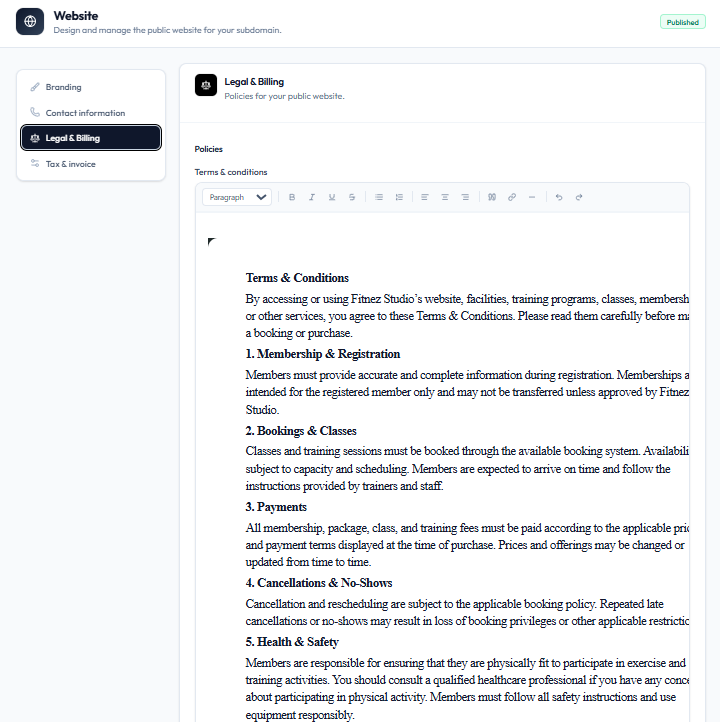
Policies on Screen
Under Policies, the capture shows Terms & conditions in a rich text editor.
Toolbar includes paragraph style, bold, italic, underline, strikethrough, lists, alignment, blockquote, links, images, horizontal line, undo, and redo.
Example content on the capture covers membership, bookings, payments, cancellations, and health & safety for Fitnez Studio.
Separate Privacy Policy and Refund Policy editors are not on this screenshot. Only Terms & conditions is shown under Policies. This help centre does not give legal advice — use wording that fits your own legal requirements.
Steps
Step 1 — Open Legal & Billing
Studio → Website → Details → Legal & Billing.
Step 2 — Edit Terms & Conditions
Update the text in the editor. Format with the toolbar as needed.
Step 3 — Save
Save Details, then check that visitors can open the policy on the public site.
Related Articles
Tax Details on Your Documents
Open Studio → Website → Details → Tax & invoice.
Subtitle: Tax identifiers and invoice defaults.
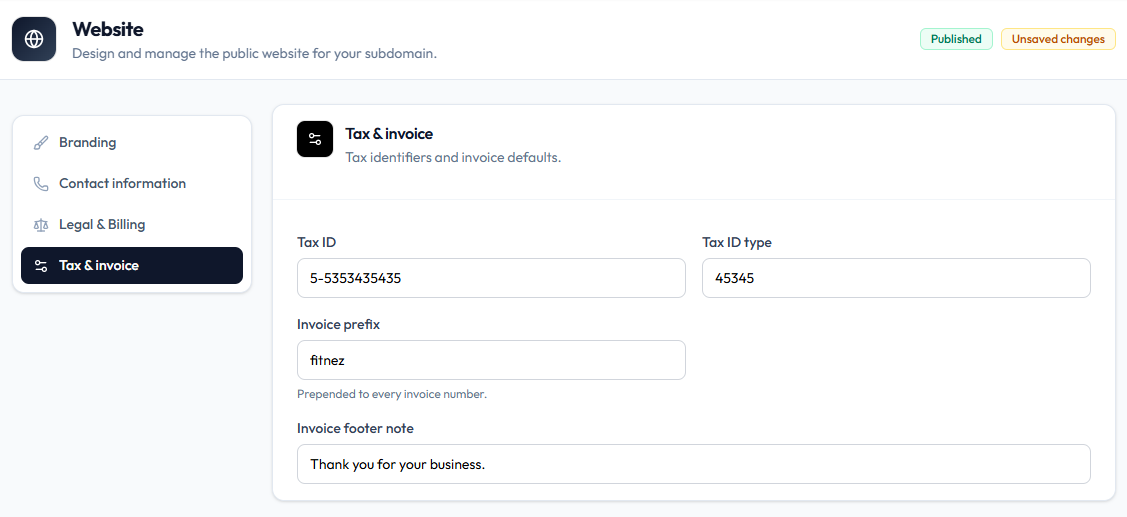
When you edit this panel, the header can show Published and Unsaved changes.
Tax Fields
| Field | Example on capture |
|---|---|
| Tax ID | 5-5353435435 |
| Tax ID type | 45345 |
This page does not assume VAT, GST, or a specific national scheme — use the values your studio needs.
Invoice numbering fields on the same screen are covered in Invoice Prefix & Footer.
Step 1 — Open Tax & Invoice
Studio → Website → Details → Tax & invoice.
Step 2 — Enter Tax Identifiers
Fill Tax ID and Tax ID type.
Step 3 — Save
Save so Unsaved changes clears. Optionally Download an Invoice from a test sale to verify the print.
Invoice Prefix & Footer
Invoice prefix and footer are on Studio → Website → Details → Tax & invoice, next to the tax fields.
Fields
| Field | Example on capture | Help text |
|---|---|---|
| Invoice prefix | fitnez | Prepended to every invoice number |
| Invoice footer note | Thank you for your business. | — |
These are document defaults. Website logos and theme are separate under Branding and Theme.
Sales also documents invoice customising under Invoice Settings. Use the labels on this Website screen when you edit from Tax & invoice.
Step 1 — Open Tax & Invoice
Studio → Website → Details → Tax & invoice.
Step 2 — Enter Prefix and Footer
Set Invoice prefix and Invoice footer note.
Step 3 — Save
Save Details. New invoices should pick up the change. Whether old invoices rewrite is not confirmed.