Manage an Event
Edit an event when the name, description, dates, banner, status, or other Basics fields should change.
Workflow — Edit an Event
Events → Edit Event → Change details → Continue → Review → Update Event
Step 1 — Find the Event
Open Studio → Manage Events → Event. Find the row, such as HIIT Blast.
Step 2 — Open Edit Event
Open ⋯ and choose Edit Event.
The page title is Edit Event. A green Active badge can appear next to the title. For a Normal Event, the stepper is Basics, then Review. For a Challenge Event, the stepper is Basics, Challenge, Rewards, and Review.
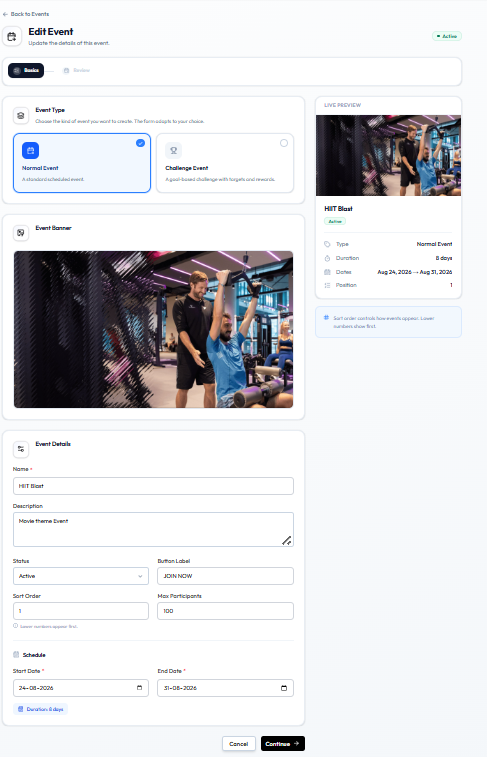
Step 3 — Change the Details
You can update the same Basics groups as Create:
- Event Type — Normal Event or Challenge Event. Caption: The form adapts to your choice.
- Event Banner — see Adding an Event Image
- Name, Description, Status, Button Label, Sort Order, Max Participants
- Start Date and End Date (duration updates automatically, such as Duration: 8 days)
Whether members already on the event keep their place after you change dates, capacity, or type is not confirmed. Check Fitnez Studio before you edit a live Active event.
Challenge conditions and rewards are on the Challenge and Rewards steps when Event Type is Challenge Event. See Creating a Challenge.
Step 4 — Continue to Review
Click Continue. The Review heading area includes: Update the details of this event.
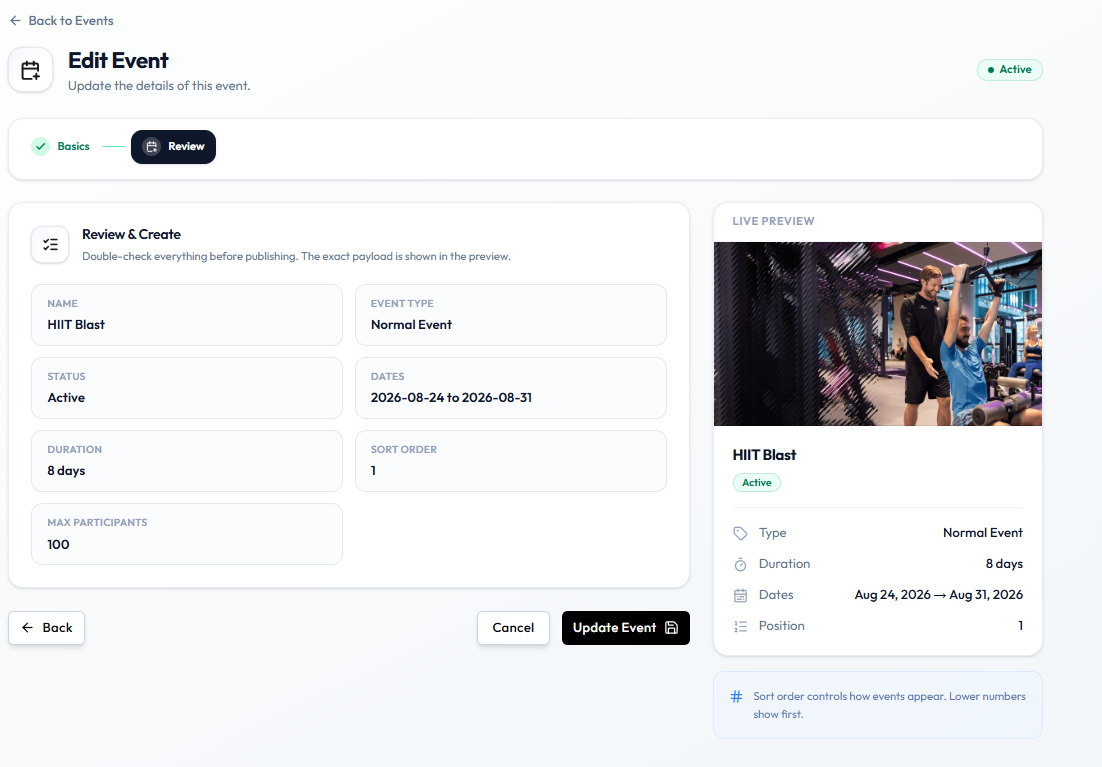
Review shows:
| Item | Example on screen |
|---|---|
| Name | HIIT Blast |
| Event Type | Normal Event |
| Status | Active |
| Dates | 2026-08-24 to 2026-08-31 |
| Duration | 8 days |
| Sort Order | 1 |
| Max Participants | 100 |
LIVE PREVIEW repeats type, duration, dates, and position.
Step 5 — Save
- Back returns to Basics
- Cancel leaves without saving
- Update Event saves the changes
After Saving
The Events list should show the new name, banner, schedule, participants, order, and status.
Related Articles
Adding an Event Image
Add a banner so members can recognise the event quickly. The image appears as BANNER on the Events list and in LIVE PREVIEW.
Why Artwork Helps
A clear photo of the activity — a workshop, a challenge week, a themed session — helps members tell events apart. HIIT Blast uses a studio photo as the banner.
Where the Image Appears
- The BANNER column on Studio → Manage Events → Event
- Event Banner on Edit Event
- LIVE PREVIEW on Basics and Review
Exact member-app placement is not confirmed. There is no mobile-app guide in this help centre yet.
Workflow — Add Event Artwork
Event → Edit → Upload/Select Image → Zoom and reposition → Save image
Step 1 — Open the Event
Open Studio → Manage Events → Event, then Edit Event.
Step 2 — Open the Banner Editor
Use the Event Banner control on Basics. The modal title is Update Event Banner. The instruction is: Upload an image, then zoom and reposition it inside the frame.
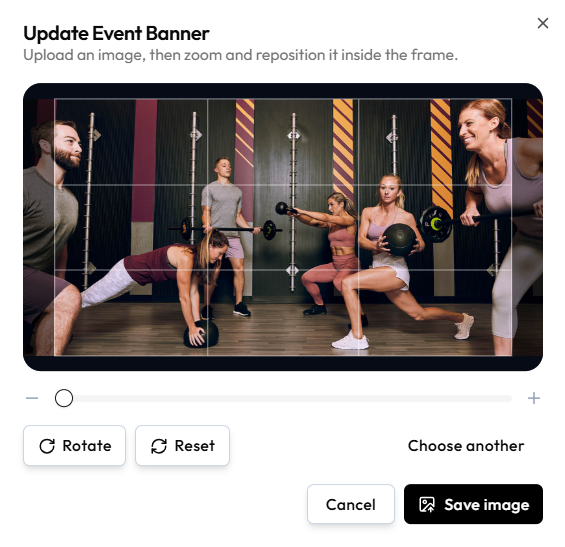
Step 3 — Adjust the Image
| Control | What it does |
|---|---|
| Zoom slider | - and + to zoom inside the frame |
| Crop grid | A 3×3 overlay. Dimmed areas sit outside the frame |
| Rotate | Rotates the image |
| Reset | Reverts the crop and zoom |
| Choose another | Pick a different file |
No pixel size or file-type limits are shown on this modal.
Step 4 — Save
Click Save image, or Cancel / X to close without saving.
Step 5 — Continue the Event
Click Continue to Review, then Update Event so the list thumbnail updates.
Replacing an Image
Open Update Event Banner again and use Choose another, then Save image.
Create Event can show a placeholder in Live Preview before a banner is uploaded. The captured upload flow is on Edit Event.
Event Statuses
Status tells staff whether an event is live. On the Events list it is a pill in the STATUS column. On Create Event and Edit Event it is a dropdown under Event Details.
The dropdown includes a Search… box. The options are Draft, Active, Inactive, and Completed.
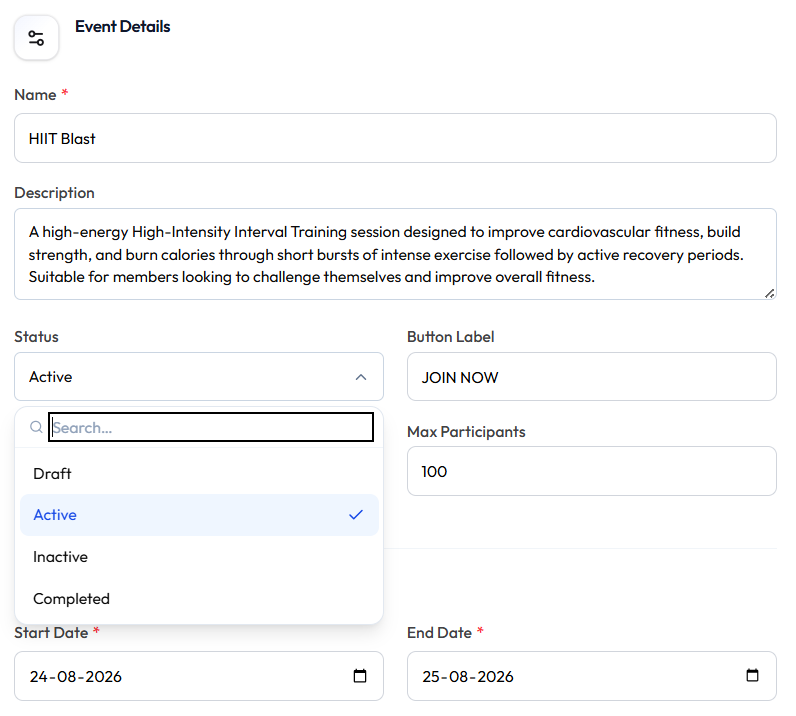
| Status | Meaning | Typical use |
|---|---|---|
| Draft | Still being prepared | Configure before launch |
| Active | Live on the Events list in the current screenshot | Members can see the event according to product rules |
| Inactive | No longer active | Stop the event without deleting the row |
| Completed | Finished | After the campaign or dates have ended |
What members can see or do in each status — for example whether JOIN NOW works — is not shown.
A status badge also sits next to the Create Event / Edit Event title (Active or Draft in the current screenshots).
Keep an Event in Draft
Set Status to Draft while you finish the name, dates, banner, and (for a challenge) type, target, and rewards. Switch to Active when the event should go live.
Challenge create in the screenshots uses Draft.
Deactivate an Event
Workflow — Deactivate: Event → Edit → Status → Inactive → Update Event
Use Inactive when you want to stop the event but keep the record. Use Delete Event only when the event should leave the list.
This is the same Status control on create and edit. A separate list-only screenshot is not needed.
Deleting an Event
Use Delete Event when the event should no longer be on the Events list.
Deactivate (keep the record) and delete (remove the event) are not the same. Delete Event is on the row menu. Set Status to Inactive when you want to stop the event but keep the row. See Event Statuses.
When Deactivation Is Preferable
If you still need the event as a record — name, dates, or participation history — set Status to Inactive instead of deleting.
Use Delete Event when the event was created by mistake or should not stay on the list.
Workflow — Delete an Event
Events → ⋯ → Delete Event
Step 1 — Find the Event
Open Studio → Manage Events → Event.
Step 2 — Open the Menu
Open ⋯ on the row. The menu shows Edit Event and Delete Event (red, trash icon).
Step 3 — Choose Delete Event
Click Delete Event.
There is no delete confirmation modal in the current screenshots. This guide does not say whether participation, progress, or rewards are kept after Delete Event.
After Deletion
The row should leave the Events list. Do not claim that historical participation is permanently deleted — that result is not shown.