Branding & Contact
Public “who we are” text lives on Studio → Website → Details → Branding, in the About field.
Studio name and street address are not on this Branding capture. Use About, logos, and Contact Information for what visitors see.
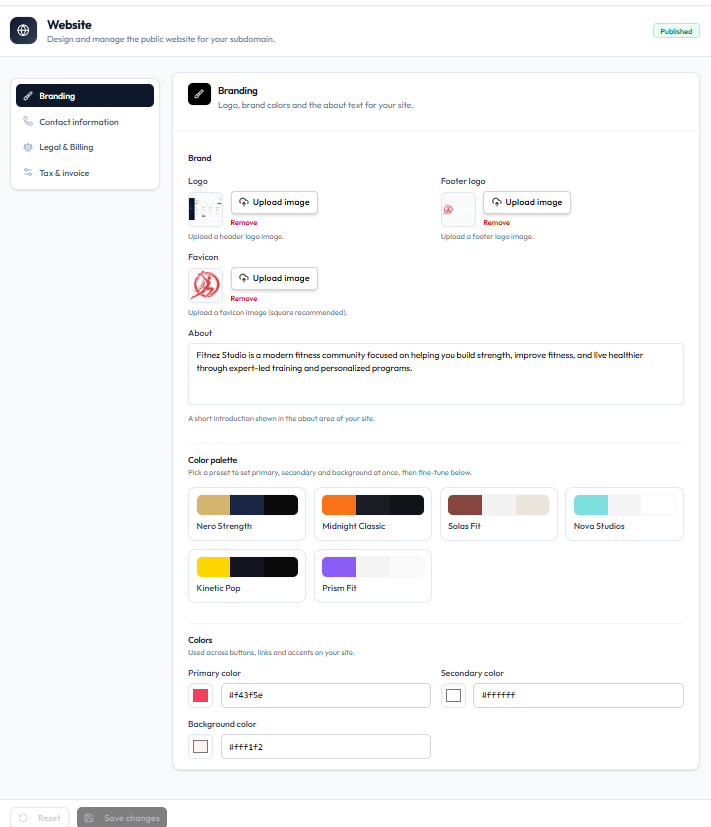
About
| Field | Notes |
|---|---|
| About | Text shown in the about area of the site |
Keep the text short and clear for visitors.
Related Brand Fields
On the same Branding panel:
Steps
Step 1 — Open Branding
Studio → Website → Details → Branding.
Step 2 — Edit About
Update the About text.
Step 3 — Save
Click Save changes.
Related Articles
Uploading Your Logo, Footer Logo & Favicon
Open Studio → Website → Details → Branding.
The Brand section holds the three image slots and the About text.
Brand Uploads
| Field | Help text on screen |
|---|---|
| Logo | Upload a header logo image |
| Footer logo | Upload a footer logo image |
| Favicon | Upload a favicon image (square recommended) |
Each slot has Upload image and Remove.
About
About is a text area. Caption: shown in the about area of the site.
Example on the capture: Fitnez Studio is a modern fitness community focused on helping you build strength…
Save
Use Reset to discard changes, or Save changes when the button is enabled.
Step 1 — Open Branding
Studio → Website → Details → Branding.
Step 2 — Upload Each Image
For Logo, Footer logo, and Favicon, click Upload image. Use Remove to clear an image.
Step 3 — Edit About (Optional)
Update the About text for the public site.
Step 4 — Save
Click Save changes.
Choosing Primary, Secondary & Background Colours
Open Studio → Website → Details → Branding. Scroll to Color Palette and Colors.
Color Palette
Heading: Pick a preset to set primary, secondary and background at once.
Presets on the capture:
- Nero Strength
- Midnight Classic
- Solas Fit
- Nova Studios
- Kinetic Pop
- Prism Fit
Colors
Fine-tune individual colours:
| Field | Example on capture |
|---|---|
| Primary color | #f43f5e |
| Secondary color | #ffffff |
| Background color | #fff1f2 |
Each field shows a colour swatch and a hex value. These colours are used for buttons, links, and accents on the public site.
Step 1 — Open Branding
Studio → Website → Details → Branding.
Step 2 — Pick a Preset (Optional)
Click a Color Palette preset to set all three colours at once.
Step 3 — Adjust Colours
Edit Primary color, Secondary color, and Background color if needed.
Step 4 — Save
Click Save changes.
Support Email & Phone Number
Open Studio → Website → Details → Contact information.
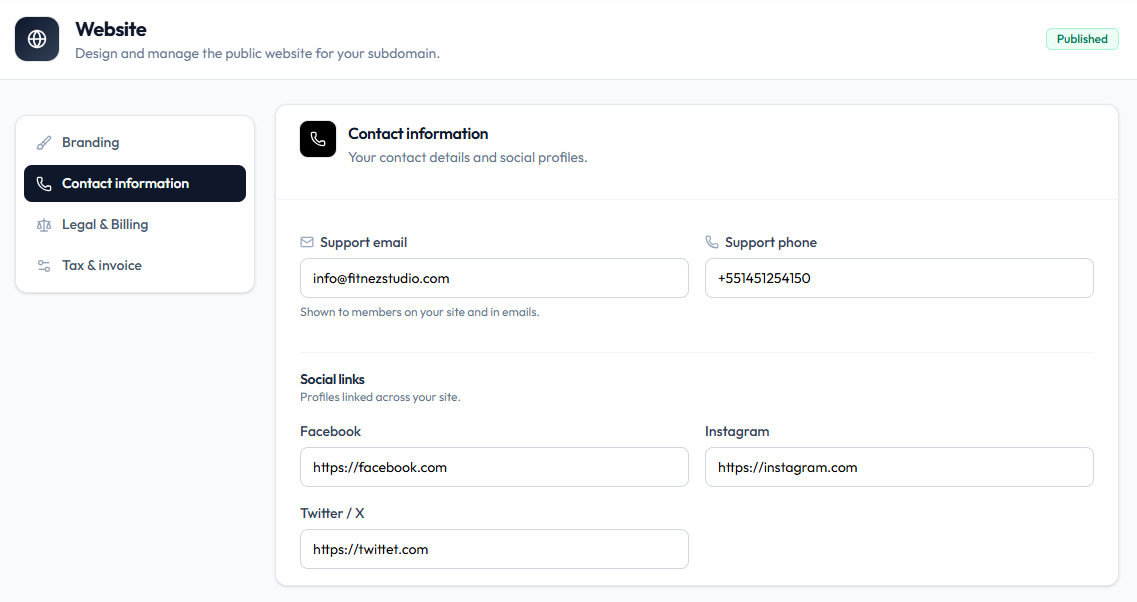
Subtitle: Your contact details and social profiles.
Contact Details
| Field | Example on capture | Help text |
|---|---|---|
| Support email | info@fitnezstudio.com | Shown to members on your site and in emails |
| Support phone | +551451254150 | — |
Email footer Contact Email on Email Header & Footer is a separate notification setting. Keep both accurate if you use both.
Social profiles on the same page are documented under Social Media Links.
Step 1 — Open Contact Information
Studio → Website → Details → Contact information.
Step 2 — Enter Support Details
Fill Support email and Support phone.
Step 3 — Save
Save with the action Fitnez Studio shows for Details (for example Save changes on Branding, or the save control on this panel).
Social Media Links
Open Studio → Website → Details → Contact information.
Under Social links, the subtitle is Profiles linked across your site.
Platforms on Screen
| Field | Example on capture |
|---|---|
https://facebook.com | |
https://instagram.com | |
| Twitter / X | https://twittet.com |
Paste the full profile URL for each platform. After you save, open the public site and check each link.
Step 1 — Open Contact Information
Studio → Website → Details → Contact information.
Step 2 — Add URLs
Enter Facebook, Instagram, and Twitter / X.
Step 3 — Save
Save Details, then verify the icons on the live site.
Setting Your Business Hours
Business hours are when the studio is open for visitors. They are not the same as Class Schedules.
Studio → Website captures cover Theme, Details (Branding, Contact information, Legal & Billing, Tax & invoice), and Sections (including SEO). There is no Business hours field or panel on those screens. Do not invent opening-hour controls until that screen is captured.
Class times stay on Classes and Today’s Schedule.