Classes Overview
A class is one session at a specific date and time — for example HIIT on Monday at 7:00 AM. Staff create and review classes on Class Management.
A schedule is a repeating timetable that creates many classes. See Schedules.
What Is a Class?
A class is a single occurrence: a program, a date, a start and end time, a trainer, and a capacity.
It is not the same as a Training Program. Cycling is the program. Cycling — 20 Aug 2026, 10:00 AM–11:00 AM is the class.
Class Versus Schedule
| Term | Meaning | Example |
|---|---|---|
| Training program | The type of training | Cycling |
| Class | One session at a date and time | Cycling on Monday 6:00 PM |
| Schedule | A repeating timetable that generates many classes | A weekly Cycling timetable |
The key difference: a schedule creates multiple class sessions. Creating one class does not create a repeating timetable.
Where to Find Classes
Open Training → Classes in the left-hand menu.
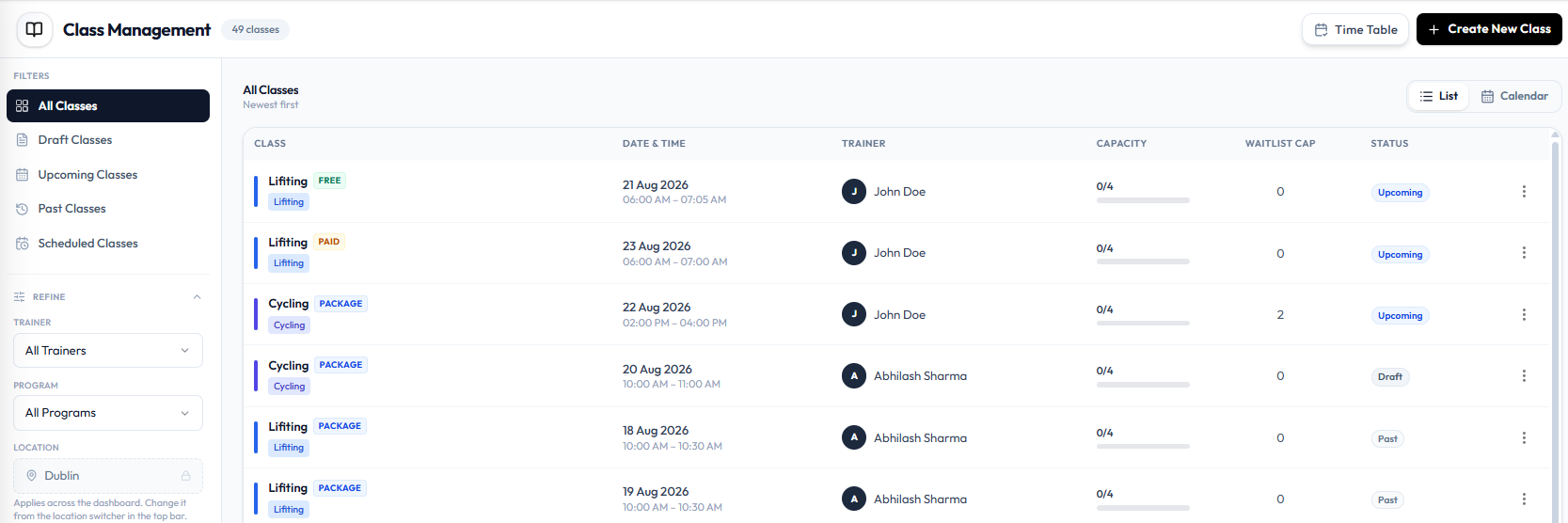
The page title is Class Management. A count next to the title shows how many classes you have, such as 48 classes.
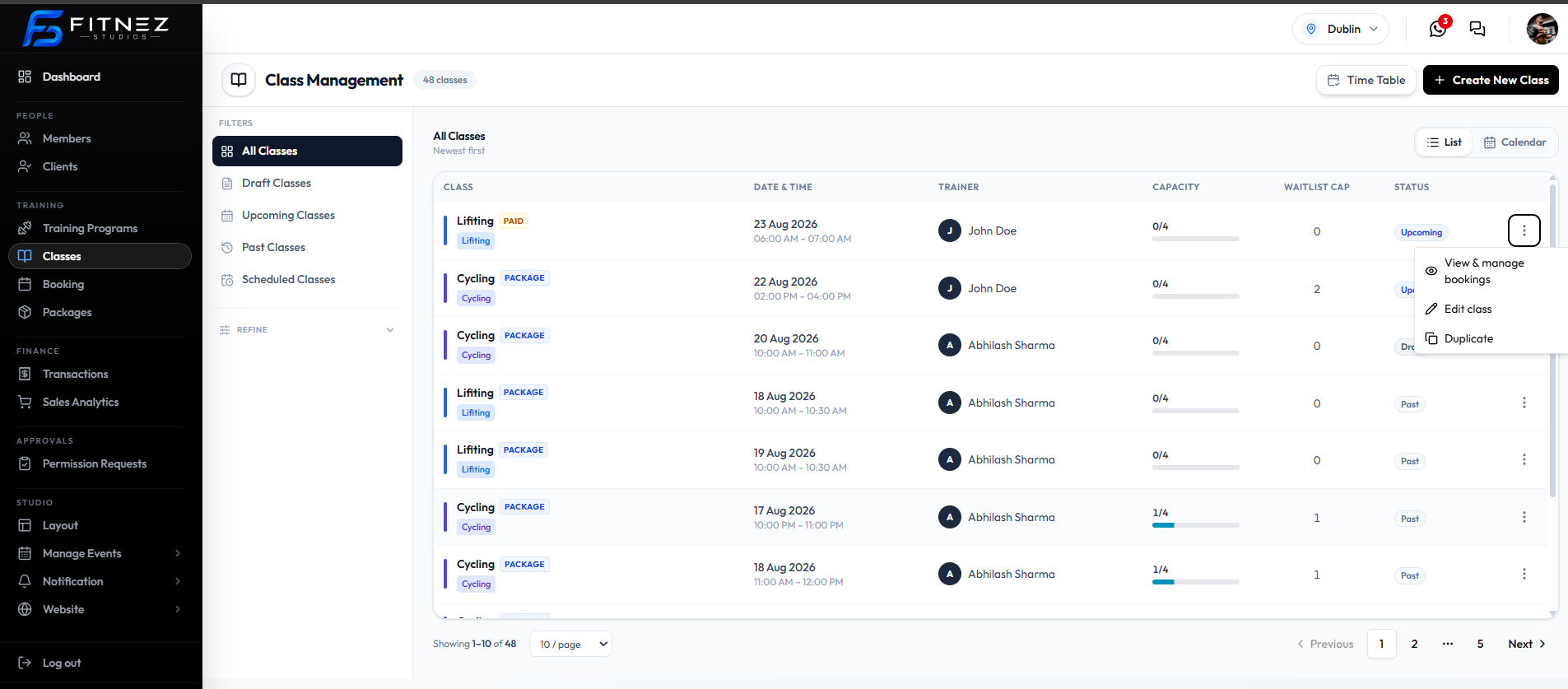
You can also open today’s sessions from the Dashboard under Today’s Classes, then View all.
What You See
| Item | What it is |
|---|---|
| Time Table | Opens the Trainer Timetable |
| + Create New Class | Starts Creating a Class |
| All Classes | Shows every class |
| Draft Classes | Classes with status Draft |
| Upcoming Classes | Classes that have not happened yet. See Upcoming Classes |
| Past Classes | Classes that have already run |
| Scheduled Classes | The Schedules list |
| REFINE | Trainer, program, and location filters (see below) |
| List / Calendar | Switch how classes are shown. List is selected here |
| Newest first | How the list is sorted |
| CLASS | Class name, a payment badge (PAID, PACKAGE, or FREE), and the program label |
| DATE & TIME | Date and start–end time, such as 23 Aug 2026, 08:00 AM–09:00 AM |
| TRAINER | The Trainer assigned to the session |
| CAPACITY | Bookings versus the maximum, such as 0/4 |
| WAITLIST CAP | Waiting-list size, such as 0 |
| STATUS | A pill: Upcoming, Draft, or Past |
| Row menu (⋯) | Actions for that class |
| Pagination | Showing 1-10 of 48, 10 / page, Previous, and Next |
Refine the List
Open REFINE under the filters to narrow the list.
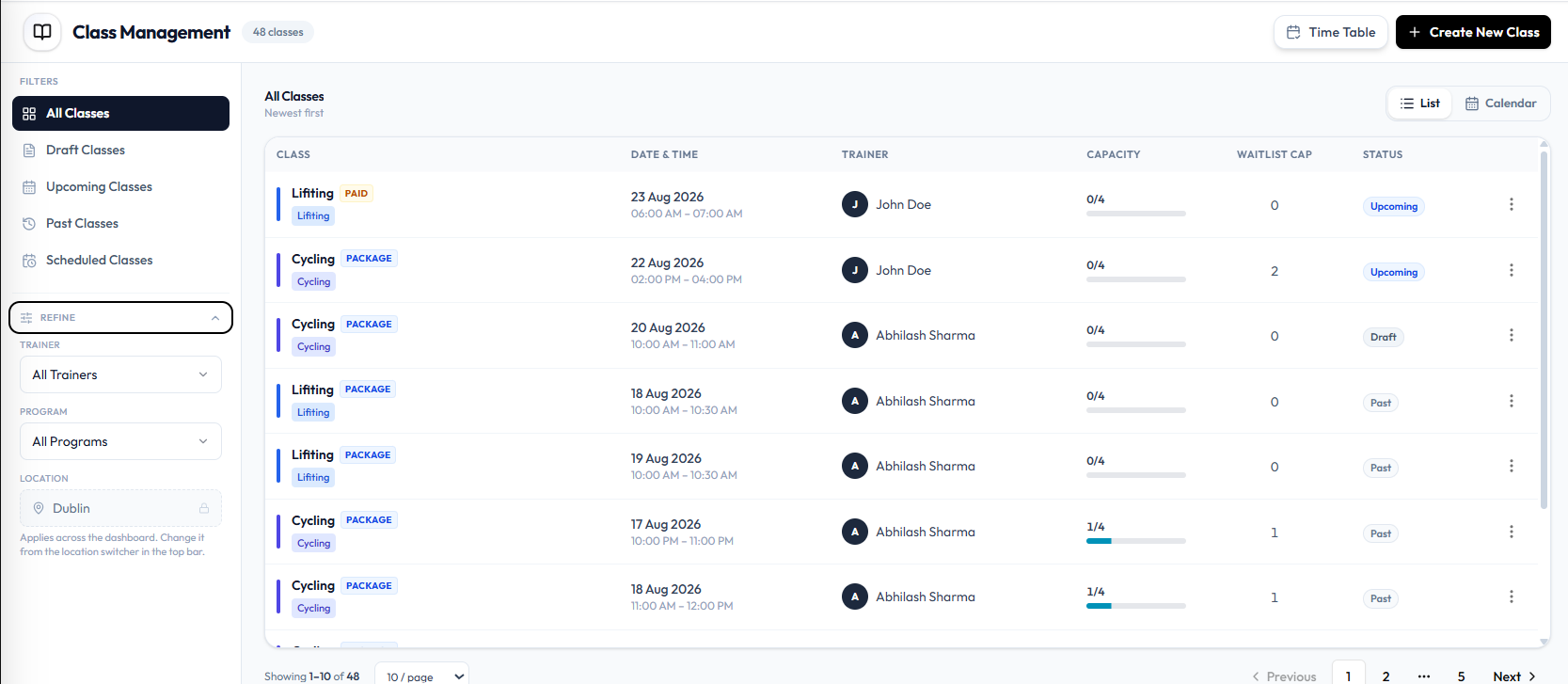
| Filter | What it is |
|---|---|
| Trainer | All Trainers, or one trainer |
| Program | All Programs, or one training program |
| Location | The current site, such as Dublin, with a lock icon |
The location field caption is: Applies across the dashboard. Change it from the location switcher in the top bar.
Row Menu
On an Upcoming class, ⋯ opens:
- View & manage bookings
- Edit class
- Duplicate
On a Draft class, ⋯ also includes Add to scheduler and Delete class:
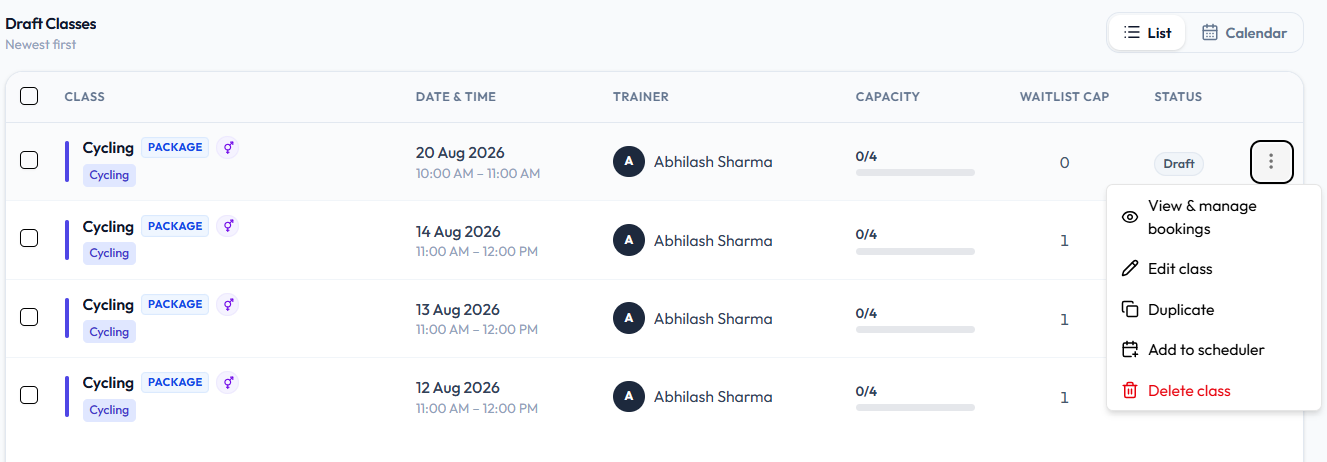
What You Can Do
- Create a Class
- Filter by draft, upcoming, past, or scheduled
- Refine by trainer, program, or location
- Switch between List and Calendar
- Open Time Table
- Review Class Capacity and Waitlist
- Assign Trainers
- Use Schedules when you need a repeating timetable
- Manage Bookings and the Waiting List
How It Works
- Open Training → Classes.
- Confirm you are in the correct Location.
- Filter the list, or click + Create New Class.
- Open a row menu (⋯) when you need to change that session.
Important Information
- Classes belong to the location in the header.
- A class can show PAID, PACKAGE, or FREE. See Class Payment Options.
- Status pills on this list are Upcoming, Draft, and Past. See Class Statuses.
- You can Delete a Draft class. Other classes do not show Delete class.
Class Capacity and Waitlist
Use capacity to limit how many members can book the session. Use the waitlist to limit how many people can wait if the class is full.
Where These Numbers Appear
On Training → Classes, each row shows:
| Column | What it shows |
|---|---|
| CAPACITY | Bookings versus the maximum, such as 0/4, with a progress bar |
| WAITLIST CAP | The waiting-list size, such as 0 |
On Create New Class and Edit Class, Max Waiting List is under BOOKING SETTINGS. The help text is: Members who can join the waitlist when class is full.
The dashboard also shows On waitlist as a count of people waiting. See Dashboard Overview.
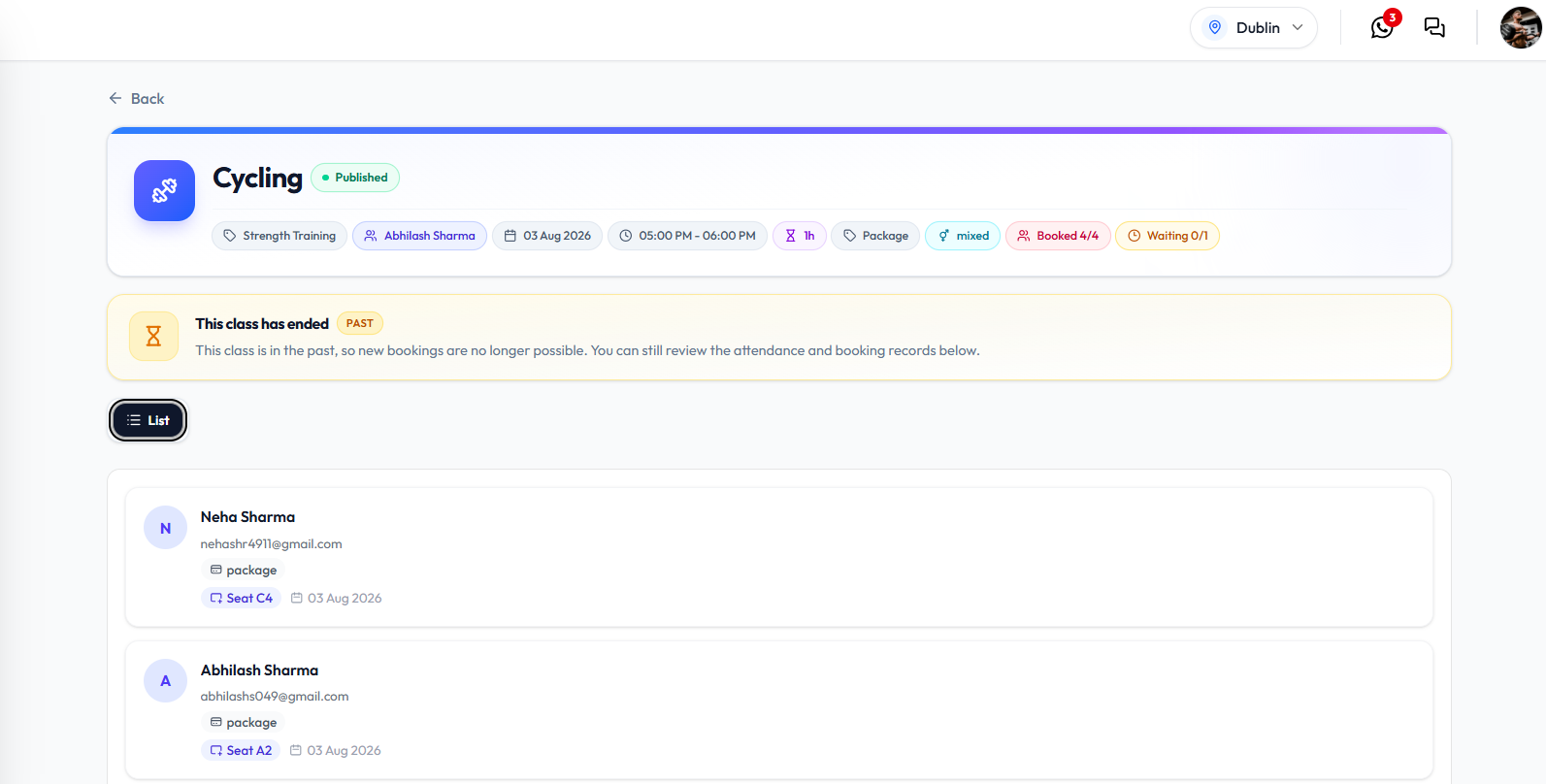
On a class detail screen, booking counts can also appear as Booked 4/4 and Waiting 0/1. See Class Statuses.
Visible classes often show capacity such as 0/4. That is the data on screen, not a rule that every class must use those numbers. A maximum-bookings field is not labelled separately on the create form in the current screenshot.
Maximum Bookings
CAPACITY is how many bookings the class can hold. The first number is how many are booked. The second number is the maximum.
When the first number reaches the second, the class is full. What happens next — whether members are offered the waiting list, and whether anyone is moved in automatically — is not shown on Class Management.
Waitlist Limit
Max Waiting List on the form becomes WAITLIST CAP on the list.
A value of 0 means that class’s waitlist cap is zero. This guide does not say that a zero cap turns the waitlist off for the whole business.
Business-wide waiting-list rules live in Settings (topic plan: allow or block waiting lists). That settings screen is not documented in this module.
What Happens When Capacity Is Reached
Automatic promotion from the waitlist into the class is not confirmed. See Move Into the Class. Do not assume a member moves in when a booking is cancelled.
Assign Trainers
Each class has a trainer — the Team Member who runs the session. On Class Management this appears in the TRAINER column.
Where the Trainer Appears
Open Training → Classes. Each row shows the trainer’s name and an initial avatar.
Written examples in this help centre use names such as Olivia Bennett or James Wilson. The current screenshots show trainers such as John Doe and Abhilash Sharma.
Trainers are staff accounts. Add them under Team Members, not under Clients.
How to Choose a Trainer
Step 1 — Open the Class
Open Training → Classes, then + Create New Class, or Edit class on an existing row.
Step 2 — Select the Trainer
Under ASSIGNMENT, open Trainer. Choose a name from the list, such as Abhilash Sharma or John Doe.
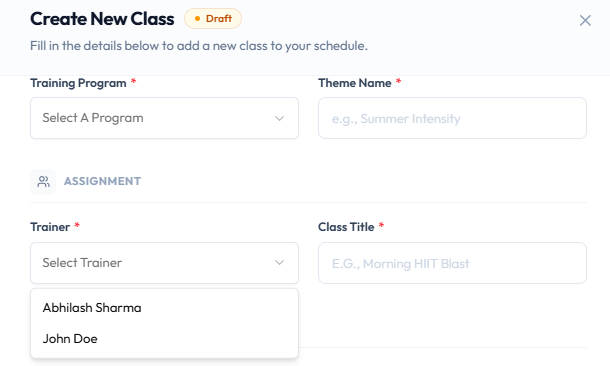
Trainer is required. The placeholder is Select Trainer.
Step 3 — Save
Save with Publish Class or Save as Draft so the TRAINER column shows the name.
After Changing the Trainer
The Class Management row should show the new trainer. Time Table lists the same people as rows. See Trainer Timetable.
If two classes overlap for the same trainer, Fitnez Studio shows: Trainer already has a class scheduled in this time slot. See Timetable Conflicts.
Class Payment Options
When you Create or Edit a class, Price Type under BOOKING SETTINGS sets how members pay.
Price Type on the Form
These options are on the class form:
| Price Type | What it is |
|---|---|
| Free | Members attend without paying |
| Paid (QAR) | Members pay for that session. Price appears with QAR, such as 199 |
| Packages | Members use a package |
For Paid (QAR), Price is required.
Badges on Class Management
The CLASS column shows a matching badge:
| Badge | Matches |
|---|---|
| FREE | Free |
| PAID | Paid (QAR) |
| PACKAGE | Packages |
How Fitnez Studio charges at booking, and which packages are allowed, is not fully shown on this screen. See Packages and Bookings & Package Credits.
The list screenshot uses QAR on paid classes. That is the currency on this studio, not a rule that every location uses QAR.
Gender Restrictions
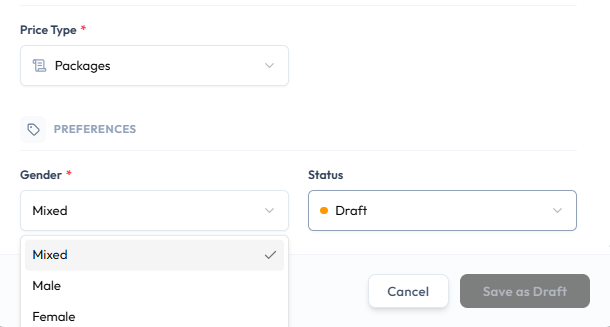
On Create New Class and Edit Class, Gender under PREFERENCES limits who the class is for.
Gender Options
Open the Gender dropdown. The options are:
- Mixed
- Male
- Female
| Option | Typical use |
|---|---|
| Mixed | The session is open regardless of gender |
| Female | The session is for women |
| Male | The session is for men |
Gender is required.
How booking is blocked if the wrong gender tries to book is not shown on this form. Settings may also include a business-wide switch for female-only or male-only classes. That settings screen is not in this module.
Class Statuses
Status tells staff whether a class is still being prepared, still to run, or already finished. On Class Management you see status in two places: the STATUS column, and the filters on the left.
Statuses on the List
These pills are visible on Class Management:
| Status | What the list shows |
|---|---|
| Upcoming | The session has not run yet |
| Draft | The class is still a draft. The row still has a date, time, trainer, and capacity |
| Past | The class date and time have already passed |
Open Draft Classes to work only with drafts. Open ⋯ for draft actions including Delete class.
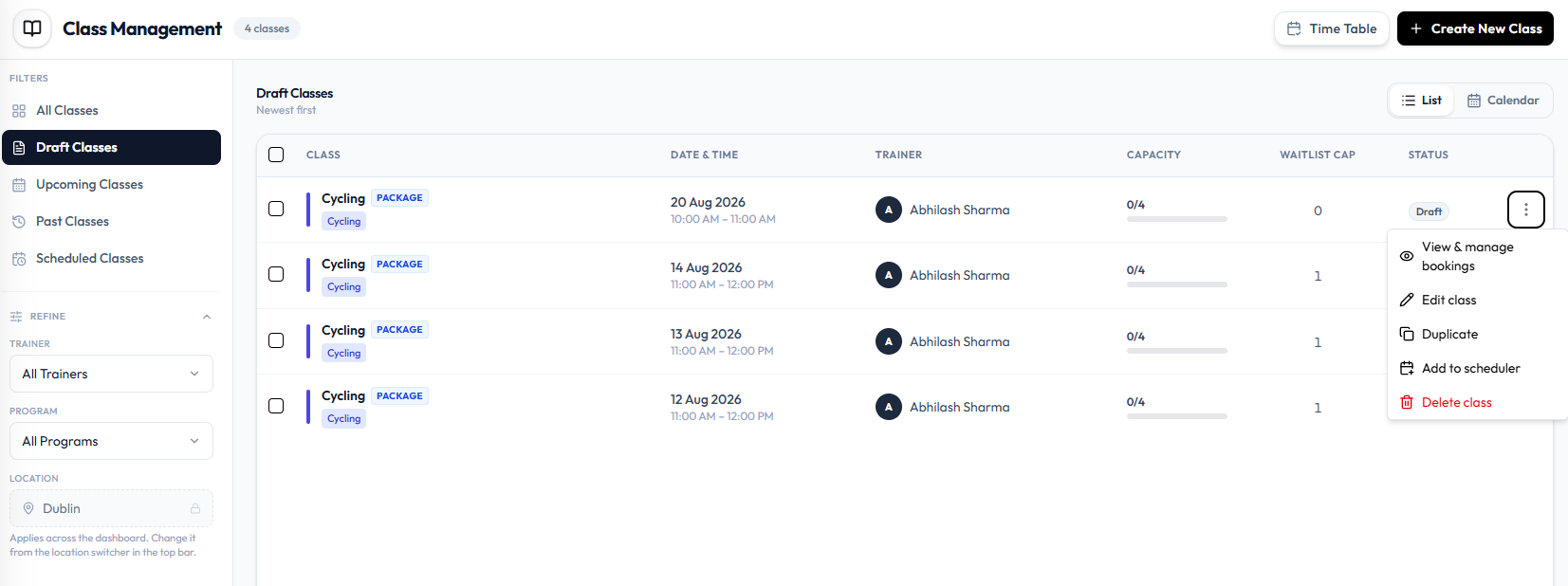
Filters on Class Management
| Filter | What it is for |
|---|---|
| All Classes | Every class |
| Draft Classes | Draft sessions |
| Upcoming Classes | Sessions that have not happened yet |
| Past Classes | Sessions that have already run |
| Scheduled Classes | Repeating Schedules, not individual class rows |
Status on the Class Form
When you Create or Edit a class, Status is a field under PREFERENCES:
| Status | Save action |
|---|---|
| Published | Publish Class |
| Draft | Save as Draft |
A Published class can still show Upcoming or Past on the list, depending on the date. See Publish a Class.
Past Classes
When you open a past class, a banner can show This class has ended with a PAST badge.
The banner text is: This class is in the past, so new bookings are no longer possible. You can still review the attendance and booking records below.
Schedule Statuses
On Scheduled Classes, a schedule row can show Scheduled or Paused. Those labels are for the timetable, not the class list pills. See Pause & Resume a Schedule.
Cancelled is in the topic plan. It is not a status pill or row action on the current screenshots.
Publish a Class
Publish a class when the session is ready for the timetable. Unfinished sessions use Status Draft and the Save as Draft button.
How Draft Relates to Publishing
On Create New Class and Edit Class, Status under PREFERENCES is Published or Draft.
| Status | Badge on the form | Button |
|---|---|---|
| Published | Green Published | Publish Class |
| Draft | Orange Draft | Save as Draft |
The Class Management list then shows Upcoming, Draft, or Past — not a Published pill. A published class that has not run yet appears as Upcoming.
There is no Publish action on the row menu (⋯).
Step 1 — Open the Class
Open Training → Classes. For a draft, choose Draft Classes, then Edit class.
You can also set Status while you Create a Class.
Step 2 — Set Status to Published
Under PREFERENCES, set Status to Published.
Step 3 — Click Publish Class
Click Publish Class. Cancel closes the form without saving.
After Publishing
The class leaves the Draft Classes filter if it is no longer a draft. Members booking and the advance booking window from Settings are not shown on these screens.
If the trainer already has a class in that slot, publishing is blocked. See Timetable Conflicts.
Edit a Class
Edit a class when the trainer, title, payment type, waitlist, gender, or status should change.
You cannot change the date or time after the class is created.
Step 1 — Find the Class
Open Training → Classes. Use filters such as Upcoming Classes or Draft Classes if you need to narrow the list.
Step 2 — Open Edit Class
Open the row menu (⋯) and choose Edit class.
The form title is Edit Class. The subtitle is: Update the details of this class.
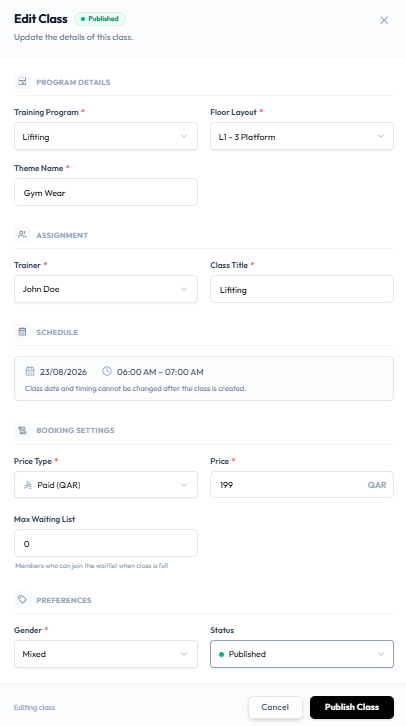
Step 3 — Change the Details
You can update PROGRAM DETAILS, ASSIGNMENT, BOOKING SETTINGS, and PREFERENCES — the same field groups as Create a Class.
SCHEDULE is read-only. It shows the date and time, with this note: Class date and timing cannot be changed after the class is created.
To run the same session at a different time, Duplicate the class and set a new slot on the copy, or Create a New Class.
Whether existing bookings stay after you change a published class is not confirmed. Check Fitnez Studio before you edit a class that already has bookings.
Step 4 — Save
The footer shows Editing class. Choose Cancel or Publish Class.
If Status is Draft, the save action is Save as Draft. See Publish a Class.
After Saving
The Class Management row should show the new trainer, title, payment badge, waitlist cap, or status.
Related Articles
- Create a Class
- Duplicate a Class
- Cancel or Delete a Class
- Upcoming Classes
- Trainer Timetable
- Schedules
- Bookings
- Waiting List
- Packages
Frequently Asked Questions
What is the difference between a class and a schedule?
A class is one session. A schedule is a repeating timetable that creates many classes.
Where do I add a one-off session?
Training → Classes, then + Create New Class.
Where do I see who is teaching?
The TRAINER column on Class Management. See Assign Trainers.