Navigation & Sidebar
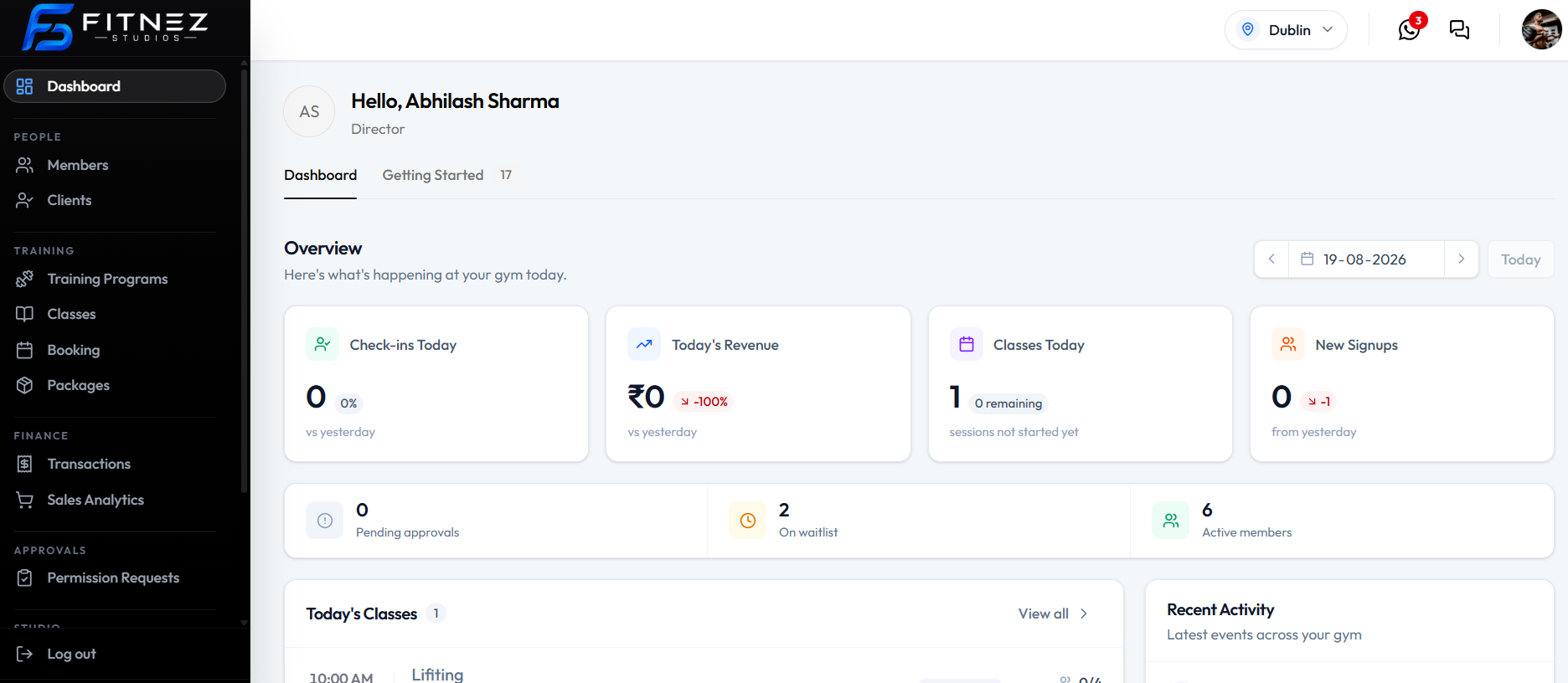
Use the left-hand sidebar to open the main areas of Fitnez Studio. Use the header for the current location, notifications, and your profile.
Where to Look
The sidebar is on the left. The Fitnez Studio name is at the top. Log out is at the bottom.
A closer view of the sidebar through APPROVALS, including Log out. Permission Requests shows a yellow 3 badge on this capture. Studio items sit further down the menu and are confirmed on other screens.
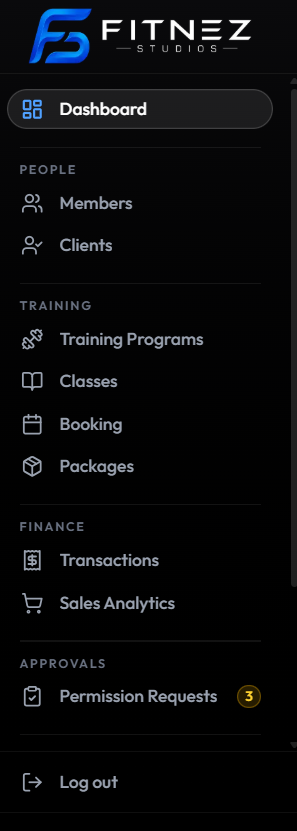
Sidebar
The menu is grouped. These items are visible:
| Item | Group | What it is for |
|---|---|---|
| Dashboard | — | The home screen after you sign in. See Dashboard Overview. |
| Members | People | Staff accounts. See Team Members. |
| Clients | People | Your customer list. See Clients. |
| Training Programs | Training | The types of training you offer. See Training Programs. |
| Classes | Training | Class sessions and repeating schedules. See Classes. |
| Booking | Training | Reservations, waiting list, and check-in. See Bookings. |
| Packages | Training | Memberships, class packs, prices, and discounts. See Packages. |
| Transactions | Finance | Sales, payments, and money in and out. See Sales & Payments. |
| Sales Analytics | Finance | Sales figures. See Reports & Analytics. |
| Permission Requests | Approvals | Requests raised by your team. See Approval Requests. |
| Event | Studio → Manage Events | Special activities and challenges. See Events. |
| Badges | Studio → Manage Events | Achievement badges. See Badges. |
| Reward | Studio → Manage Events | Challenge prizes. See Rewards. |
| Email Notification | Studio → Notification | Member email templates. See Notifications. |
| Theme | Studio → Website | Public website themes. See Website & Branding. |
Studio → Manage Events (Event, Badges, Reward) is confirmed on the Events screen. Studio → Notification → Email Notification is confirmed on Email Templates. Studio → Website → Theme is confirmed on the Website page. Layout also appears under Studio on the Booking screenshot; this help centre does not document Layout yet. Those items sit further down the sidebar than the dashboard screenshot above.
Header
The header stays visible while you move between pages. On the captured header you can:
- Open the location control (this set: Dublin) — SELECT LOCATION
- Open the header icon with a red 3 badge, and the chat icon
- Open your photo for Profile, Settings, and Logout. See Account & Profile.
See Locations for the location selector. See Signing Out for Logout and sidebar Log out.
Finding Your Way Around
- Use the sidebar to open a module.
- Check the header so you are working in the correct location.
- On Dashboard, use the Dashboard and Getting Started tabs to switch between today’s overview and setup.