Transactions & Invoices
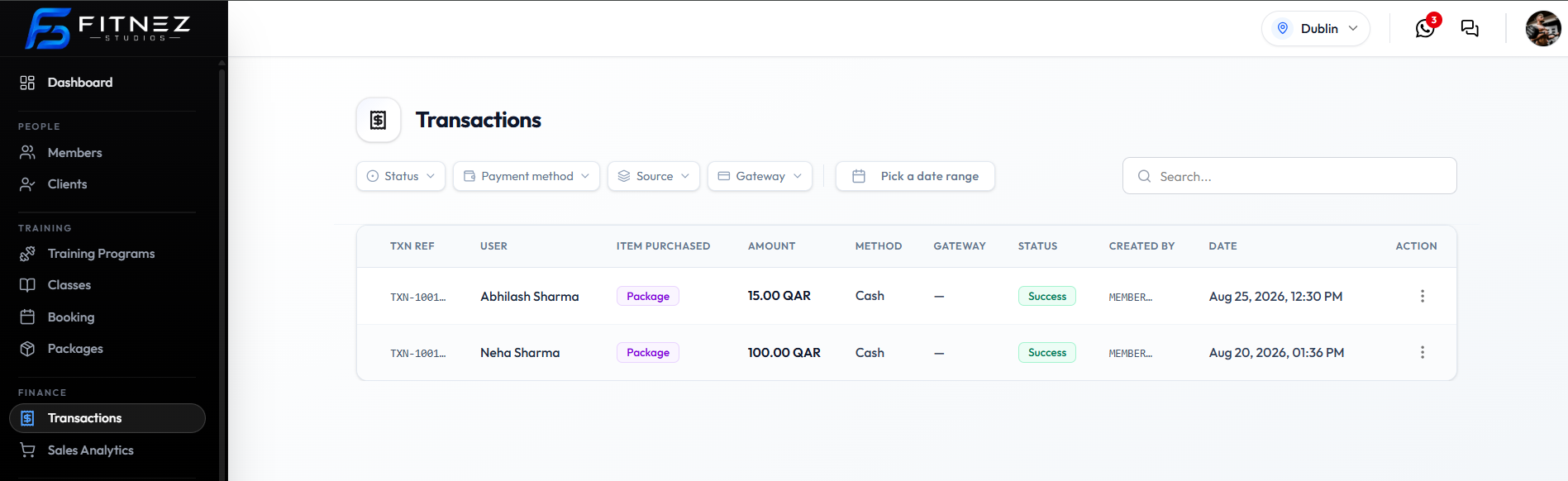
A purchase on the ledger is usually a Package sale. On Finance → Transactions, those rows show ITEM PURCHASED as Package.
The payment attempt is the same row’s STATUS, METHOD, and AMOUNT.
Where to Look
| Place | What to use |
|---|---|
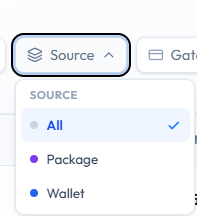
| Finance → Transactions | Filter Source → Package, or read ITEM PURCHASED |
| People → Clients | Member profile; held packages are under Packages on a Member |
Workflow — Find a Package Purchase
Step 1 — Open Transactions
Finance → Transactions.
Step 2 — Narrow the List
Set Source → Package, and optionally Status → Success, a date range, or Search… for the client name.
Step 3 — Review the Row
| Column | Check |
|---|---|
| USER | Client |
| ITEM PURCHASED | Package |
| AMOUNT | Charge in QAR |
| METHOD | Cash or Gateway |
| STATUS | Preferably Success |
| DATE | When it was bought |
Step 4 — Invoice If Needed
⋯ → Download invoice or Send invoice. See Downloading an Invoice.
Purchase Versus Held Package
| Record | What it is for |
|---|---|
| Transaction (ITEM PURCHASED: Package) | The buy event and payment |
| Held package | Remaining sessions and validity for that member |
A Success package transaction should typically mean the member can use the package. Confirm access on Packages a Member Holds.
Related Articles
Viewing Transactions & Their Status
Status on Finance → Transactions tells you whether a payment attempt finished successfully.
Where to Check Status
- Open Finance → Transactions.
- Open the Status filter.
- Read the STATUS column on each row (for example green Success).
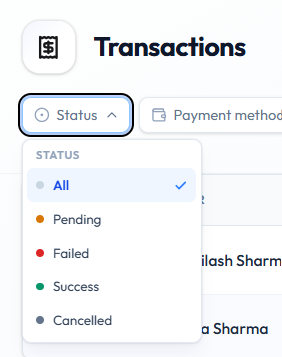
Statuses on Screen
| Status | Dot colour on the filter | What it means |
|---|---|---|
| All | Grey | No status filter |
| Pending | Orange | Payment is not finished yet |
| Failed | Red | Payment did not go through |
| Success | Green | Payment completed |
| Cancelled | Dark grey | Attempt was cancelled |
Rows on the capture show Success as a green pill.
Do not treat Pending or Failed as money received. See Refunds & Failed Payments.
Related Filters
Payment attempts also show:
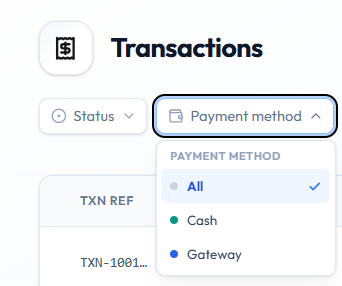
| Column / filter | Examples |
|---|---|
| METHOD / Payment method | Cash, Gateway |
| GATEWAY | Stripe, Wallet, or — |
| Source | Package, Wallet |
Workflow — Check Payment Status
Step 1 — Open Transactions
Finance → Transactions.
Step 2 — Filter If Needed
Status → Pending (or Failed / Success / Cancelled).
Step 3 — Open the Row Menu
Use ⋯ for Copy txn ref, Download invoice, or Send invoice when you need a reference or document.
Opening Transaction Details
Use a transaction row when the list alone is not enough — you need the full reference, an invoice file, or to send the invoice to the client.
What Is Confirmed on the List
Each row already shows:
| Column | Use it for |
|---|---|
| TXN REF | Short reference (truncated) |
| USER | Client |
| ITEM PURCHASED | What was bought (for example Package) |
| AMOUNT | Charge in QAR |
| METHOD | Cash or gateway payment |
| GATEWAY | Provider, or — |
| STATUS | Success, Pending, Failed, or Cancelled |
| CREATED BY | Who created the record |
| DATE | When it happened |
Row Actions
Open ⋯ on the row:

| Action | What it does |
|---|---|
| Copy txn ref | Copies the full transaction reference |
| Download invoice | Downloads the invoice file |
| Send invoice | Sends the invoice to the client |
A separate detail panel beyond this list and menu is not in the current screenshots. Use the columns and these three actions for investigation.
Workflow
Step 1 — Find the Transaction
Open Finance → Transactions. Filter by Status, Payment method, Source, Gateway, or date. See The Sales Ledger.
Step 2 — Review the Row
Confirm USER, AMOUNT, METHOD, and STATUS.
Step 3 — Use the Action You Need
- Copy txn ref — share or search by reference
- Download invoice — save the document
- Send invoice — email or send to the client
Investigating a Payment Issue
- Member and amount — right sale?
- STATUS — Success, Pending, Failed, or Cancelled?
- METHOD / GATEWAY — cash or online?
- Invoice — Download invoice and match the amount
Then see Refunds & Failed Payments if needed.
Downloading an Invoice
An invoice is the document for a transaction. On Finance → Transactions, open the row ⋯ menu for invoice actions.
Actions on Screen
| Action | What it does |
|---|---|
| Download invoice | Saves the invoice file |
| Send invoice | Sends the invoice to the client |
| Copy txn ref | Copies the transaction reference (useful when talking about the same sale) |
Invoice numbering defaults (Invoice prefix, Invoice footer note) are set under Studio → Website → Details → Tax & invoice. See Invoice Prefix & Footer and Invoice Numbering & Footer.
Workflow — Download an Invoice
Step 1 — Find the Transaction
Open Finance → Transactions. Use Search…, date range, or filters. Confirm USER, AMOUNT, and STATUS.
Step 2 — Open the Row Menu
Click ⋯ on that row.
Step 3 — Download or Send
- Click Download invoice to save the file, or
- Click Send invoice to send it to the client
What Happens Next?
The file should open or save on your device. After Send invoice, confirm the client received it using your studio’s usual check.