Team Member Actions
Each team member card has a menu (⋯) with three actions. The menu is on the Members Page.
- View Profile
- Freeze Classes
- Deactivate
View Profile
Opens Member Detail. You can see whether the account is Active, plus email, role, phone, and designation. Use the pencil to edit.
This is another person’s staff record. Your own User profile (header photo → Profile) is documented on Viewing Your Profile.
The full field list is on View & Search Team.
Freeze Classes
This action is on the same menu. There is no Freeze Classes screenshot yet, so this guide does not describe the result for classes or bookings.
Deactivate
Deactivate is the action on this menu for removing access. It appears in red.
Use it when a team member should no longer work in Fitnez Studio. The Members screen uses the label Deactivate, not Block or Archive.
Steps
- Open People → Members.
- Find the person.
- Open the card menu (⋯).
- Click Deactivate.
There is no confirmation dialog. After you deactivate, that person’s card shows status Inactive.
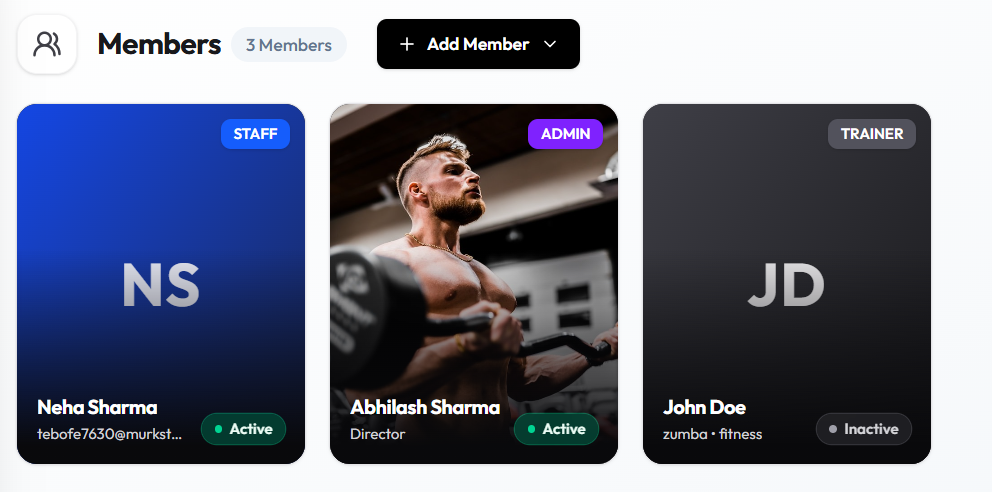
On the inactive card:
| Item | What you see |
|---|---|
| Role | Still shown, such as TRAINER |
| Status | Inactive (grey pill), not Active |
This guide does not say what happens to their classes or bookings after deactivate, or whether they can sign in. To turn someone Active again, use the Active toggle on Member Detail if Fitnez Studio allows it.