Connecting a Payment Gateway
A payment gateway is the service that takes online card (or similar) payments for the studio. Without it, staff can still Record Cash at the desk, but members cannot pay through Fitnez Studio online.
Stage 4 of the Setup Checklist is Get paid faster, including connecting a payment gateway so members can pay online.
Why the Business Needs One
Online payments need a provider to collect the card details securely and tell Fitnez Studio whether the Transaction succeeded. Cash does not use that provider: you take notes or coins, then record the sale yourself.
| Cash | Online (gateway) |
|---|---|
| Taken at the desk | Taken through the connected provider |
| Staff Record the Sale after money is in hand | The gateway reports Success, Pending, or Failed |
| No gateway required | Gateway must be connected and enabled |
Where Gateway Appears on Transactions
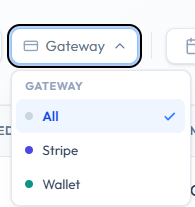
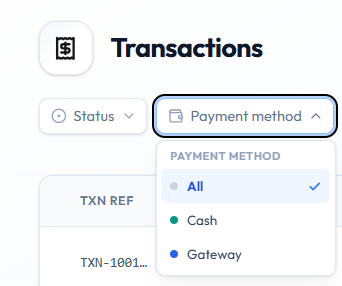
On Finance → Transactions, staff can filter Payment method → Gateway and Gateway → Stripe or Gateway → Wallet. Cash rows show METHOD Cash and GATEWAY —.
Where to Find Gateway Settings
The topic plan places configuration under Settings → Payment Gateway (or Studio settings). Connecting providers is typically an owner or admin task.
Workflow — Connect Payment Gateway
Step 1 — Open Gateway Settings
From the Getting Started tab, open the payment gateway step if it is listed. Otherwise look under Studio or Settings for payment gateway.
Step 2 — Configure
Enter only the configuration Fitnez Studio asks for (account or public details). Keep secret credentials in the product, not in email or this documentation.
Step 3 — Save
Save the configuration.
Step 4 — Test, If Supported
If Fitnez Studio offers a test or check connection action, use it.
Step 5 — Enable
Turn the gateway on if connect and enable are separate. See Viewing & Updating Gateway Settings.
What Happens Next?
After the gateway is connected and enabled, new online payments can go through it. Existing Cash Sales are unchanged. Transaction Statuses for online attempts should then include successful, pending, and failed when those appear in the product.
Whether members pay from a public website, a member app, or only from the dashboard is not confirmed.
Viewing & Updating Payment Gateway Settings
Use gateway settings to see how online payments are configured, to change that configuration, or to turn online payments on or off.
This does not change Cash Sales already recorded. It affects new online payments after you save.
Why It Matters
If the gateway is off, members cannot pay online. If settings are wrong, Transactions may stay pending or fail. Only authorised admins should change this.
Permissions and Security
- Treat gateway settings as sensitive. Only authorised admins should open them.
- Do not share secret keys in chat, email, or screenshots for the Help Center.
- If you cannot see the settings, your Role may not include them.
There is no screenshot of these settings. This guide does not describe toggles, provider fields, or a live/test switch. Screenshot to add: payment gateway settings with enable/disable (secrets hidden).
Workflow — Update Gateway Settings
Step 1 — Open Gateway Settings
Look under Studio or Settings for payment gateway, or open the Stage 4 item on Getting Started.
Step 2 — Review the Current Configuration
Confirm the provider and enablement state Fitnez Studio shows. Do not copy secrets into notes.
Step 3 — Update Settings
Change only what you need. Do not paste secret keys into email or chat.
Step 4 — Save
Save so new online payments use the updated configuration.
Workflow — Turn the Gateway on or Off
Step 1 — Open Gateway Settings
Use the same path as above.
Step 2 — Toggle Online Payments
To stop online payments, disable or turn off the gateway if that control exists. To allow them again, enable it.
Step 3 — Save or Confirm
Save or confirm the toggle.
What Happens Next?
New online payments should follow the saved settings. In-progress Pending payments may still complete or fail with the previous setup — that behaviour is not confirmed. Check Finance → Transactions after a test payment if you need to verify.
Disabling the gateway should not delete past Sales. Do not assume invoices or Wallets change when you toggle the gateway.
If You Cannot Change Settings
The setup checklist says some tasks can only be completed by an owner or admin. Ask Sophie Bennett or another person with a higher Role. Do not share gateway secrets to “get around” a missing permission.