Editing an Event
Edit an event when the name, description, dates, banner, status, or other Basics fields should change.
Workflow — Edit an Event
Events → Edit Event → Change details → Continue → Review → Update Event
Step 1 — Find the event
Open Studio → Manage Events → Event. Find the row, such as HIIT Blast.
Step 2 — Open Edit Event
Open ⋯ and choose Edit Event.
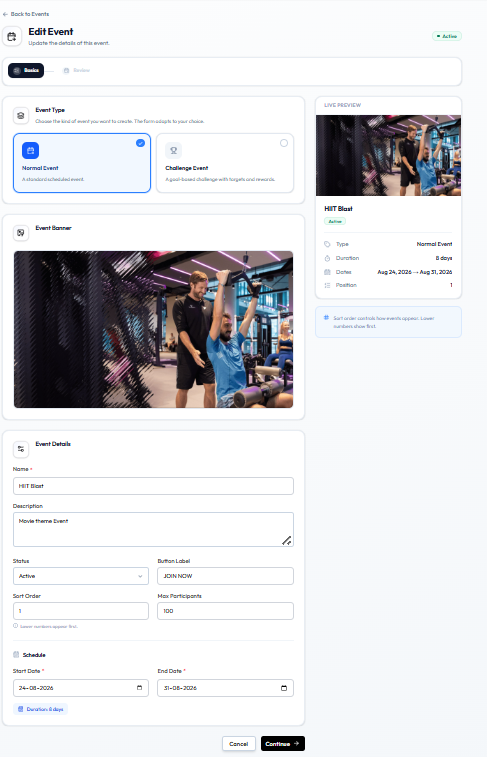
The page title is Edit Event. A green Active badge can appear next to the title. For a Normal Event, the stepper is Basics, then Review. For a Challenge Event, the stepper is Basics, Challenge, Rewards, and Review.
Step 3 — Change the details
You can update the same Basics groups as create:
- Event Type — Normal Event or Challenge Event. Caption: The form adapts to your choice.
- Event Banner — see Adding an Event Image
- Name, Description, Status, Button Label, Sort Order, Max Participants
- Start Date and End Date (duration updates automatically, such as Duration: 8 days)
Whether members already on the event keep their place after you change dates, capacity, or type is not confirmed. Check Fitnez Studio before you edit a live Active event.
Challenge conditions and rewards are on the Challenge and Rewards steps when Event Type is Challenge Event. See Creating a Challenge.
Step 4 — Continue to Review
Click Continue. The Review heading area includes: Update the details of this event.
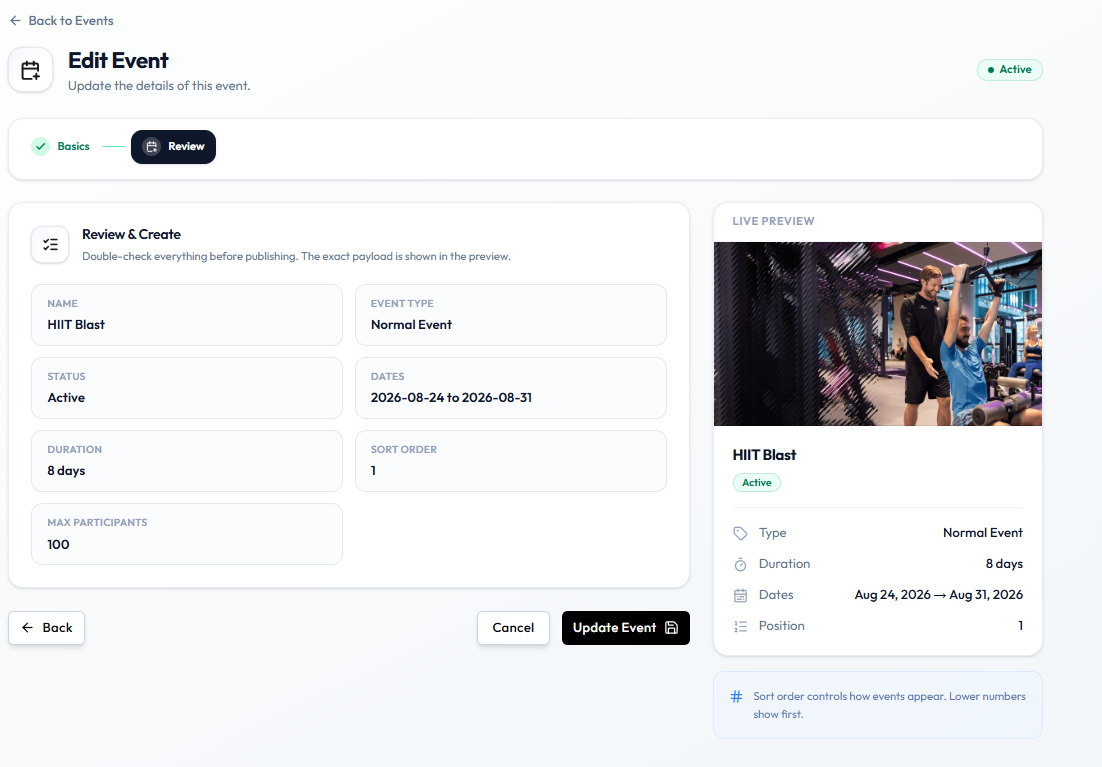
Review shows:
| Item | Example on screen |
|---|---|
| Name | HIIT Blast |
| Event Type | Normal Event |
| Status | Active |
| Dates | 2026-08-24 to 2026-08-31 |
| Duration | 8 days |
| Sort Order | 1 |
| Max Participants | 100 |
LIVE PREVIEW repeats type, duration, dates, and position.
Step 5 — Save
- Back returns to Basics
- Cancel leaves without saving
- Update Event saves the changes
After Saving
The Events list should show the new name, banner, schedule, participants, order, and status.