Website Logos & Section Images
Public website images live under Studio → Website. Email branding uses a separate upload on Email Header & Footer.
Theme Gallery
Studio → Website → Theme shows Published status, Search themes…, and filters (All Themes, Featured Only, Not Featured). Theme previews (Prism Fit, Solas Fit, Nova Studios) are theme designs, not your own uploads.
See Choosing a Theme.
Logo, Footer Logo, Favicon
Studio → Website → Details → Branding:
| Field | Help text |
|---|---|
| Logo | Upload a header logo image |
| Footer logo | Upload a footer logo image |
| Favicon | Upload a favicon image (square recommended) |
Each has Upload image and Remove. Click Save changes.
See Logo, Footer Logo & Favicon.
Hero Section Image and Video
Studio → Website → Sections → Hero Section:
- Image preview with Replace and Remove
- Video upload (MP4, WebM, or MOV) or URL
- Show image / Show video toggles
Click Save sections. See Choosing Website Sections.
Email Images (Separate From Website)
For logos and banners in member emails, use:
Studio → Notification → Email Notification → Edit Header & Footer
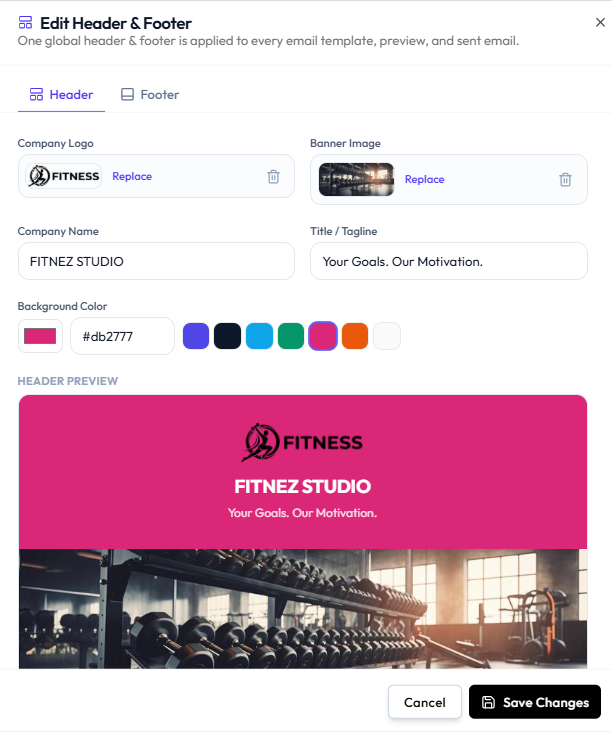
| Field | Actions |
|---|---|
| Company Logo | Upload, Replace, remove (trash) |
| Banner Image | Upload, Replace, remove (trash) |
One global header applies to every template. See How Images Are Stored & Reused.
Step 1 — Open Email Templates
Studio → Notification → Email Notification.
Step 2 — Edit Header & Footer
Open Edit Header & Footer → Header tab.
Step 3 — Upload logo or banner
Use the upload area or Replace.
Step 4 — Check HEADER PREVIEW and save
Click Save Changes.