Updating Your Profile Photo
On User profile, under Profile information, use Upload photo. Helper text: JPG, PNG or GIF. Max size 2 MB.
A camera icon sits on the circular avatar.
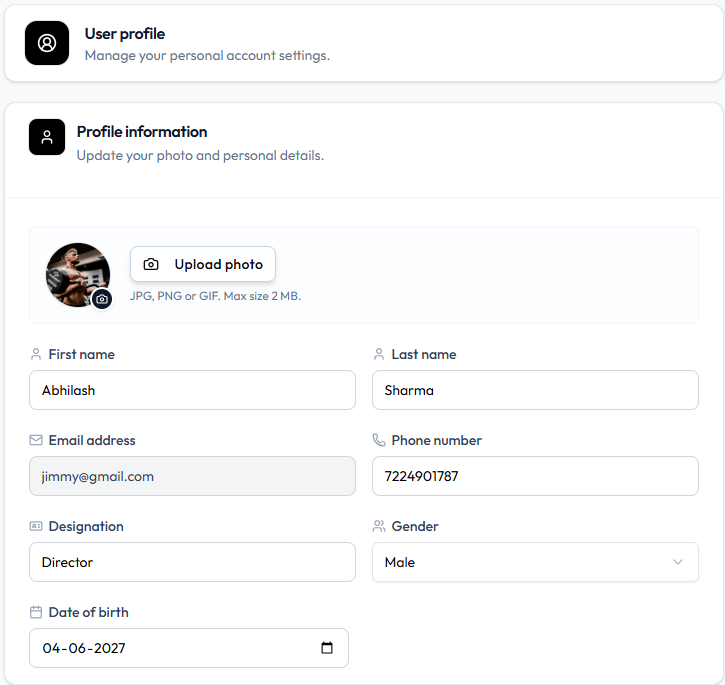
Workflow — Change Your Photo
Step 1 — Click Upload photo (or the camera on the avatar)
The modal title is Update Profile Image. Instruction: Upload a photo, then zoom and reposition it inside the circle.
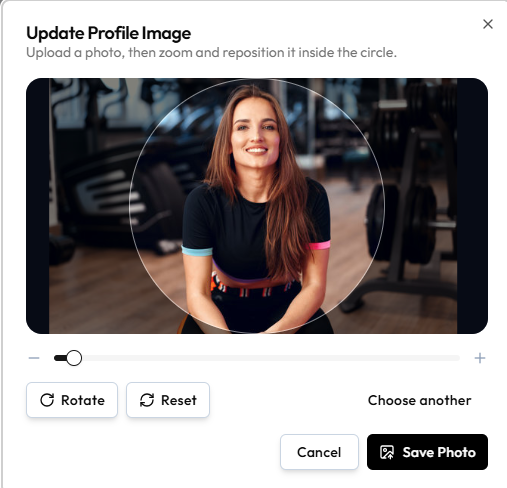
Step 2 — Adjust the Image
| Control | What it does |
|---|---|
| Circle overlay | Area that becomes your avatar |
| Zoom - / + | Zoom inside the circle |
| Rotate | Rotate the photo |
| Reset | Undo zoom and position |
| Choose another | Pick a different file |
Step 3 — Click Save Photo
Cancel or X closes without saving.
This is your staff avatar (header and profile menu). It is not the client initials on People → Clients. For other product images, see Media & Images.
There is no control to remove the photo and leave none. Replace it with Upload photo or Choose another.
Related Articles
Last updated on