Understanding Your Role
A role is the access assigned when an administrator adds you as a team member. Example: Sophie Bennett sees ADMIN under her name in the header menu in Dublin.
Where Your Role Is Shown
| Place | What you see |
|---|---|
| Header photo menu | Role under your name, in capitals (for example ADMIN) |
| People → Members | Badge on the staff card: Admin, Staff, or Trainer |
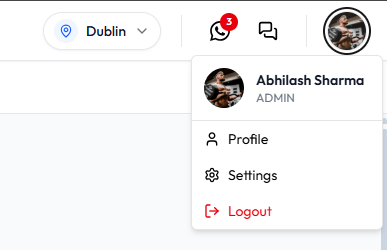
User profile does not include a Role field. You cannot change your role from your own profile.
User Types and Roles That Exist
When staff are added, User Type is chosen first, then Role:
| User Type | Role options confirmed |
|---|---|
| Admin | Role list for Admin is not in the invite screenshots |
| Staff | MANAGER or STAFF |
| Trainer | TRAINER |
There is no Owner badge on Members cards. See Roles for the invite and create forms.
How a Role Affects Access
Your role controls what you can open and complete. The ADMIN permission set is listed on Checking What You Are Allowed to Do. Daniel Murphy as STAFF does not use that same list.
If something is missing, see Why a Feature Is Not Visible.
You should not change your own role. An administrator updates another person’s access from Team Members, not from User profile.
If you need more access, ask an authorised administrator. Do not share someone else’s login to “borrow” their role. Shared logins make Recent Activity harder to trust.