Adding Money to a Member’s Wallet
Add money with Transaction Type → Credit in Manage Wallet Balance.
This changes wallet balance (money). It does not add package sessions.
When Staff Might Credit
- The member pays a top-up
- A manager approved a goodwill or refund adjustment
- You are correcting a previous mistake
Workflow — Credit Wallet
Step 1 — Open the member
Open People → Clients, find the client, and open the full client page.
Step 2 — Click Add Balance
On the header, next to WALLET BALANCE, click + Add Balance.
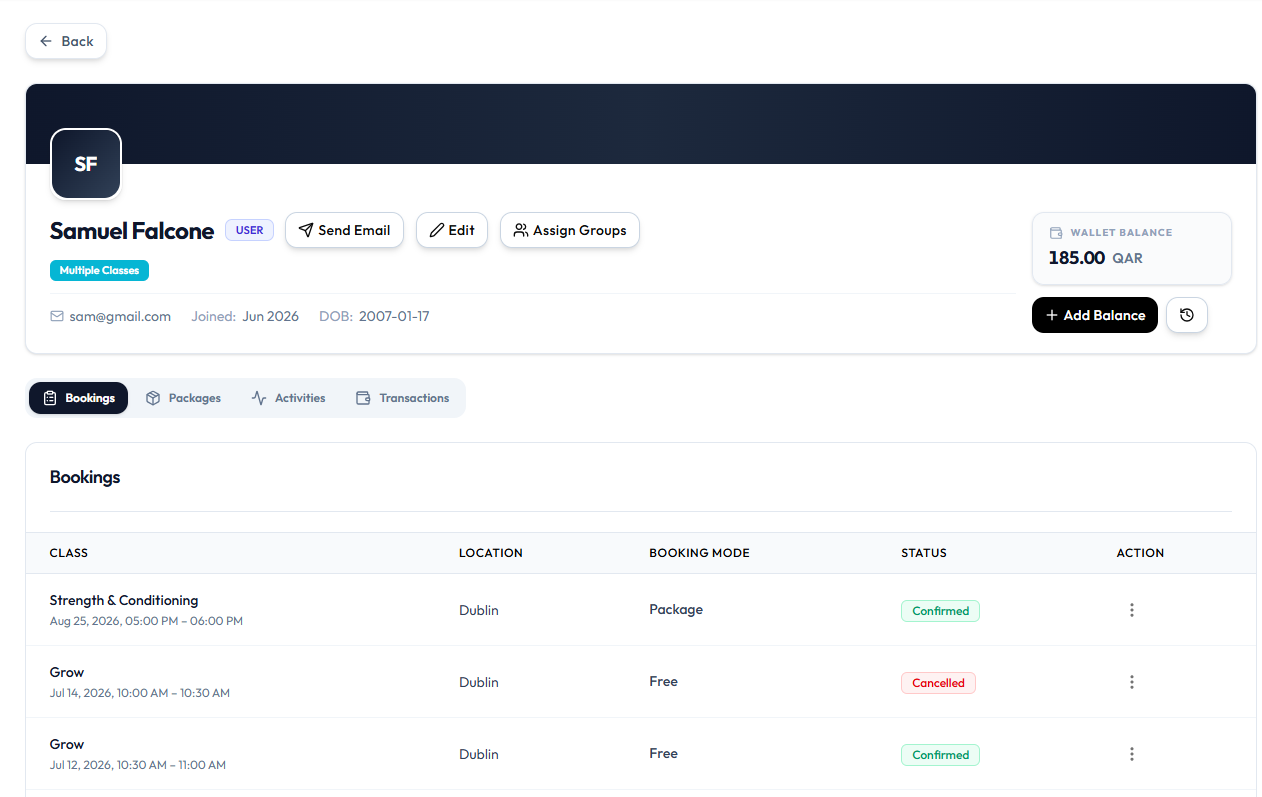
Step 3 — Open Manage Wallet Balance
The window title is Manage Wallet Balance. Subtitle: Select transaction type and enter amount.
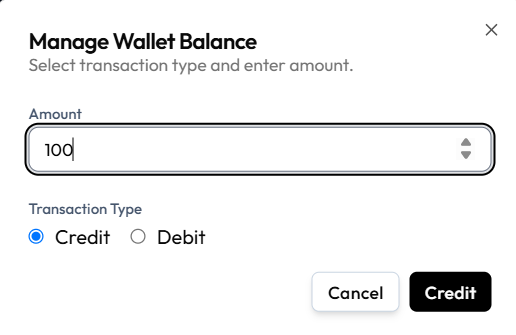
Step 4 — Enter Amount
Type the amount (for example 100).
Step 5 — Select Credit
Under Transaction Type, choose Credit.
Step 6 — Confirm
Click the primary Credit button, or Cancel to close without saving.
What Happens Next?
The wallet balance should increase. A related row may appear under Finance → Transactions when Source is Wallet — confirm with filters if needed. See The Sales Ledger.
If your role cannot credit the wallet, request the change.
Related Articles
Last updated on