Signing Out
Sign out when you finish work, especially on a shared computer.
Where to Find It
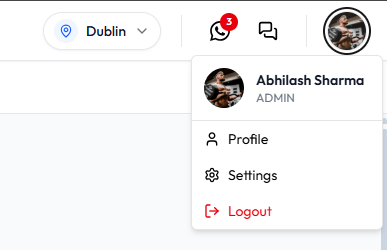
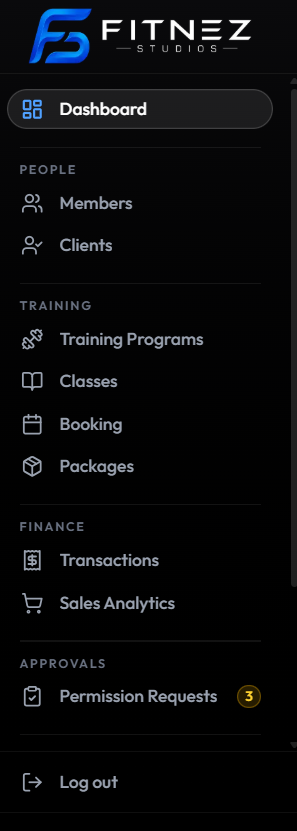
The dashboard uses Logout in the header menu and Log out in the other two places.
| Place | Label on screen |
|---|---|
| Header photo menu | Logout (red) |
| Bottom of the left sidebar | Log out |
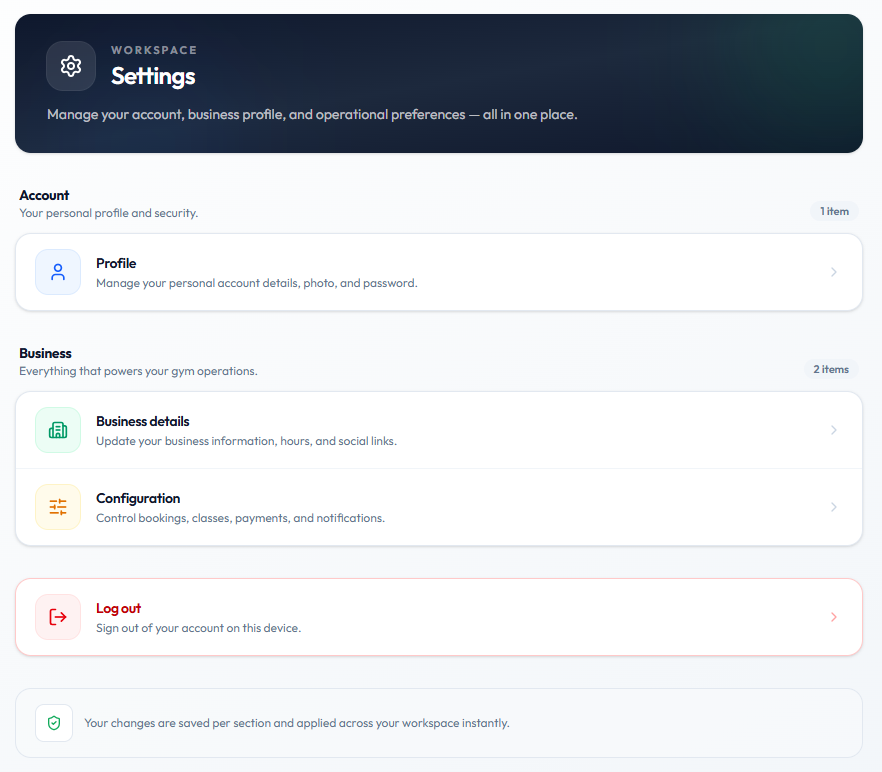
| WORKSPACE Settings | Log out — Sign out of your account on this device. |
Open Settings from the header menu to reach this page, which also includes Log out:
Workflow — Sign Out
Step 1 — Open a Sign-Out Control
Click your photo and choose Logout, click Log out at the bottom of the sidebar, or open Settings and choose Log out.
Step 2 — Confirm You Are on the Login Page
These screenshots do not show a confirmation dialog. After you sign out you see the login page again (Hey there! Ready to get back to business?).
If you open a dashboard URL while signed out, you are returned to that same login page.
Always sign out when using a shared computer.
Related Articles
Last updated on