Create a Layout
Create a layout when a program needs a floor plan of bookable spots — for example bikes for Cycling in Dublin.
Before You Start
- The training program should already exist.
- Know which room or arrangement this layout is for.
- Confirm you are in the correct location.
Turn on Layout Required First
On Add new program or Edit Program, set Layout Required to on. The program card then shows a Layout tag.
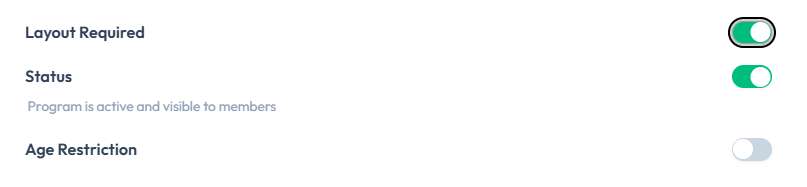
You can also set Spot Name and Spot Left Label under SPOT SETTINGS on that form. See Create a Training Program and Edit a Training Program.
Steps
Step 1 — Open the program
Open Training → Training Programs, then open the program with the pencil control.
Step 2 — Confirm Layout Required
Under SETTINGS, turn Layout Required on, then Update Program.
Step 3 — Create the floor plan
Use the create-layout action when it is visible for that program.
Step 4 — Enter layout details
Complete the fields Fitnez Studio shows. The topic plan includes layout name and the program it is for.
There is no screenshot of a separate create-layout form or floor-plan editor yet. This guide does not invent button labels or spot-placement controls beyond Layout Required and spot labels on the program form.
Step 5 — Save and continue to design
Save, then place spots on the floor plan when that screen is available.
After Saving
A new layout should be available to design, preview, and later attach to a class. Whether it is usable by members before you publish it is not confirmed.