Duplicate a Package
Duplicate a package when you need another offer like one you already have — for example a second location-based pack with a different name or price.
On the grid card, use the duplicate icon (overlapping squares) next to Edit Package.
Steps
Step 1 — Find the package
Open Training → Packages and select the card to copy — for example ONE TIME LOCATION BASED PACKAGE.
Step 2 — Open Duplicate Package
Click the duplicate icon. The dialog title is Duplicate Package.
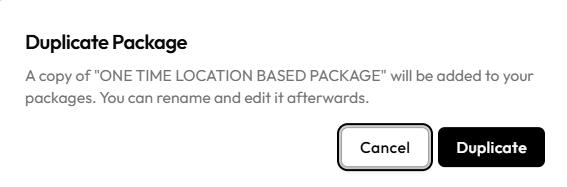
The message is: A copy of ‘ONE TIME LOCATION BASED PACKAGE’ will be added to your packages. You can rename and edit it afterwards.
Step 3 — Confirm or cancel
Click Duplicate to add the copy, or Cancel to close without copying.
Step 4 — Rename and edit the copy
Open the new card with Edit Package and change the name, price, or other details so staff can tell it from the original. See Edit a Package.
After Duplicating
A new package is added to the catalogue. Rename and edit it afterwards as the dialog says.