Forgot Password
If you cannot remember your password, start on the login page. Do not use a teammate’s login.
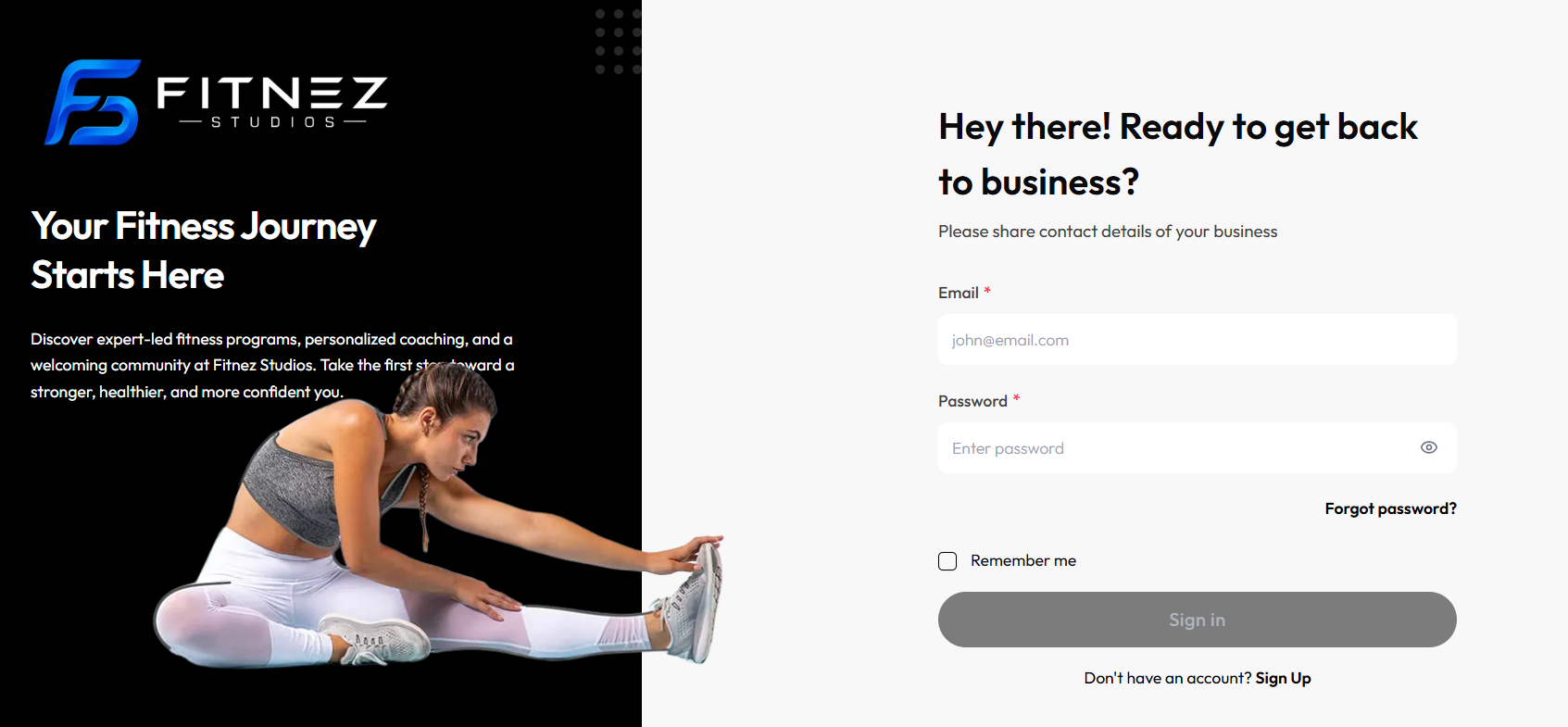
Workflow — Reset a Forgotten Password
Sign in → Forgot password? → Email → Submit → Reset Link Sent
Step 1 — Open the Login Page
See Signing In.
Step 2 — Click Forgot password?
Page heading: Forgot Password?
Helper: Enter your email, we’ll help you get back in.
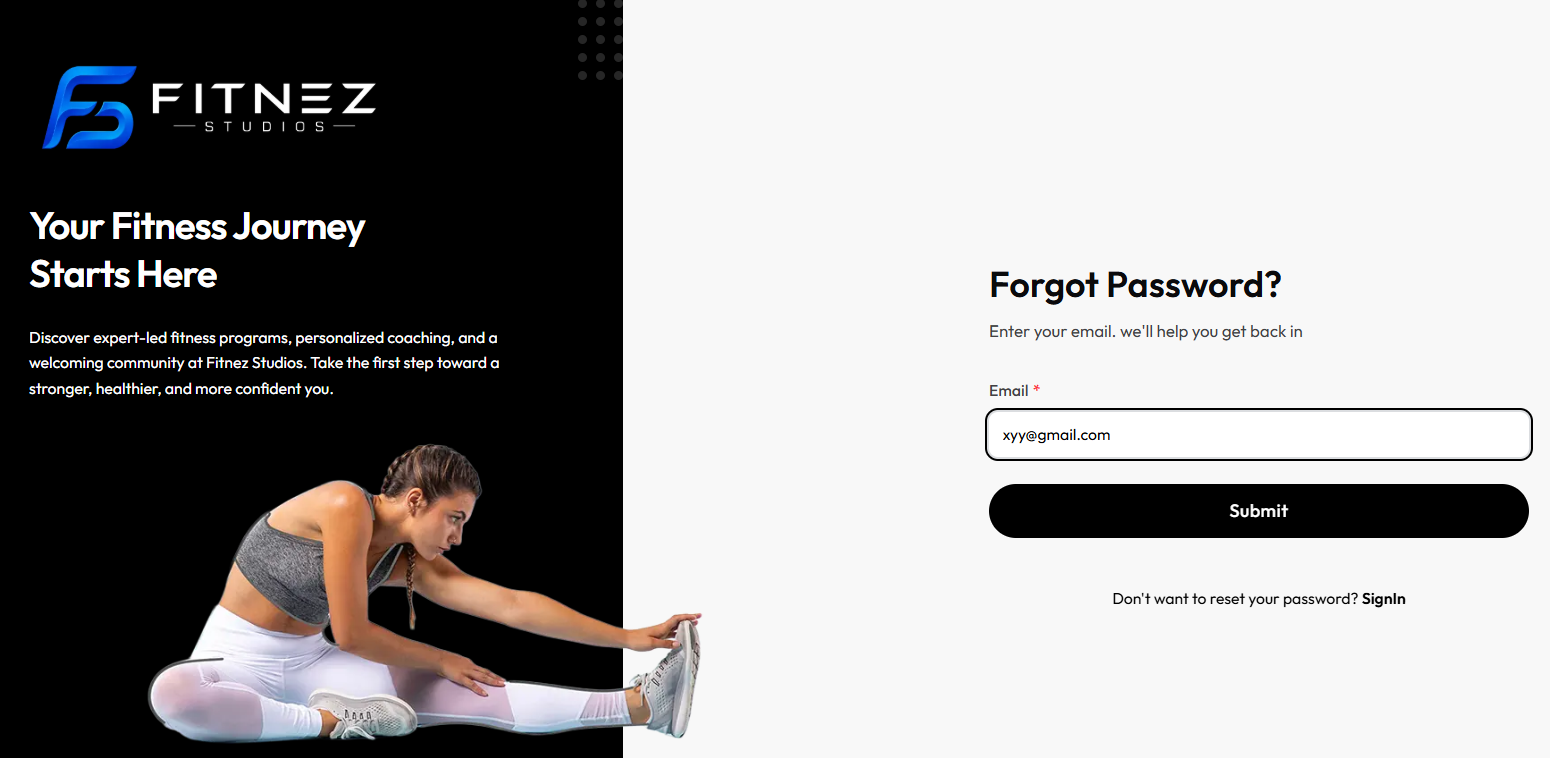
Step 3 — Enter Email * and click Submit
Enter the Email for your staff account — for example daniel.murphy@email.com.
To go back without resetting: Don’t want to reset your password? SignIn.
Step 4 — Read Reset Link Sent
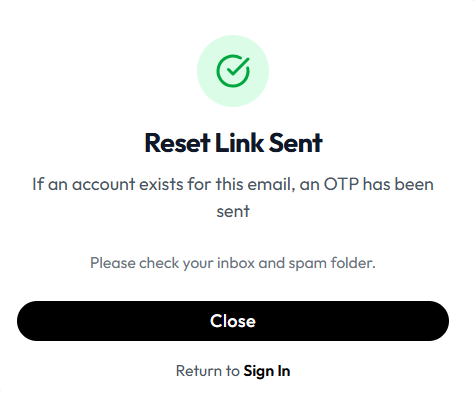
- Heading: Reset Link Sent
- If an account exists for this email, an OTP has been sent
- Please check your inbox and spam folder.
- Close
- Return to Sign In
The heading says Reset Link Sent. The body says an OTP has been sent if an account exists for that email. The product does not show a delivery time on this screen.
The screen where you enter the OTP or set a new password is not captured yet. This guide does not describe those fields.
Do not share the message or OTP with anyone else.
If You Still Cannot Get In
- Use the same Email as User profile / People → Members.
- Ask an administrator to confirm the account is Active. See Team Member Actions.
- After you can sign in, use Change password on User profile.
Related Articles
Last updated on