Block & Unblock a Client
Use this when a member should no longer be able to book, but you still need their record.
On the Clients page the action is labelled Deactivate, not Block. After deactivate, the row shows status Inactive. On Client Detail status is the Active toggle.
This is not the same as deactivating a team member. Team member Deactivate removes staff access to the dashboard. Member Deactivate is about the person who trains.
What Deactivate Means
The help topic plan describes blocking as: the member can no longer book, and you can unblock them later.
The UI that is confirmed today:
- The row menu includes Deactivate (in red) for an Active client
- After deactivate, the list shows Inactive
- Client Detail has an Active toggle
- New clients are created as Active
This guide does not describe extra effects such as cancelled bookings or frozen packages. Those results are not shown in the screenshots.
Why This is Usually Safer than Deleting
Deactivate keeps the client record. Delete is described in the topic plan as a permanent removal.
If you still need who the person was, how to contact them, or past activity, deactivate first. Delete only when the record should no longer exist.
There is no Delete action on the Clients row menu in the current screenshot.
Active versus Inactive
| What you see | What it is for |
|---|---|
| Active | Status pill on the list, and the toggle on Client Detail |
| Inactive | Status pill on the list after deactivate |
| Deactivate | Row-menu action for an active client |
| All Status | Filter with All Status, Active, and Inactive. See Search & Filter Clients |
How to Deactivate
Step 1 — Find the client
Open People → Clients. Search for the person, such as Olivia Bennett.
Step 2 — Open the row menu
Click the ACTION menu (⋯) on that row.
Step 3 — Click Deactivate
Choose Deactivate.
There is no confirmation dialog.
You can also open View Profile and use the Active toggle.
After Deactivating
The client stays on the list. The STATUS column shows Inactive (red pill) instead of Active.
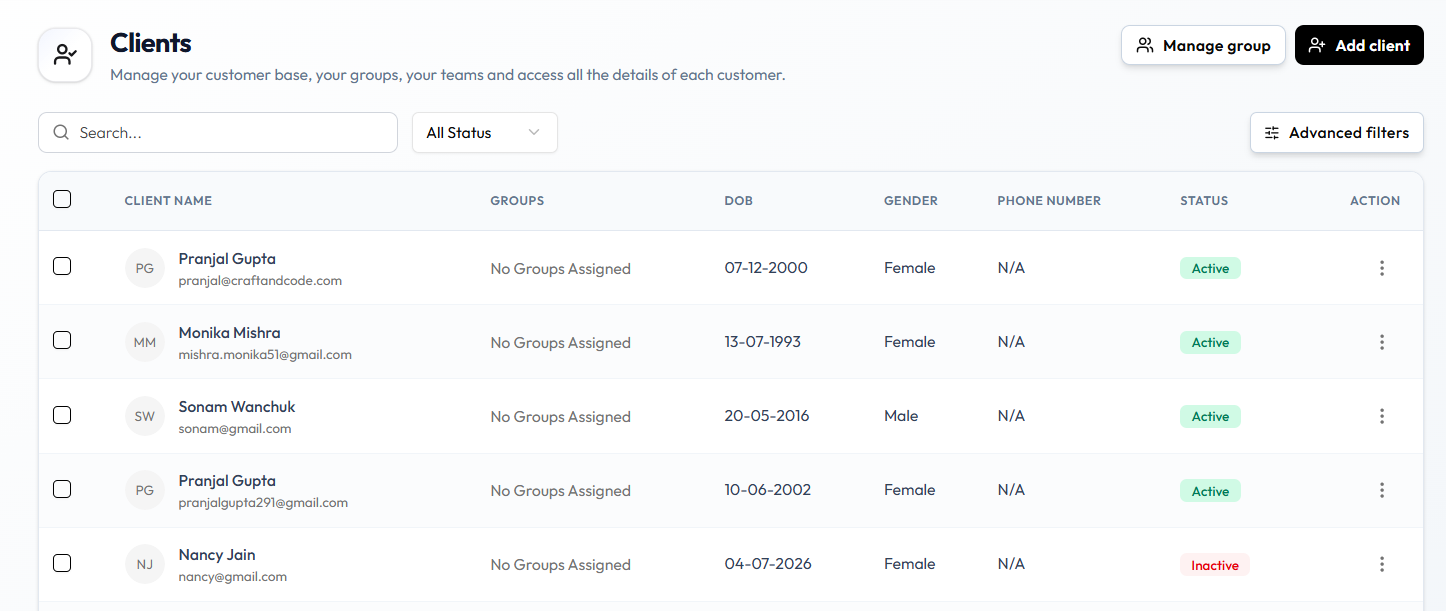
Whether the member can still book, and what happens to packages, wallet, or groups, is not shown in this screenshot.
How to Make a Client Active Again
Step 1 — Find the client
Open People → Clients. Use All Status → Inactive if you need to focus on people who are not active.
Step 2 — Open Client Detail
Open View Profile.
Step 3 — Turn Active on
Use the Active toggle on Client Detail.
The row menu in the current screenshot only shows Deactivate for an active client. An activate action on that menu will be documented when it is visible.