Updating Your Profile
On User profile, change Profile information, then click Save changes.
Open the page from the header photo → Profile, or from Settings → Account → Profile.
What You Can Change
On this screenshot the yellow badge reads Unsaved changes. The footer reads You have unsaved changes. with Discard and Save changes.
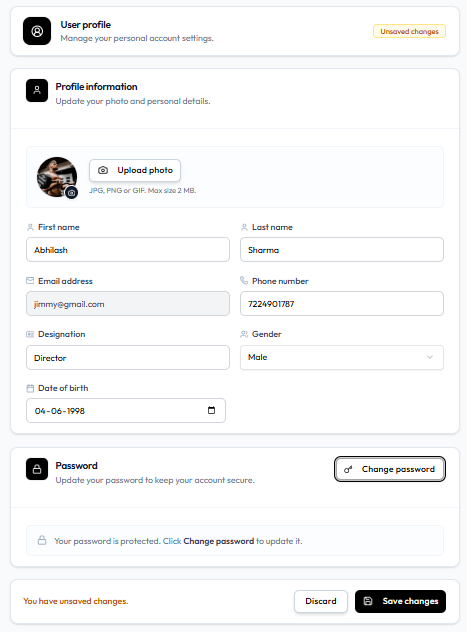
| Field | Example | Editable here |
|---|---|---|
| First name | Daniel | Yes |
| Last name | Murphy | Yes |
| Email address | daniel.murphy@email.com | No — grey background |
| Phone number | +353 87 555 0123 | Yes |
| Designation | Front Desk | Yes |
| Gender | Male | Yes (dropdown) |
| Date of birth | Date picker | Yes |
| Photo | Upload photo | Yes — see Updating Your Profile Photo |
Role is not on this form.
The Password card on the same page is separate: Change password. See Changing Your Password.
Workflow — Update Your Details
Header photo → Profile → Edit fields → Save changes
Step 1 — Open Profile
Step 2 — Change the Fields That Are Not Grey
When a change is pending, the header shows Unsaved changes and the footer shows You have unsaved changes.
Step 3 — Click Save changes
Discard throws away the pending edits.
After a successful save, the bar shows Profile saved successfully. Discard and Save changes on that bar are inactive.

What the form shows if a value is invalid is not captured yet.
Do not use another person’s login to edit their record. Use Team Members if you manage staff.