Editing a Template
Edit when the wording should change but the event stays the same — for example a clearer Package Purchased email.
The modal title is Edit Template. The subtitle is the same as create: use {{variables}} that get filled in automatically when the email is sent.
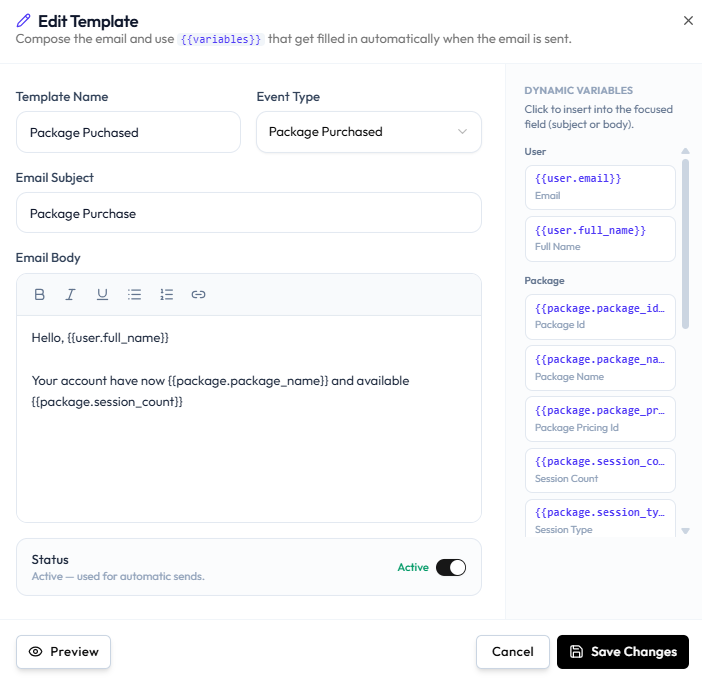
Update the booking confirmation or package wording without creating a second template.
Workflow — Update a template
All Templates → Edit (pencil) → Subject / body → Preview → Save Changes
Step 1 — Find the template
Open Studio → Notification → Email Notification. Click the pencil on the row.
Step 2 — Change the fields
You can update:
- Template Name
- Event Type
- Email Subject
- Email Body (Bold, Italic, Underline, lists, hyperlink)
- Status (Active — used for automatic sends.)
Click DYNAMIC VARIABLES to insert tokens into the focused field.
Step 3 — Preview
Click Preview. See Previewing an Email.
Step 4 — Save
Click Save Changes. Cancel or X discards the edit.
Do not assume emails already in a member’s inbox will change. New sends use the saved wording.