Viewing Transactions & Their Status
Status on Finance → Transactions tells you whether a payment attempt finished successfully.
Where to Check Status
- Open Finance → Transactions.
- Open the Status filter.
- Read the STATUS column on each row (for example green Success).
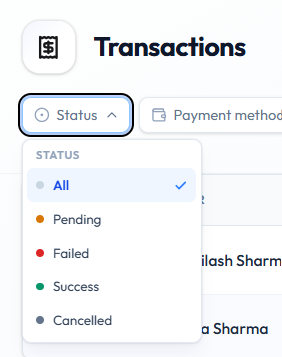
Statuses on Screen
| Status | Dot colour on the filter | What it means |
|---|---|---|
| All | Grey | No status filter |
| Pending | Orange | Payment is not finished yet |
| Failed | Red | Payment did not go through |
| Success | Green | Payment completed |
| Cancelled | Dark grey | Attempt was cancelled |
Rows on the capture show Success as a green pill.
Do not treat Pending or Failed as money received. See Refunds & Failed Payments.
Related Filters
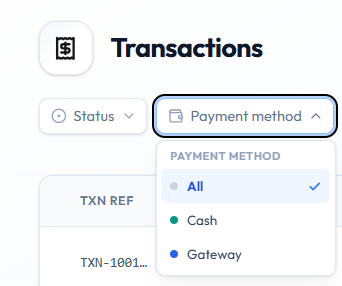
Payment attempts also show:
| Column / filter | Examples |
|---|---|
| METHOD / Payment method | Cash, Gateway |
| GATEWAY | Stripe, Wallet, or — |
| Source | Package, Wallet |
Workflow — Check Payment Status
Step 1 — Open Transactions
Finance → Transactions.
Step 2 — Filter if needed
Status → Pending (or Failed / Success / Cancelled).
Step 3 — Open the row menu
Use ⋯ for Copy txn ref, Download invoice, or Send invoice when you need a reference or document.
Related Articles
Last updated on