Create a Discount
Create a discount when a pricing plan should be reduced — for example Get 15% off.
Steps
Step 1 — Open Add Discount
Open Training → Packages → Edit Package → Pricing. Next to Discount, click + Add Discount.
Step 2 — Fill Create New Discount
The window title is Create New Discount. Subtitle: Fill in the details to create a new discount.
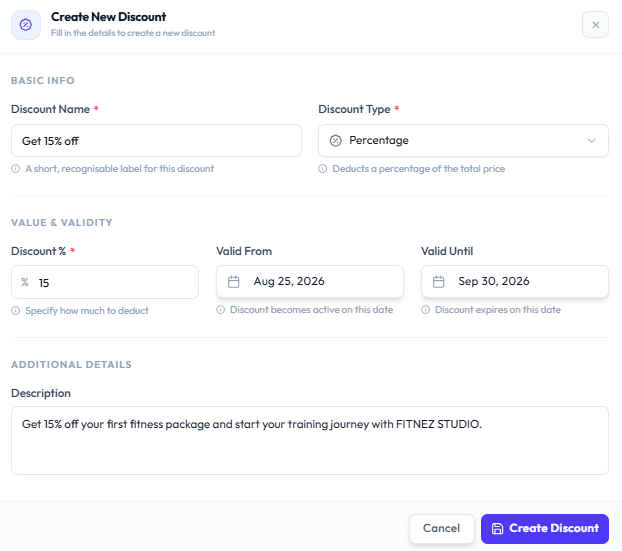
| Section | Fields |
|---|---|
| BASIC INFO | Discount Name * (for example Get 15% off). Help: A short, recognisable label for this discount. Discount Type * (for example Percentage — Deducts a percentage of the total price) |
| VALUE & VALIDITY | Discount % * (for example 15). Valid From, Valid Until |
| ADDITIONAL DETAILS | Description |
Step 3 — Create Discount
Click Create Discount, or Cancel to close without saving.
After Saving
The new discount can be selected on the pricing plan Discount field (for example Get 15% Off — 15%). See Apply a Discount.
Related Articles
Last updated on