Add Badge Artwork
Badge artwork should stay recognisable at small size — for example Consistency Champion attached to a challenge reward.
Workflow
Badges → Create Badge (or Edit Badge) → Icon → Upload → Create Badge / Save Changes
Step 1 — Open Badges
Studio → Manage Events → Badges.
Step 2 — Create or edit
Click + Create Badge, or open an existing badge such as Fitness Streak.
Step 3 — Upload the icon
Icon is required (asterisk).
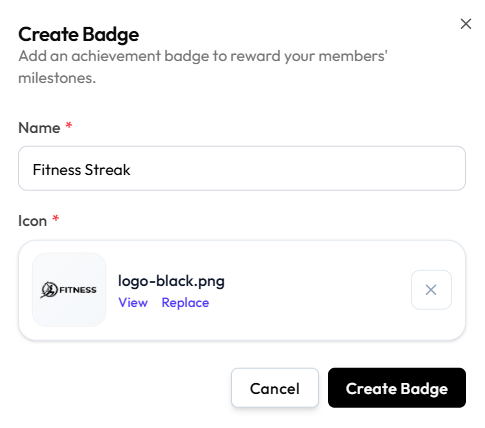
After upload you see the file name (for example logo-black.png), View, Replace, and X to clear.
On edit:
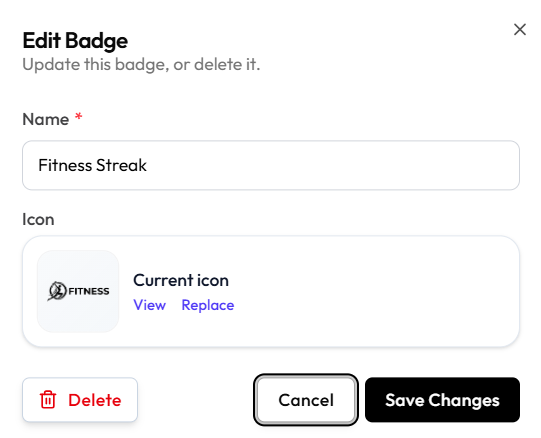
Step 4 — Save
Create Badge or Save Changes. Cancel / X closes without saving.
Design Tips
- Prefer simple shapes and high contrast — badges display small.
- Avoid fine text inside the icon.
- See Image Size & Quality Tips.
File format and size limits are not shown on the badge form. PNG is shown in the example filename only.
Related Articles
Last updated on