Add a Pricing Option
Add a pricing plan when the package needs a price, or another price — for example a second session count or person count on the same offer.
Steps
Step 1 — Open Pricing
Open Training → Packages, click Edit Package, then open Pricing in the sections list.
Step 2 — Fill Add New Pricing Plan
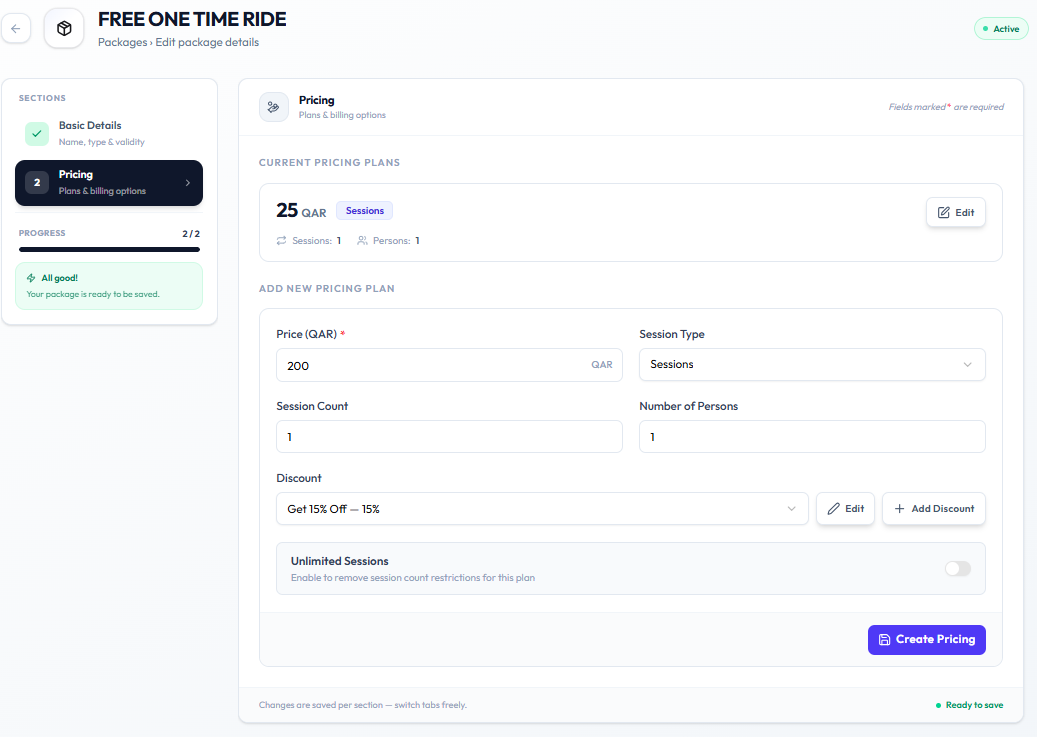
| Field | Notes |
|---|---|
| Price (QAR) * | Required |
| Session Type | For example Sessions |
| Session Count | For example 1 |
| Number of Persons | For example 1 |
| Discount | Optional. Pick a discount or + Add Discount |
| Unlimited Sessions | Optional. Enable to remove session count restrictions for this plan. |
Step 3 — Create Pricing
Click Create Pricing. The plan appears under Current Pricing Plans.
After Saving
The package card on the catalogue should show the updated price and session count.
Related Articles
Last updated on