Add a Training Program Image
Program artwork appears on the Training Programs cards — for example Cycling — so staff can spot each type quickly.
From the Programs List
On a program card, use Change image when it appears over the cover.
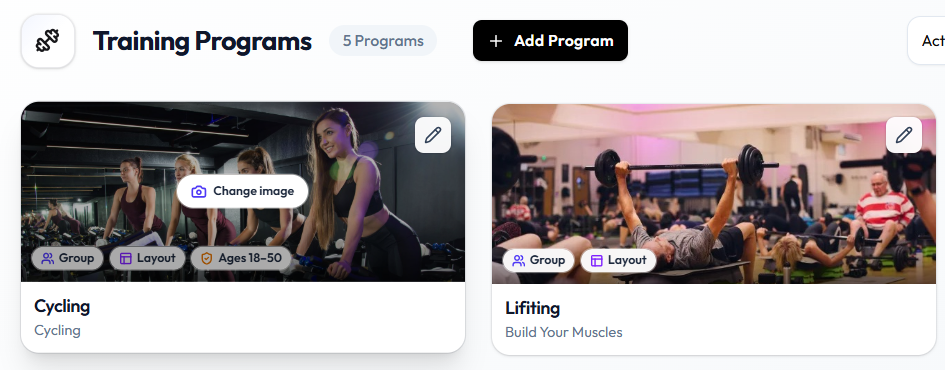
From Update Program Image
Training Programs → Change image (or open program) → Update Program Image → Upload → Reposition → Add image
Step 1 — Open Training Programs
Training → Training Programs. Confirm the location if your studio uses more than one site, such as Dublin.
Step 2 — Open the image flow
Either:
- Click Change image on the program card, or
- Open the program with the pencil control, then open the image control if it appears on that form
Step 3 — Open Update Program Image
The modal title is Update Program Image. The instruction is: Upload an image, then zoom and reposition it inside the frame.
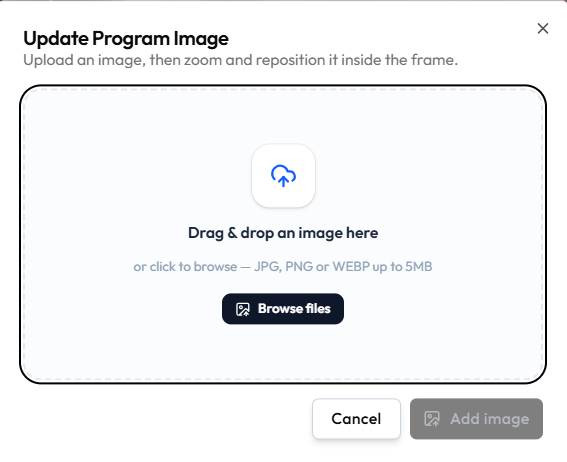
Step 4 — Choose a file
Either:
- Drag & drop an image here, or
- Click Browse files
Supported on this modal: JPG, PNG or WEBP up to 5MB.
Step 5 — Reposition and save
After upload, zoom and reposition inside the frame if controls appear (same pattern as event banners).
Click Add image, or Cancel to close without saving.
Where the Image Appears
The cover shows on each card on View Training Programs. Member-facing use of the same image is not confirmed in this Help Center.