Filtering Activity
Recent Activity has no staff filter, member filter, or activity-type filter on the captured Dashboard.
The only date control is the Overview date picker (arrows, calendar, Today). See Filter Activity by Date Range.
To find bookings for one member or day, use All Bookings: Status, Pick a date range, and Search….
Do not look for an Activity Feed filter bar. It is not on this product screen.
Related Articles
Filter Activity by Date Range
The date picker is on Dashboard → Overview, not a separate Activity Feed filter.
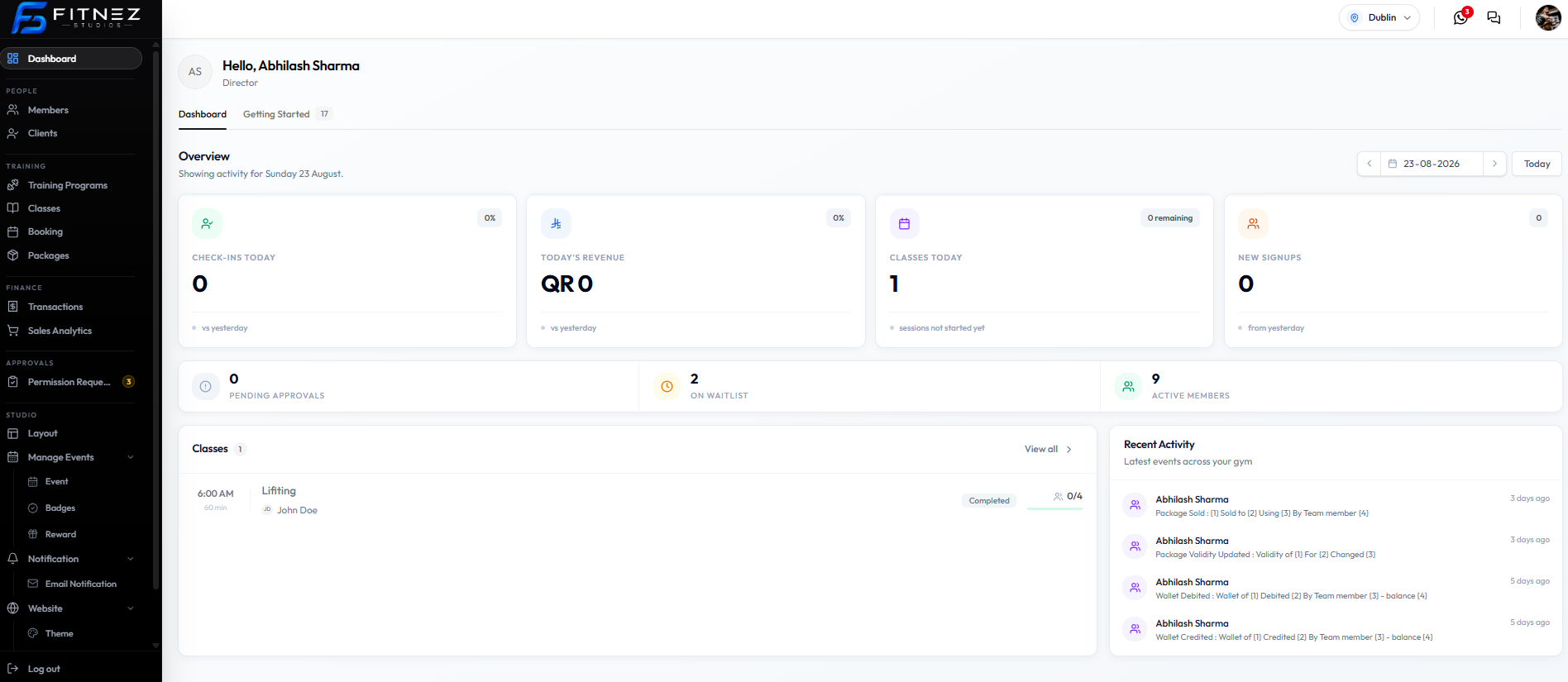
| Control | What it does on this screenshot |
|---|---|
| Date field (for example 23-08-2026) | Selects the Overview day |
| Arrows | Move one day |
| Today | Return to today |
| Heading | Can read Showing activity for Sunday 23 August |
That selection updates Overview cards and the Classes list (for example Lifting on that day).
On the 24-08-2026 and 23-08-2026 captures, Recent Activity still shows the same four rows with 3 days ago and 5 days ago. So this date control is for the Dashboard day, not a confirmed filter that rebuilds the Recent Activity list.
Step 1 — Open Dashboard
Step 2 — Change the Overview Date
Pick a day or click Today.
Step 3 — Read Overview and Classes
Check Classes Today, Today’s Classes / Classes, and Recent Activity separately.
All Bookings has its own Pick a date range. That is a bookings filter, not Recent Activity.
Filter Activity by Staff Member
There is no staff filter on Recent Activity.
Each row already shows a staff name (for example Daniel Murphy). Scroll the list and read that name. The description can also say By Team member (4) when the name has not filled in.
To review one person’s work in other modules, use Team Members and the live records (bookings, packages, wallet, Approval Requests Requested by).
Do not look for a staff dropdown on the Dashboard activity list. It is not there.
Activity for One Member
Recent Activity has no member filter.
On the captured rows the member is meant to appear in the description (Sold to (2), Wallet of (1)). Those values still show as numbers on the screenshot, so you may need to open Clients and check the live Profile, Packages, and Wallet.
Step 1 — Open the Client
People → Clients → View Profile.
Step 2 — Check Current Records
Bookings: All Bookings (Search…).
Packages and wallet: as shown on the client record.
Step 3 — Scan Recent Activity
On Dashboard, look for Package Sold, Package Validity Updated, Wallet Debited, or Wallet Credited that could match that person.
Client Detail does not include an Activity tab on the current profile screenshot.