Clients
The Clients page is the member database: people who train at your studio. You use it to find a member, open their profile, and keep contact details, status, and groups up to date.
This is different from Team Members. A team member is staff who signs in to the dashboard. A member is a person who trains, buys packages, and books classes.
The help topic plan uses member for the person who trains. On the dashboard that list is labelled People → Clients. People → Members is staff. This guide keeps the on-screen labels, and uses member when talking about the person.
What Is a Member?
A member is one person who trains at the studio. Their record lives on Clients.
For example, you might have:
- Olivia Bennett in a beginners group
- James Wilson as a personal-training member
- Emma Carter on a corporate account
Each member appears on the Clients page with their name, email, groups, date of birth, gender, phone number, and status.
Where to Find Clients
Open People → Clients in the left-hand menu.
The page title is Clients. The description is: Manage your customer base, your groups, your teams and access all the details of each customer.
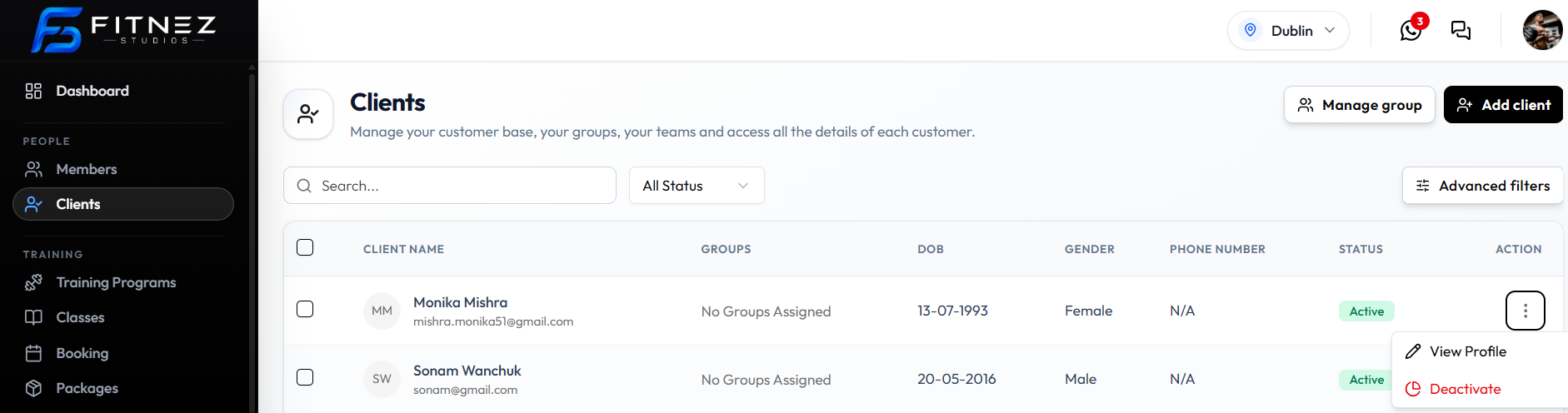
What You See
| Item | What it is |
|---|---|
| Manage group | Opens Client Groups |
| + Add client | Opens the form to Add a Client |
| Search… | Finds people in the list. See Search & Filter Clients |
| All Status | All Status, Active, or Inactive |
| Advanced filters | Extra filters. See Search & Filter Clients |
| CLIENT NAME | Name, with email underneath |
| GROUPS | Groups assigned to that person, or No Groups Assigned |
| DOB | Date of birth |
| GENDER | Gender |
| PHONE NUMBER | Phone number, or N/A if none is saved |
| STATUS | Shown as a pill: Active or Inactive |
| ACTION | Row menu (⋯) |
What You Can Do
From Clients you can:
- Add a Client
- Search and Filter the list
- Open View Profile for Client Detail or the full client page (wallet, bookings, packages, transactions)
- Choose Deactivate from the row menu
- Open Manage group to work with Client Groups
How It Works
- Open People → Clients.
- Use Search…, All Status, or Advanced filters to find the person.
- Read the row, or open the ACTION menu.
The row menu shows:
- View Profile — opens Client Detail
- Deactivate — shown in red. See Block & Unblock a Client
Client Status
The list shows Active (green) or Inactive (red). The filter above the table is labelled All Status, with options All Status, Active, and Inactive. See Search & Filter Clients.
| Status | What is confirmed |
|---|---|
| Active | The status pill on the client row, and the toggle on Client Detail |
| Inactive | The status pill after Deactivate |
| Deactivate | The row-menu action for an active client |
There is no Delete action on the row menu in the current screenshot. If you only need to stop a client, use Deactivate rather than Deleting.
Related Features
- Client Groups — Manage group on this page, and the GROUPS column
- Packages (catalogue) and Packages a Member Holds — on the full client page Packages tab, not as list columns
- Bookings — Bookings tab on the full client page
- Wallet — WALLET BALANCE and + Add Balance on the full client page
- Sales & Payments — studio-wide Finance → Transactions
- Locations — you work in one studio or branch at a time from the header
Frequently Asked Questions
Is Clients the same as Members?
No. People → Clients is the member database (people who train). People → Members is the staff list. See Team Members.
Where do I add a person who trains at the studio?
People → Clients, then + Add client. Adding staff is People → Members.