Create a Package
Add a package when members should be able to buy a membership, class pack, or single-session offer — for example Strength & Conditioning, Peak Fit, or FREE ONE TIME RIDE.
Before You Start
- Confirm you are in the correct Location.
- Know the Package Category (normal, time, location, training program, or events).
- Know whether members buy it once or can buy it again. See One-Time vs Recurring.
Steps
Step 1 — Open Packages
Open Training → Packages. The page title is Packages. The description is: Manage your membership packages and pricing plans.
Step 2 — Click New Package
Click + New Package. The window title is Create Package.
Step 3 — Package Type (Step 1 of 3)
Subtitle: Step 1 of 3 — Package Type. The stepper is:
| Step | Label | Helper |
|---|---|---|
| 1 | Package Type | Choose category |
| 2 | Purchase Type | Buying rules |
| 3 | Details | Name & validity |
The heading is SELECT A PACKAGE CATEGORY.
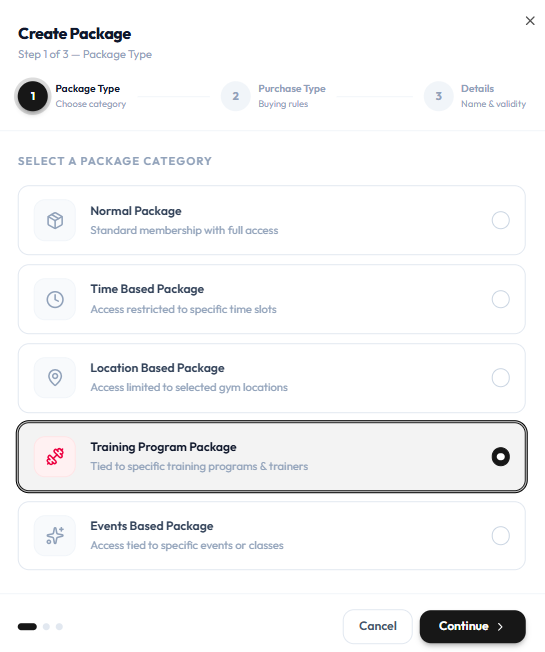
| Category | Helper text on this screen |
|---|---|
| Normal Package | Standard membership with full access |
| Time Based Package | Access restricted to specific time slots |
| Location Based Package | Access limited to selected studio locations |
| Training Program Package | Tied to specific training programs & trainers |
| Events Based Package | Access tied to specific events or classes |
Select one category, then Continue >, or Cancel to close.
Step 4 — Purchase Type (Step 2 of 3)
Subtitle: Step 2 of 3 — Purchase Type. The heading is HOW CAN USERS BUY THIS PACKAGE?
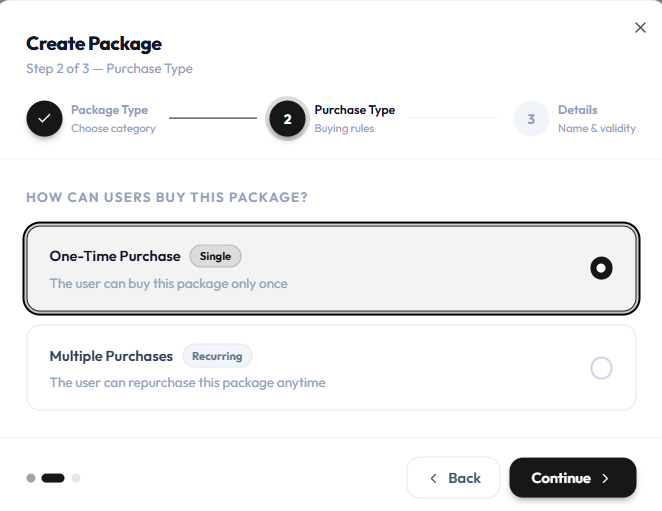
| Option | Badge | Helper text |
|---|---|---|
| One-Time Purchase | Single | The user can buy this package only once |
| Multiple Purchases | Recurring | The user can repurchase this package anytime |
On the catalogue, these show as ONE TIME or RECURRING.
Use Back to return to Package Type, or Continue > to go to Details.
Step 5 — Details (Step 3 of 3)
Subtitle: Step 3 of 3 — Details.
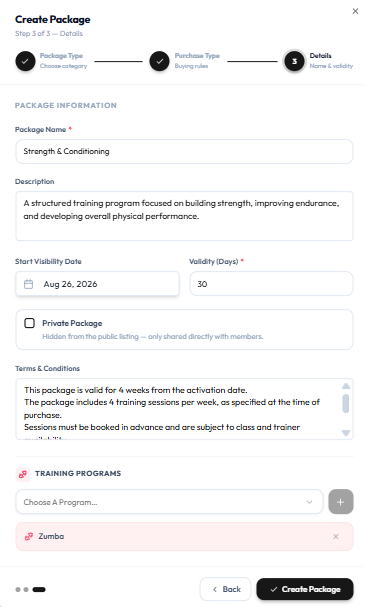
Under PACKAGE INFORMATION:
| Field | Notes |
|---|---|
| Package Name * | Required. Example: Strength & Conditioning |
| Description | Longer text about the offer |
| Start Visibility Date | Date the offer becomes visible (for example Aug 26, 2026) |
| Validity (Days) * | Required. Example: 30 |
| Private Package | Checkbox: Hidden from the public listing — only shared directly with members. |
Also complete:
- Terms & Conditions
- TRAINING PROGRAMS — use Choose A Program… and + to add programs (for example Zumba). Remove a selected program with x when needed.
This section appears on the Training Program Package path in the capture. Complete whatever program or restriction fields your selected category shows.
Use Back, or Create Package to save.
After Creating
The package appears on View All Packages.
To set prices, sessions, and discounts, open Edit Package. Edit has two sections: Basic Details and Pricing. See Edit a Package and Pricing.
Create Package ends at Create Package. Pricing plans (for example 25 QAR Sessions) are added on the edit Pricing section, not in these three create steps.